As a stakeholder, you may need to provide bank account details so that the company — or third parties such as buyers of your securities — can send you payments. This includes proceeds like dividend distributions, exercise payments, or transfer proceeds. You can add your bank account information directly from the Stakeholder Dashboard and receive proceeds in either a US or non-US bank account.

Getting started

  1. Navigate to the Identity & Access tab in your Stakeholder Dashboard.
  2. Scroll to Banking Details and click Add bank details.
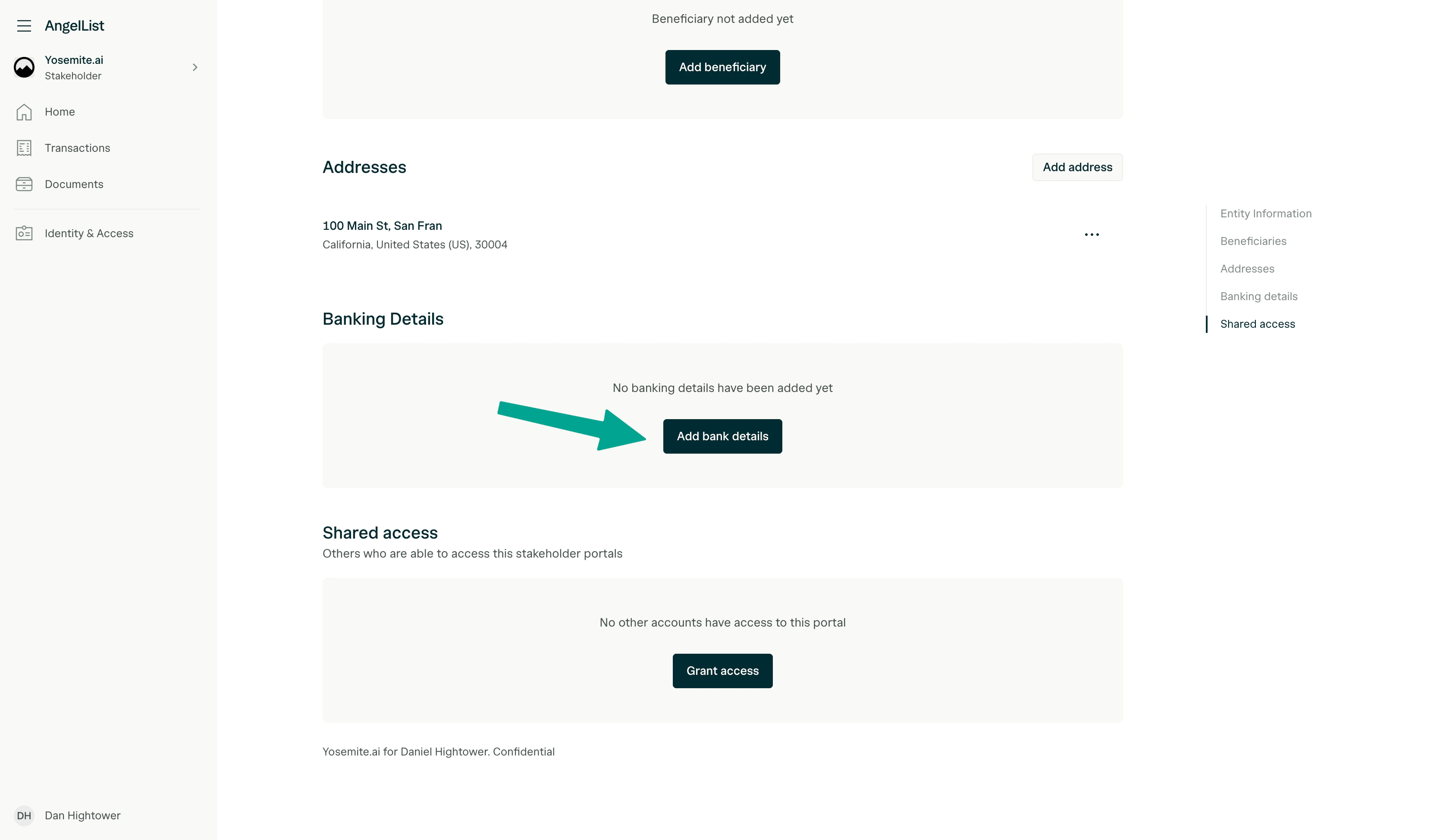
Banking Details section showing the Add bank details button.
  1. Select your Bank country from the dropdown.
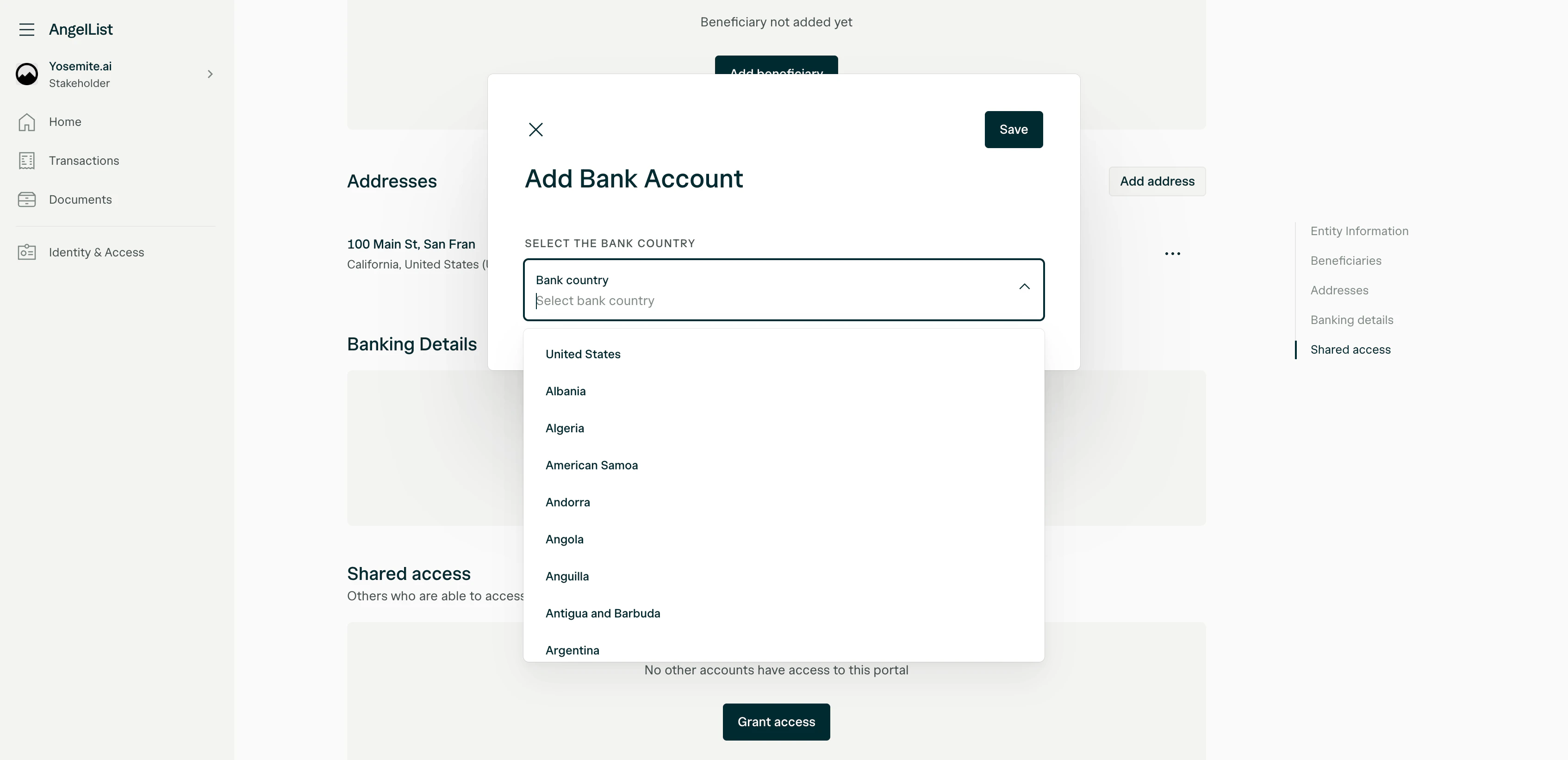
Add Bank Account dialog with bank country selector.

Receiving proceeds in a US bank account

If you wish to receive proceeds in a US-based bank account, you’ll choose a transfer method and provide your beneficiary and account details. 1. Select a transfer method After selecting United States as the bank country, choose your preferred transfer method:
  • ACH Transfer — Standard electronic transfer between US bank accounts. Typically takes 1–3 business days.
  • Wire Transfer — Faster transfer option, usually processed same-day or next business day.
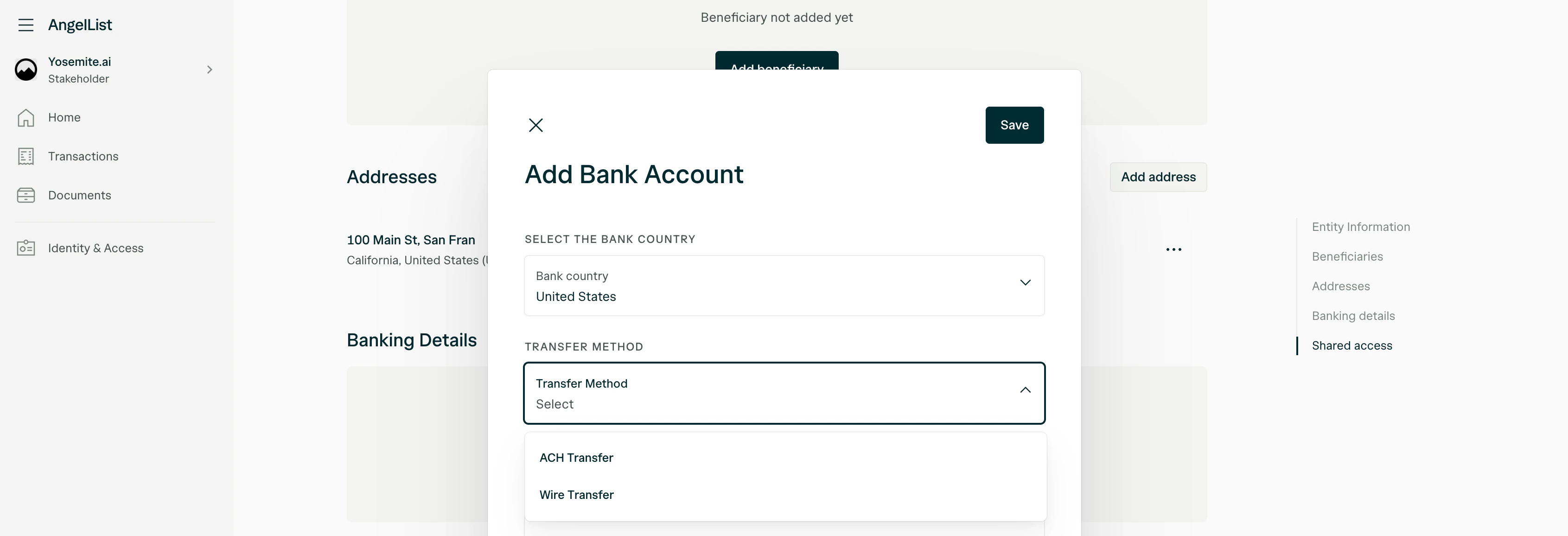
Transfer method selection showing ACH Transfer and Wire Transfer options.
2. Enter beneficiary information Provide the details of the person or entity receiving the funds:
  • Beneficiary name — The name on the bank account.
  • Beneficiary address — The full mailing address associated with the account holder, including country, street address, city, state, and ZIP code.
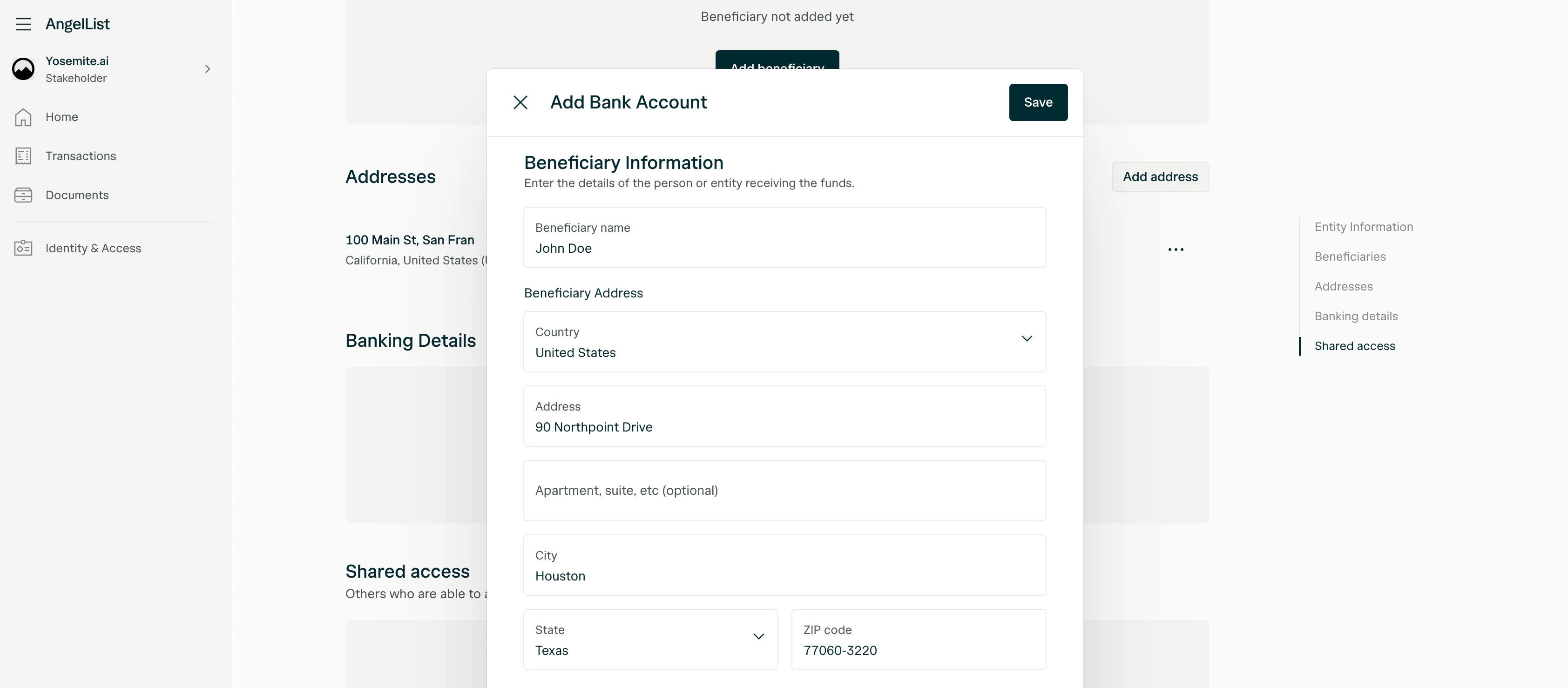
Beneficiary information form with name and address fields.
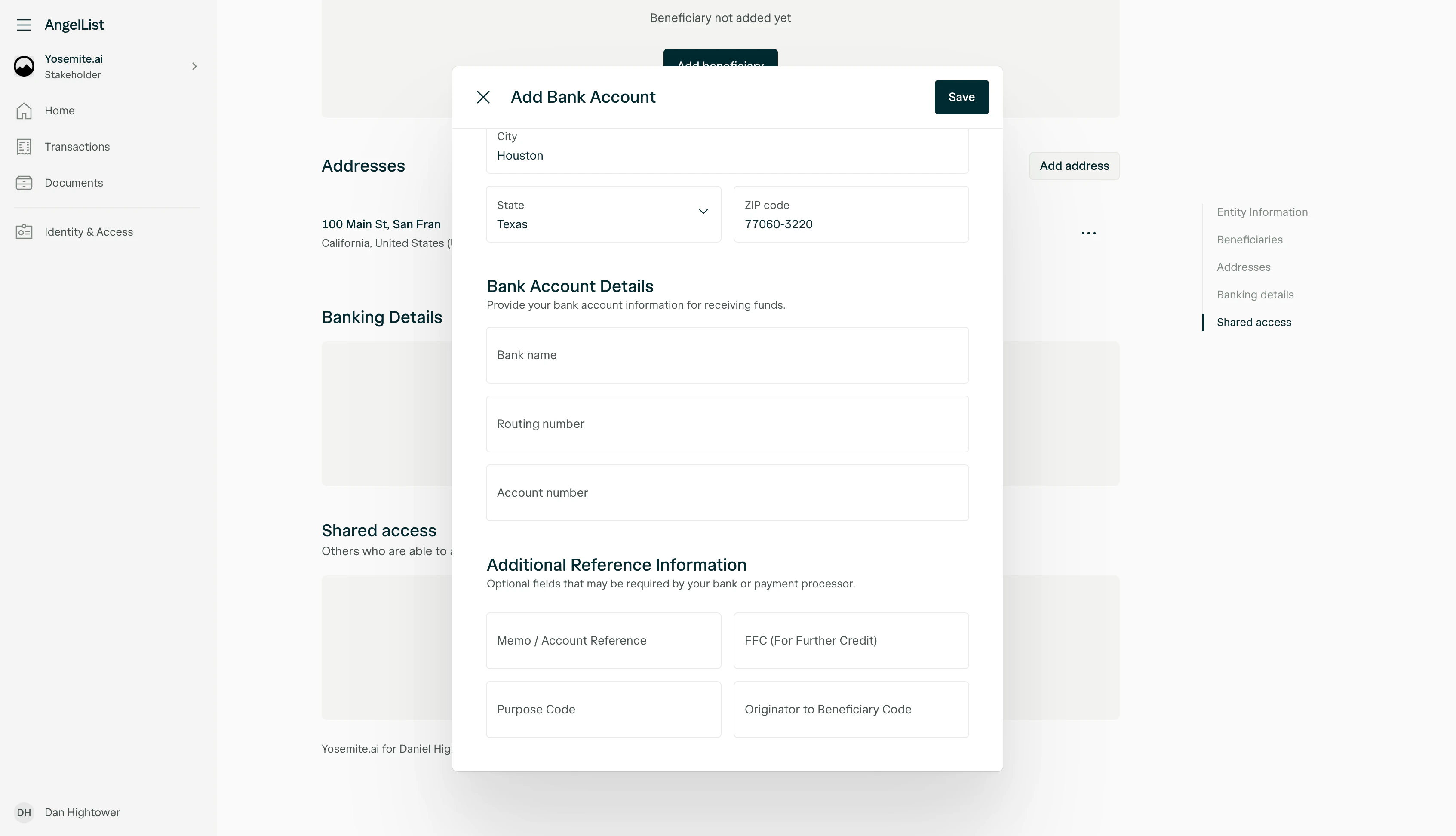
3. Enter bank account details Provide your bank account information for receiving funds:
  • Bank name
  • Routing number
  • Account number
Bank account details form with routing number, account number, and additional reference fields.
4. Additional Reference Information Depending on your bank or payment processor, you may need to provide additional reference details to ensure funds are routed correctly to your account. These fields are optional but can be critical in certain situations — for example, if you are receiving proceeds into a brokerage account (such as Fidelity, Charles Schwab, or E*TRADE), the brokerage typically receives incoming wires through a custodial bank on behalf of its clients. The FFC (For Further Credit) field must include your individual brokerage account number so the custodian can route the funds to your account. Without it, the transfer may be rejected or held.
  • Memo / Account Reference — A reference number or note required by your bank to identify and allocate incoming funds to your account.
  • FFC (For Further Credit) — Specifies the final recipient when funds are received through a custodial or intermediary bank. For brokerage accounts, this is typically your individual account number.
  • Purpose Code — A code that identifies the reason for the payment, sometimes required for regulatory compliance.
  • Originator to Beneficiary Code — Additional information passed from the sender to the recipient’s bank.
Check with your bank to confirm what information is required to receive USD payments. Missing or incorrect details in these fields may result in failed or lost transfers.
5. Review all details carefully to ensure they are correct, then click Save to add the bank account.
Double-check your routing number, account number, and beneficiary information before saving. Incorrect bank details may result in delayed or lost funds.

Receiving proceeds in a non-US bank account

If you wish to receive proceeds in a bank account outside the United States, payments are sent via SWIFT wire transfer. This requires your SWIFT/BIC code and may require a correspondent (intermediary) bank to process USD payments. 1. Select your country and transfer method After selecting your bank’s country, SWIFT Wire Transfer will be automatically selected as the transfer method.
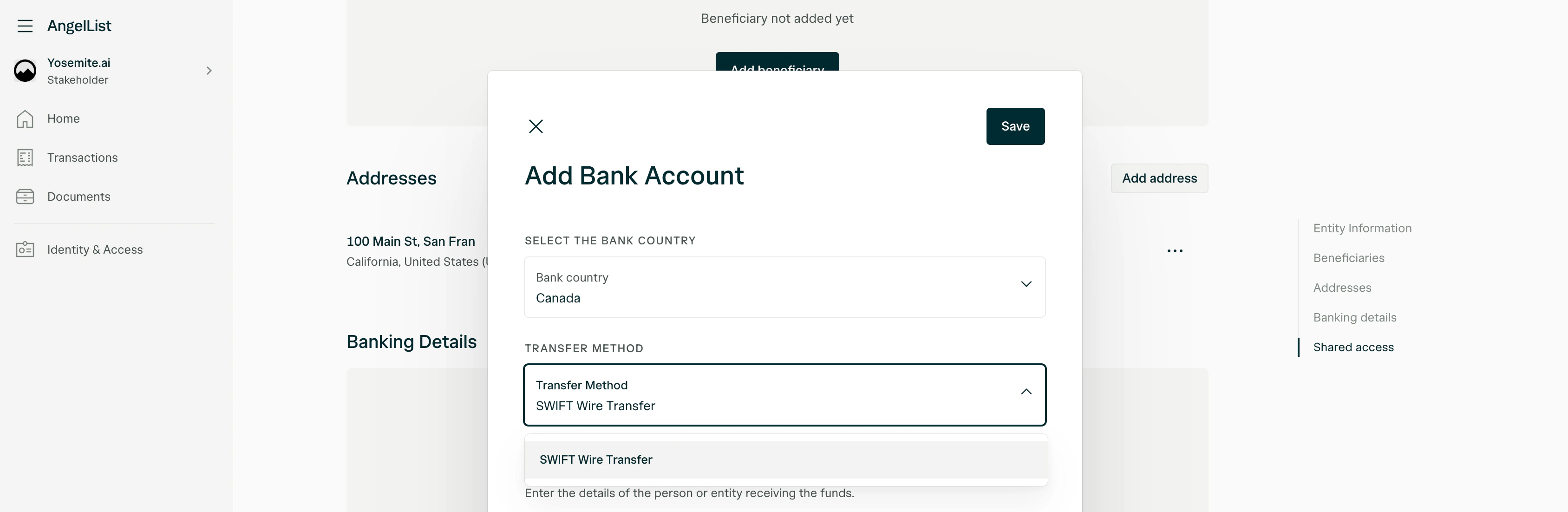
Non-US bank account setup showing SWIFT Wire Transfer as the transfer method.
2. Enter beneficiary information Provide the details of the person or entity receiving the funds:
  • Beneficiary name — The name on the bank account.
  • Beneficiary address — The full mailing address associated with the account holder, including country, street address, city, province/state, and postal code.
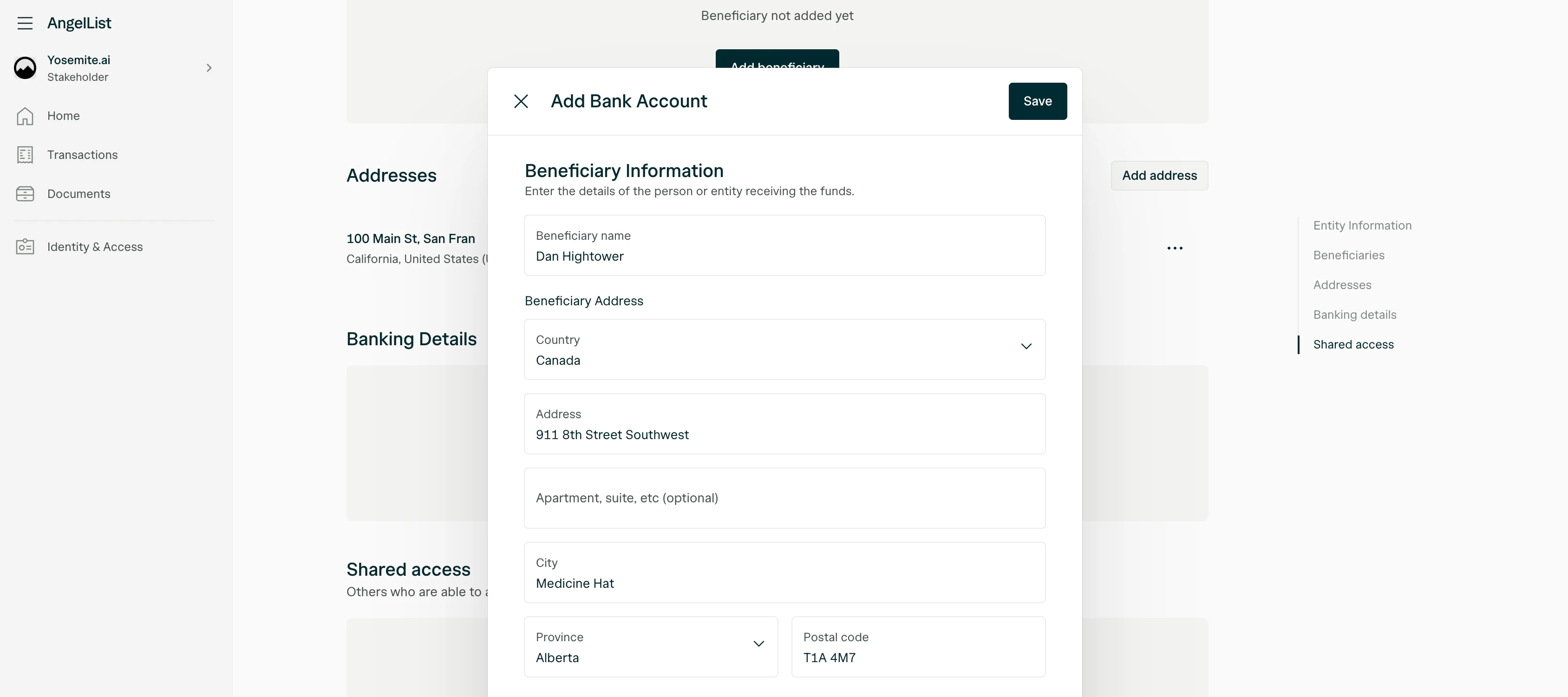
Beneficiary information form for a non-US bank account.
3. Enter bank account details Provide your bank account information for receiving funds:
  • Bank name
  • Account number
  • SWIFT/BIC code — Your bank’s unique international identifier. Contact your bank if you don’t know this code.
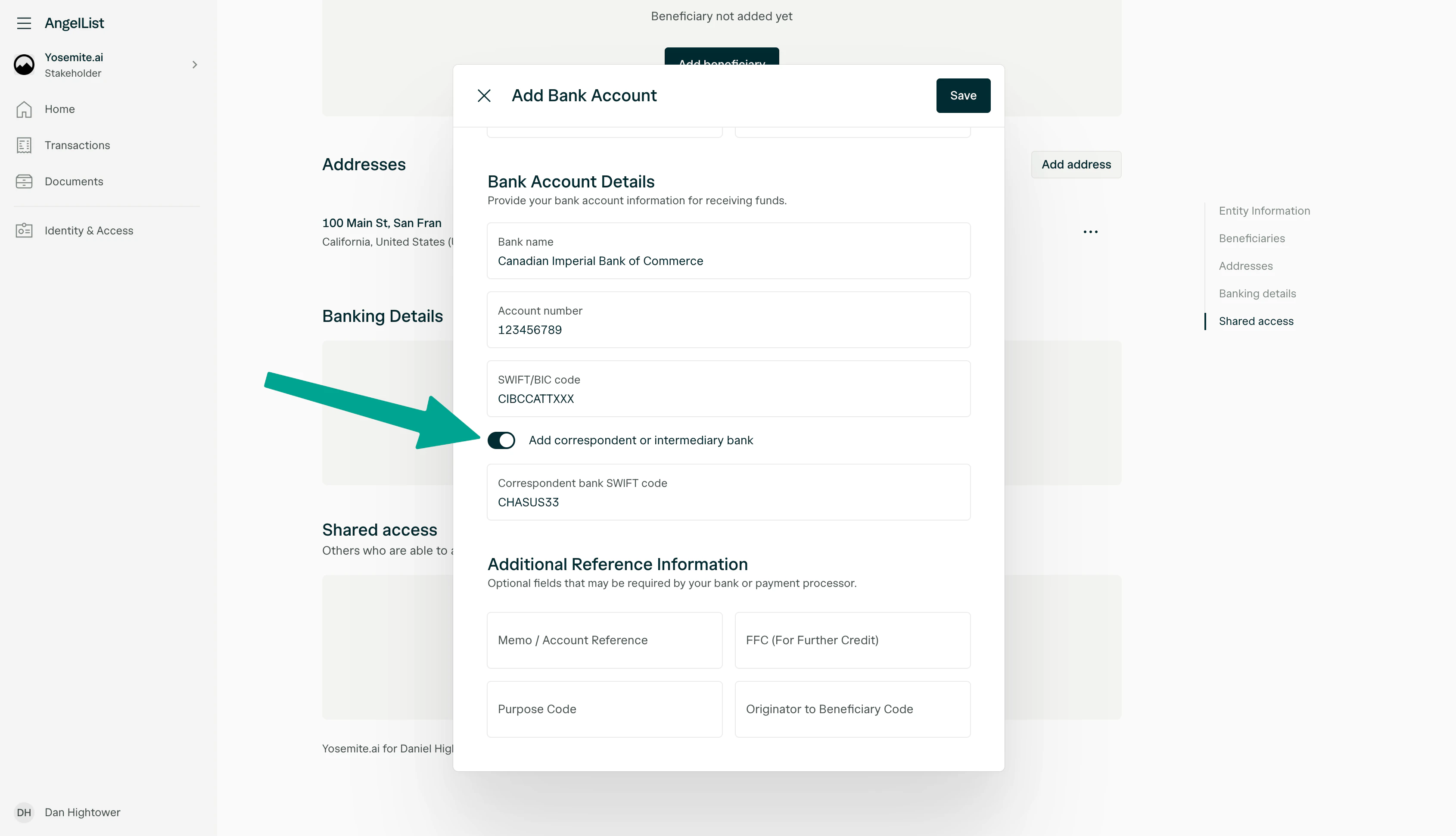
Bank account details form showing bank name, account number, SWIFT/BIC code, and correspondent bank fields.
4. Add correspondent or intermediary bank (if applicable) A correspondent bank is a financial institution — typically located in the country where the payment currency is issued — that acts as an intermediary between the sending bank and your bank. When a US-based company sends USD to a non-US bank, the payment often routes through a correspondent bank to reach your account. In many cases, the sending bank can automatically identify the correct correspondent bank. However, providing this information yourself ensures the transfer is processed without delays.
If your bank requires a correspondent bank to receive USD and you don’t include it, the payment may be delayed, returned, or lost. Contact your bank to confirm whether a correspondent bank is needed and to get the correct SWIFT code.
If your bank requires a correspondent bank, toggle on Add correspondent or intermediary bank and enter the Correspondent bank SWIFT code. 5. Additional Reference Information Depending on your bank or payment processor, you may need to provide additional reference details to ensure funds are routed correctly to your account. These fields are optional but can be critical in certain situations — for example, if you are receiving proceeds into a brokerage account (such as Fidelity, Charles Schwab, or E*TRADE), the brokerage typically receives incoming wires through a custodial bank on behalf of its clients. The FFC (For Further Credit) field must include your individual brokerage account number so the custodian can route the funds to your account. Without it, the transfer may be rejected or held.
  • Memo / Account Reference — A reference number or note required by your bank to identify and allocate incoming funds to your account.
  • FFC (For Further Credit) — Specifies the final recipient when funds are received through a custodial or intermediary bank. For brokerage accounts, this is typically your individual account number.
  • Purpose Code — A code that identifies the reason for the payment, sometimes required for regulatory compliance.
  • Originator to Beneficiary Code — Additional information passed from the sender to the recipient’s bank.
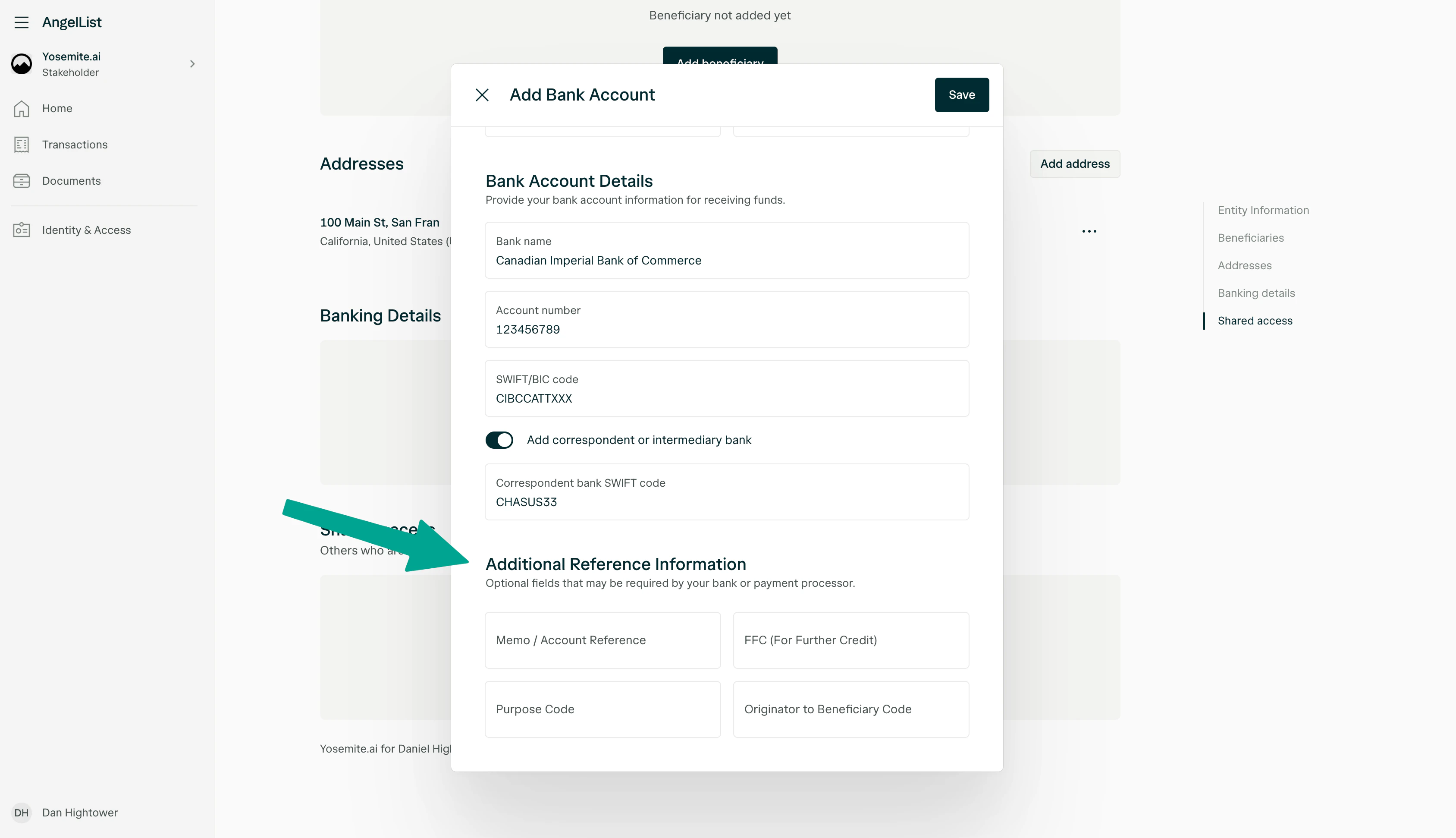
Correspondent bank toggle enabled with SWIFT code field, and Additional Reference Information section.
6. Review all details carefully, then click Save to add the bank account.

Editing or removing bank details

To update or delete an existing bank account, navigate to the Banking Details section under Identity & Access in your Stakeholder Dashboard. Click the menu icon () next to the bank account you’d like to modify, then select Edit or Delete. If you need to change the bank country or transfer method, delete the existing entry and add a new one.
If you have any issues adding or updating your banking details, contact startups@angellist.com for assistance.