# GDPR, Privacy, and Compliance
Source: https://help.angelliststack.com/equity/advanced/gdpr-privacy-and-compliance
## Privacy Policy
AngelList's privacy policy is maintained [here](https://venture.angellist.com/privacy).
# Power Lawyers for AngelList
Source: https://help.angelliststack.com/equity/advanced/power-lawyers-for-angelList
We work with [all of the top venture- and startup-focused law firms](https://chambers.com/legal-rankings/startups-emerging-companies-usa-nationwide-5:2663:12788:1) in
Silicon Valley and across the United States.
If you're looking for a smaller firm that is familiar with AngelList's products, below is a list of boutique firms that specialize in high-growth, early stage tech startups.
### Westaway - [westaway.co](https://westaway.co/)
We’ve worked with Kyle Westaway, Managing Partner at Westaway, on a number of AngelList companies and RUVs. He’s familiar with AngelList products and is regularly in touch with our team. Westaway offers upfront, flat pricing per project.
**Strengths:**
Incorporation, funding, intellectual property, employment, contracts, mergers & acquisitions, impact evaluation and general counsel
**Past Projects:** [Warby Parker](https://westaway.co/case-studies/warby-parker-protecting-workers-in-a-global-supply-chain/), [Eaton](https://westaway.co/case-studies/eaton-workshop-the-worlds-first-activist-hotel/), [General Assembly](https://westaway.co/case-studies/general-assembly-unlocking-potential-through-a-scholarship-fund/)
### Howell Legal - [howell-legal.com](https://howell-legal.com/)
Howell Legal is a corporate law boutique designed for entrepreneurs, by entrepreneurs. They leverage technology and user-centered design principles to provide technology startups and mature companies with a unique experience—one that maximizes efficiency, transparency, and client engagement.
**Strengths** Formation, operations, growth, exits, contract drafting and negotiation, Licensing, corporate maintenance, employment issues, early stage-, bridge-, and debt based-financings
### HeyCounsel - [heycounsel.com](https://heycounsel.com)
For \$300 per month, HeyCounsel provides you with seasoned lawyers who are dedicated to helping startups build better, without charging crazy hourly rates. They’ll match your startup with in-house lawyers specific to your industry, and Angellist customers also get the first 3 months free.
**Strengths:** Regulated spaces (fintech, web3, healthcare, real estate, etc.), product counseling, commercial contracts, hiring/firing, managing legal tasks and driving down legal spend. They also have partnerships for discounted rates with reputable firms for all other standard legal needs (formation, fundraising, intellectual property, and more).
### NewWave Law - [newwave.law](https://newwave.law/)
NewWave Law works exclusively with women-owned startup companies and women-owned online businesses. Mary’s practice has an emphasis on providing general corporate counsel for her clients, including entity formations, managing equity incentive plans and company capitalization tables, website and app terms of use and privacy policies, and preparing solid plain-English legal agreements.
**Strengths:** Female founders, employment agreements, contractor/consulting Agreements, website/app terms of use & privacy policies, equity compensation Plans, early stage funding, employment policies, contract review and negotiation, cap table management.
### SPZ Legal - [spzlegal.com](https://spzlegal.com/)
SPZ Legal offers big law reach with a boutique client experience and fee structure. SPZ's experienced attorneys, together with SPZ's unique network of law firms, allow clients to receive the full range of legal work required for emerging companies through the lifecycle of their venture all under one roof.
**Strengths:**
Sales-friendly commercial advice, data privacy compliance, venture financings, business formation and corporate compliance, protection of IP, employment, executive compensation, M\&A, investor-side representation, legal ops, and cap table management.
# Setting Up Equity Plans
Source: https://help.angelliststack.com/equity/advanced/setting-up-equity-plans
AngelList Equity can help you set up and manage your client's Equity Plans. Learn how to set up an Equity Plan [here](/equity/equity-admin/equity-plan-setup).
* **[409a Valuations](/equity/equity-admin/409a)**: Request valuations and simulate option scenarios on your dashboard.
* **[Board Consents](/platform/platform-tools/board-consents)**: Generate and have all directors sign a board consent approving the plan.
* **[Grant Documents](/equity/equity-admin/equity-plan-setup#configuring-grant-document-templates)**: Create and send custom option grant letters to employees for signature.
* **[Employee Dashboards](/equity/stakeholder-experience/employee-experience)**: Employees can track vesting schedules, option values, and more on their dashboard.
# Stock Splits
Source: https://help.angelliststack.com/equity/advanced/stocksplits
## Where can I start drafting stock splits?
To get started with stock splits, navigate to Equity > Workflows > Stock Split > Get started.
![Getting Started Stock Splits Pn]() ## Recording a stock split
Select the share classes subject to the stock split.
## Recording a stock split
Select the share classes subject to the stock split.
![Selecting Share Classes Pn]() Provide details of the stock split.
Provide details of the stock split.
![Split Details Pn]() Configure the split ratio for the selected share classes.
Configure the split ratio for the selected share classes.
![Configure Split Ratio Pn]() Upload any documents related to the stock split.
Upload any documents related to the stock split.
![Stock Splits Documents Pn]() Note: Uploading documents is optional and can be added later.
Once completed, you'll land on a draft page for your stock splits where you can review and publish.
Note: Uploading documents is optional and can be added later.
Once completed, you'll land on a draft page for your stock splits where you can review and publish.
![Screen Shot2025 05 30at3 10 33PM Pn]() ## FAQs
### Who will be notified when I publish a split?
You will be prompted in the stock split publishing step to select whether to notify stakeholder based on the type of securities they hold. If you are issuing certificated shares in connection with the split, company signatories will be notified to sign new certificates.
### What happens to share certificates when the split is recorded?
Outstanding share certificates will be cancelled and new certificates will be created with the post-split share number. Share certificates that were already cancelled as of the date of the split will not be affected.
### What happens to options when the split is recorded?
Outstanding options will be updated to reflect the stock split. Both the total underlying shares and the exercise price will be updated based on the split ratio. Options that were already cancelled as of the date of the split will not be affected.
### What happens to equity plans when the split is recorded?
Each security outstanding under the plan will be updated according to the way the type of security is handled in the split. The total shares authorized under the plan will be adjusted by applying the terms of the split to the authorized but unissued shares and outstanding shares as of the time of the split. The total shares authorized for issuance under the plan will be updated accordingly. For example if an equity plan had 500,000 shares authorized pre-split, 250,000 shares outstanding pre-split and the split was a 2:1 forward split, the plan post-split would be updated to reflect 500,000 shares available, 500,000 shares outstanding and 1M shares authorized.
### What happens to share classes when the split is recorded?
Any increase or decrease to the authorized number of shares in a share class is based on the specific share authorization value entered in connection with a split (if any). Share class attributes that are impacted by the split based on their terms will be updated based on the split ratio.
### What happens to valuations when the split is recorded?
Valuations that are active as of the split effective date will be updated based on the ratios and share classes impacted by the split.
### How are non-whole security numbers rounded in the split?
When you set up a split, you are prompted to select whether the split should round share numbers down, up or to the closest whole number. You can customize post-split values for specific securities using the stock split review tool in the stock split workflow.
### Can I customize the value for a share or option post-split?
You can customize post-split values for specific securities using the stock split review panel in the stock split workflow.
### What do I do if I am not able to reflect a term in a split?
Contact our team at any time at [startups@angellist.com](mailto:startups@angellist.com).
# Onboard your clients to AngelList
Source: https://help.angelliststack.com/equity/advanced/using-angellist-with-clients
## Onboarding clients' cap table
### Can law firms create accounts for their clients?
Yes. Law firm users can create new company accounts from the Law Firm Portal by clicking *Set up new client* :
## FAQs
### Who will be notified when I publish a split?
You will be prompted in the stock split publishing step to select whether to notify stakeholder based on the type of securities they hold. If you are issuing certificated shares in connection with the split, company signatories will be notified to sign new certificates.
### What happens to share certificates when the split is recorded?
Outstanding share certificates will be cancelled and new certificates will be created with the post-split share number. Share certificates that were already cancelled as of the date of the split will not be affected.
### What happens to options when the split is recorded?
Outstanding options will be updated to reflect the stock split. Both the total underlying shares and the exercise price will be updated based on the split ratio. Options that were already cancelled as of the date of the split will not be affected.
### What happens to equity plans when the split is recorded?
Each security outstanding under the plan will be updated according to the way the type of security is handled in the split. The total shares authorized under the plan will be adjusted by applying the terms of the split to the authorized but unissued shares and outstanding shares as of the time of the split. The total shares authorized for issuance under the plan will be updated accordingly. For example if an equity plan had 500,000 shares authorized pre-split, 250,000 shares outstanding pre-split and the split was a 2:1 forward split, the plan post-split would be updated to reflect 500,000 shares available, 500,000 shares outstanding and 1M shares authorized.
### What happens to share classes when the split is recorded?
Any increase or decrease to the authorized number of shares in a share class is based on the specific share authorization value entered in connection with a split (if any). Share class attributes that are impacted by the split based on their terms will be updated based on the split ratio.
### What happens to valuations when the split is recorded?
Valuations that are active as of the split effective date will be updated based on the ratios and share classes impacted by the split.
### How are non-whole security numbers rounded in the split?
When you set up a split, you are prompted to select whether the split should round share numbers down, up or to the closest whole number. You can customize post-split values for specific securities using the stock split review tool in the stock split workflow.
### Can I customize the value for a share or option post-split?
You can customize post-split values for specific securities using the stock split review panel in the stock split workflow.
### What do I do if I am not able to reflect a term in a split?
Contact our team at any time at [startups@angellist.com](mailto:startups@angellist.com).
# Onboard your clients to AngelList
Source: https://help.angelliststack.com/equity/advanced/using-angellist-with-clients
## Onboarding clients' cap table
### Can law firms create accounts for their clients?
Yes. Law firm users can create new company accounts from the Law Firm Portal by clicking *Set up new client* :
![]() ### How can law firms onboard clients' cap tables?
### How can law firms onboard clients' cap tables?
![]() The Law Firm Portal offers law firms two onboarding methods:
* **Manually build the cap table:** After creating the company account, law firms use bulk Excel imports to complete the cap table. This option is best if the company is not coming from Carta:
The Law Firm Portal offers law firms two onboarding methods:
* **Manually build the cap table:** After creating the company account, law firms use bulk Excel imports to complete the cap table. This option is best if the company is not coming from Carta:
![]() * **Import from Carta:** After creating the company account, law firms export 4-6 reports from Carta and upload them as-is. This option automatically recreates the cap table in AngelList Equity for the law firm to review.
***Note: do not make any adjustments to the exports before uploading to AngelList.***
* **Import from Carta:** After creating the company account, law firms export 4-6 reports from Carta and upload them as-is. This option automatically recreates the cap table in AngelList Equity for the law firm to review.
***Note: do not make any adjustments to the exports before uploading to AngelList.***
![]() ### What happens after the law firm sets up the account?
The cap table will be in "draft mode", and the company admins (founders, etc) will not be invited until the law firm user has reviewed the cap table.
A law firm user can return to the onboarding later by accessing the company from the Law Firm Portal:
### What happens after the law firm sets up the account?
The cap table will be in "draft mode", and the company admins (founders, etc) will not be invited until the law firm user has reviewed the cap table.
A law firm user can return to the onboarding later by accessing the company from the Law Firm Portal:
![]() The stages of onboarding:
* *Incomplete onboarding* - the law firm started to set up a new account, but no account has been created yet. This makes it easy to come back later and finish up.
* *Onboarding* - the law firm created the account, but the account lacks at least a share class and one share certificate.
* *Pending Company Review* - the law firm has invited the company admin(s) to review the cap table, but they have not accepted it.
* *Pending Stakeholder Invites* - the company has accepted their cap table, but stakeholders have not been invited to their individual portals yet (where they can view/manage their holdings)
* *Live* - Active account
Stages appear next to the company name in the Law Firm Portal's Overview table:
The stages of onboarding:
* *Incomplete onboarding* - the law firm started to set up a new account, but no account has been created yet. This makes it easy to come back later and finish up.
* *Onboarding* - the law firm created the account, but the account lacks at least a share class and one share certificate.
* *Pending Company Review* - the law firm has invited the company admin(s) to review the cap table, but they have not accepted it.
* *Pending Stakeholder Invites* - the company has accepted their cap table, but stakeholders have not been invited to their individual portals yet (where they can view/manage their holdings)
* *Live* - Active account
Stages appear next to the company name in the Law Firm Portal's Overview table:
![]() ### When and how do law firm clients pay for AngelList Equity?
Once the law firm has reviewed the cap table and invited the company admins, the admins will have access to the cap table where they can select a plan and pay. The law firm's discount will automatically be applied at checkout.
The company won't be able to invite stakeholders to their dashboards, issue new securities, exercise options, etc until they have subscribed to a plan.
### How long do law firms have to complete onboardings?
There is a 15 day grace/free period for onboarding. If the onboarding will take longer than 15 days, please contact AngelList for an extension:
### When and how do law firm clients pay for AngelList Equity?
Once the law firm has reviewed the cap table and invited the company admins, the admins will have access to the cap table where they can select a plan and pay. The law firm's discount will automatically be applied at checkout.
The company won't be able to invite stakeholders to their dashboards, issue new securities, exercise options, etc until they have subscribed to a plan.
### How long do law firms have to complete onboardings?
There is a 15 day grace/free period for onboarding. If the onboarding will take longer than 15 days, please contact AngelList for an extension:
![]() ### What happens after the company is "live":
The law firm is still in the loop. Throughout the cap table, company admins can select "loop in your law firm" calls-to-action. From there, they can send you notifications to ask for your support.
### What happens after the company is "live":
The law firm is still in the loop. Throughout the cap table, company admins can select "loop in your law firm" calls-to-action. From there, they can send you notifications to ask for your support.
![]()
![]() ### How does Excel import onboarding work?
### How does Excel import onboarding work?
![]() Once you've downloaded the template, fill out the 14 tabs with the necessary information. In each tab, the required columns will be noted with black cells; all other information is helpful to include but optional. Be sure to complete the tabs in the order presented. This will ensure you are taking advantage of all data validations, which will reduce errors.
Once you've downloaded the template, fill out the 14 tabs with the necessary information. In each tab, the required columns will be noted with black cells; all other information is helpful to include but optional. Be sure to complete the tabs in the order presented. This will ensure you are taking advantage of all data validations, which will reduce errors.
![]() ### How can law firms audit the onboarding outcome for accuracy?
After an initial review of the cap table tables and charts in the software, the most thorough method of auditing an import for accuracy is to download the detailed version of your client's cap table by navigating to Equity > Reports. Select Detailed Cap Table Report to export a file that you can review to ensure all information was input accurately:
### How can law firms audit the onboarding outcome for accuracy?
After an initial review of the cap table tables and charts in the software, the most thorough method of auditing an import for accuracy is to download the detailed version of your client's cap table by navigating to Equity > Reports. Select Detailed Cap Table Report to export a file that you can review to ensure all information was input accurately:
![]() ### How can law firms/admins invite stakeholders?
You can send invite emails to stakeholders (so they can access their portals) by navigating to Equity > Stakeholders. Select the checkbox next to Name in the top left to select all stakeholders. Once all stakeholders are selected, click Bulk Actions on the top right to Invite Stakeholders:
### How can law firms/admins invite stakeholders?
You can send invite emails to stakeholders (so they can access their portals) by navigating to Equity > Stakeholders. Select the checkbox next to Name in the top left to select all stakeholders. Once all stakeholders are selected, click Bulk Actions on the top right to Invite Stakeholders:
![]() It's a good idea to send a warm introductory email to stakeholders before they receive the automated invitation from AngelList. For your convenience, we have provided some suggested messaging [here](/equity/overview#stakeholder-communications).
## Other
### Can you offer special pricing for our clients?
Partner law firms can extend 10%+ discounts to their clients automatically from their Law Firm Portals. Don't have a portal yet? Reach out to [startups@angellist.com](mailto:startups@angellist.com) with some details about your firm.
# 409A Valuations
Source: https://help.angelliststack.com/equity/equity-admin/409a
A 409A valuation is an appraisal of the fair market value (FMV) of the common stock of a private company by an independent third party. Startups typically pay for these assessments and then use the findings to inform the price at which employees can purchase shares of the company’s common stock. [This article](https://learn.angellist.com/articles/409a-valuation#:~:text=A%20409A%20valuation%20is%20an%20appraisal%20of%20the%20fair%20market,of%20the%20company's%20common%20stock) explains more.
## How can I request a 409A valuation?
The AngelList [Growth Plan](https://www.angellist.com/startups/pricing) includes one 409A valuation per billing cycle. Once you've paid for your subscription, getting started is simple - navigate to Equity > Valuations, click Add, select Request New Valuation, and complete the form.
It's a good idea to send a warm introductory email to stakeholders before they receive the automated invitation from AngelList. For your convenience, we have provided some suggested messaging [here](/equity/overview#stakeholder-communications).
## Other
### Can you offer special pricing for our clients?
Partner law firms can extend 10%+ discounts to their clients automatically from their Law Firm Portals. Don't have a portal yet? Reach out to [startups@angellist.com](mailto:startups@angellist.com) with some details about your firm.
# 409A Valuations
Source: https://help.angelliststack.com/equity/equity-admin/409a
A 409A valuation is an appraisal of the fair market value (FMV) of the common stock of a private company by an independent third party. Startups typically pay for these assessments and then use the findings to inform the price at which employees can purchase shares of the company’s common stock. [This article](https://learn.angellist.com/articles/409a-valuation#:~:text=A%20409A%20valuation%20is%20an%20appraisal%20of%20the%20fair%20market,of%20the%20company's%20common%20stock) explains more.
## How can I request a 409A valuation?
The AngelList [Growth Plan](https://www.angellist.com/startups/pricing) includes one 409A valuation per billing cycle. Once you've paid for your subscription, getting started is simple - navigate to Equity > Valuations, click Add, select Request New Valuation, and complete the form.
![]() If you have already connected your payroll or HRIS system to AngelList, you can submit your 409A request without inputting compensation details into the 409A request form.
Submitting your 409A request initiates the process, and our team will reach out with next steps.
### How long does it take to get a 409A valuation?
Once you request a 409A valuation through the platform, you'll be connected to our valuation partners. The exact timeline for completing the report depends on the complexity of your cap table and business operations.
Our team will keep you updated throughout the process and reach out if we are missing any necessary details. If you have questions about where your 409A stands, feel free to contact your dedicated valuation analyst.
### What data will I need to provide?
During the 409A valuation process, the company will typically need to provide the following information:
* Articles of incorporation
* Most recent capitalization table
* Company pitch deck
* Financial statements (P\&L statements, bank statements, etc.)
* Share purchase agreements (if applicable)
* Estimated number of options expected to be issued over the next year, based on the hiring plan
* Significant events since the last 409A valuation that could impact stock price
* Timing expectations for potential liquidity events (e.g., acquisition, IPO)
* Qualitative information about the company’s performance and outlook
The valuation process will utilize this data to assess the company's market position and potential future performance.
### How much will the valuation cost?
AngelList's Growth Plan includes one 409A valuation per billing cycle. You can view pricing for the Growth Plan [here](https://www.angellist.com/startups/pricing).
### When will I need a 409A valuation?
You should consider getting a 409A valuation when your company issues stock options or other equity-based compensation to employees or service providers.
The IRS requires a 409A valuation to determine the fair market value of the company's common stock for tax purposes. It is typically recommended to obtain a 409A valuation at least once every 12 months or whenever there is a significant event that could impact the value of the company, such as a fundraising round or a material change in the business.
It's important to consult with your legal team to determine the appropriate timing for obtaining a 409A valuation for your specific situation.
***
## Tracking Historical Valuations
### How can I upload a completed valuation for tracking?
Navigate to Equity > Valuations, click Add, and select Add Previous Valuation.
Fill out the form with the necessary information and upload the valuations documentation.
If you have already connected your payroll or HRIS system to AngelList, you can submit your 409A request without inputting compensation details into the 409A request form.
Submitting your 409A request initiates the process, and our team will reach out with next steps.
### How long does it take to get a 409A valuation?
Once you request a 409A valuation through the platform, you'll be connected to our valuation partners. The exact timeline for completing the report depends on the complexity of your cap table and business operations.
Our team will keep you updated throughout the process and reach out if we are missing any necessary details. If you have questions about where your 409A stands, feel free to contact your dedicated valuation analyst.
### What data will I need to provide?
During the 409A valuation process, the company will typically need to provide the following information:
* Articles of incorporation
* Most recent capitalization table
* Company pitch deck
* Financial statements (P\&L statements, bank statements, etc.)
* Share purchase agreements (if applicable)
* Estimated number of options expected to be issued over the next year, based on the hiring plan
* Significant events since the last 409A valuation that could impact stock price
* Timing expectations for potential liquidity events (e.g., acquisition, IPO)
* Qualitative information about the company’s performance and outlook
The valuation process will utilize this data to assess the company's market position and potential future performance.
### How much will the valuation cost?
AngelList's Growth Plan includes one 409A valuation per billing cycle. You can view pricing for the Growth Plan [here](https://www.angellist.com/startups/pricing).
### When will I need a 409A valuation?
You should consider getting a 409A valuation when your company issues stock options or other equity-based compensation to employees or service providers.
The IRS requires a 409A valuation to determine the fair market value of the company's common stock for tax purposes. It is typically recommended to obtain a 409A valuation at least once every 12 months or whenever there is a significant event that could impact the value of the company, such as a fundraising round or a material change in the business.
It's important to consult with your legal team to determine the appropriate timing for obtaining a 409A valuation for your specific situation.
***
## Tracking Historical Valuations
### How can I upload a completed valuation for tracking?
Navigate to Equity > Valuations, click Add, and select Add Previous Valuation.
Fill out the form with the necessary information and upload the valuations documentation.
![]() # Equity Plans
Source: https://help.angelliststack.com/equity/equity-admin/equity-plan-setup
Setting up an equity plan (option pool) in AngelList Equity allows you to track the status of your equity plan shares and make equity awards using configured grant templates.
Making equity grants through AngelList Equity allows the company and recipients to legally sign grants without the need for another e-signature tool. It also automatically updates your cap table as the grants are issued.
The setup instructions here assume you have already legally formed an equity plan and received any required board and stockholder approvals to do so.
We strongly recommend consulting with your legal team before creating an equity plan or option pool. If you need an introduction to an attorney specializing in startups, please email us at [startups@angellist.com](mailto:startups@angellist.com) for referrals based on your stage and needs.
***
### What grant documents will I need?
You will need a few documents in order to configure your equity plan:
* **The Equity Incentive Plan (.pdf)**: This is the core document that is approved by the board and stockholders. It includes general terms that apply to all grants made out of the plan. It also establishes the number of authorized shares and the types of equity grants that can be made. If you've amended your equity plan, you'll also need the amendment documents.
* **Board and Stockholder Consents (.pdf)**: These documents are records of the authorizations required to legally create an equity plan and make any amendments to it.
* **Forms of Grant Templates (.docx)**: These documents outline the legal terms of a grant. Most plans have separate templates for options and restricted stock awards (RSAs). Some plans have multiple forms of template for options and RSAs. Later-stage equity plans may also include templates for RSUs and SARs.
* **Form of Exercise Agreement Template (.docx)**: This agreement is used to legally exercise an option. If your equity plan allows for the early exercise of options, it may have separate forms of exercise agreement for early exercise and standard exercise (or it may have a single form that covers both).
***
## Getting Started
### What grant documents will I need?
You will need a few documents in order to configure your equity plan:
* **The Equity Incentive Plan (.pdf)**: This is the core document that is approved by the board and stockholders. It includes general terms that apply to all grants made out of the plan. It also establishes the number of authorized shares and the types of equity grants that can be made. If you've amended your equity plan, you'll also need the amendment documents.
* **Board and Stockholder Consents (.pdf)**: These documents are records of the authorizations required to legally create an equity plan and make any amendments to it.
* **Forms of Grant Templates (.docx)**: These documents outline the legal terms of a grant. Most plans have separate templates for options and restricted stock awards (RSAs). Some plans have multiple forms of template for options and RSAs. Later-stage equity plans may also include templates for RSUs and SARs.
* **Form of Exercise Agreement Template (.docx)**: This agreement is used to legally exercise an option. If your equity plan allows for the early exercise of options, it may have separate forms of exercise agreement for early exercise and standard exercise (or it may have a single form that covers both).
***
## Adding your Equity Incentive Plan
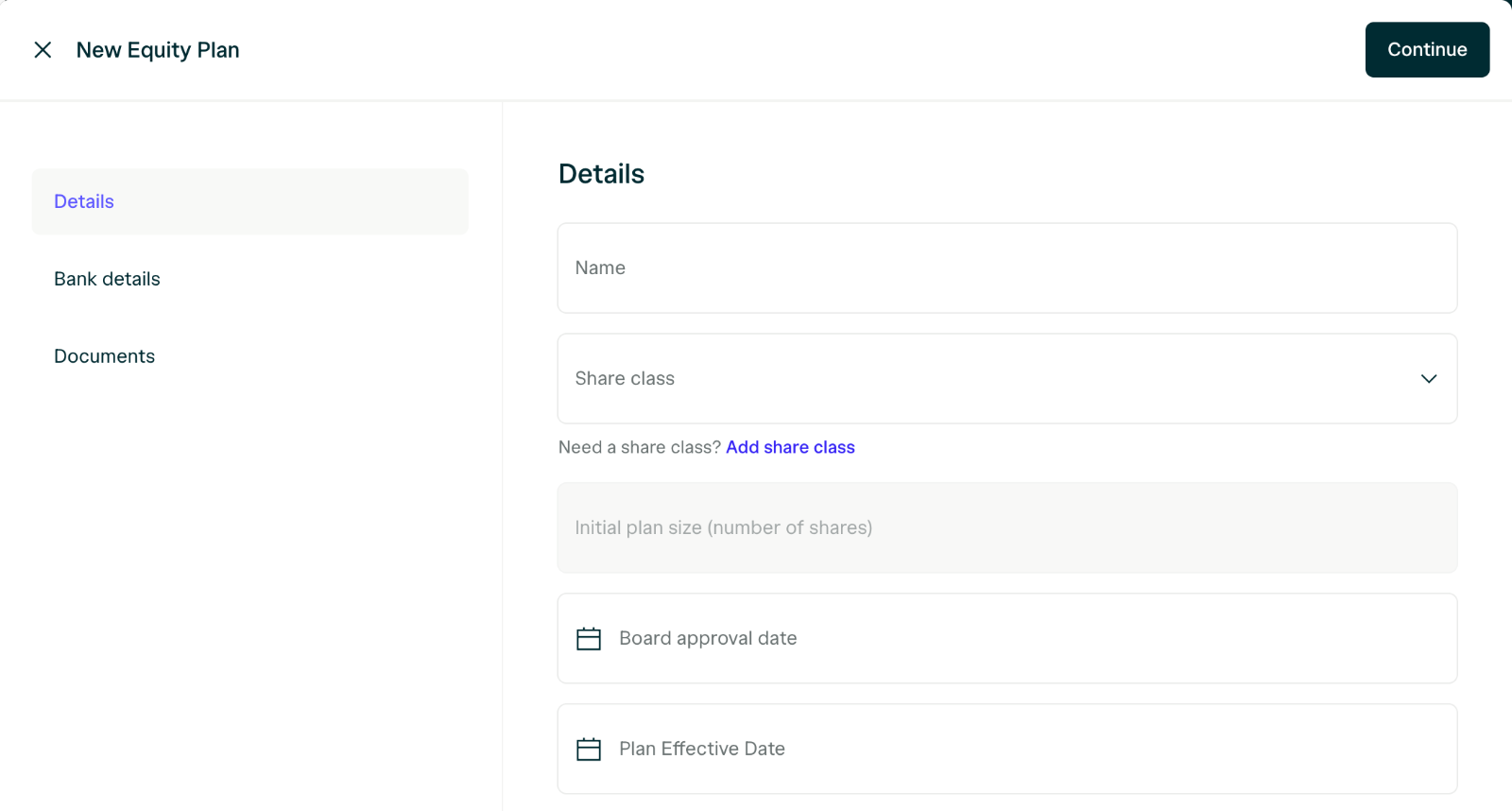
Navigate to Equity > Equity Plans and click **Add**. Complete the form and upload the primary equity plan document in PDF form.
In order to create your plan you will need to have already created each share class that will be used by your equity plan. For most plans, this will be a class of common stock.
### Link a bank account to receive online exercise payments
Online exercises are available to Growth and Scale plan customers.
In the next step, [Configuring option details](/equity/equity-admin/equity-plan-setup#configuring-option-details), we'll show you how to enable your stakeholders to process exercises on AngelList. Before you do that, link the bank account where you'd like to receive exercise payments. You can also do this later, following [this guide](/equity/transactions/option-exercise#link-an-account-to-receive-exercise-payments).
1. On the Bank Details tab, click "Link an account" under the **Online payment account** section

2. If this is your first time linking an account, you will be asked to verify some information about your business. We use this information to ensure safe transactions. This step is only required the first time you link an account.

Your business details will be verified within a few hours to a day. Online payment will be available to your option holders once this is complete.
3\. Next, link you will be prompted to link an account.

4. Finally, select your account from the dropdown. Once your business verification is processed, your stakeholders will see the option to pay for their exercises online.

### Configuring option details
After adding the equity plan, you'll need to configure the option details of the Equity Plan in order to generate and complete option grant issuances.
The details needed to configure your equity plan for granting options can generally be found in your Equity Plan itself. (An Equity Plan is sometimes also called a "Stock Option Plan" or "Equity Incentive Plan".)
To configure the option settings, click into the equity plan, select Options, and click Configure.
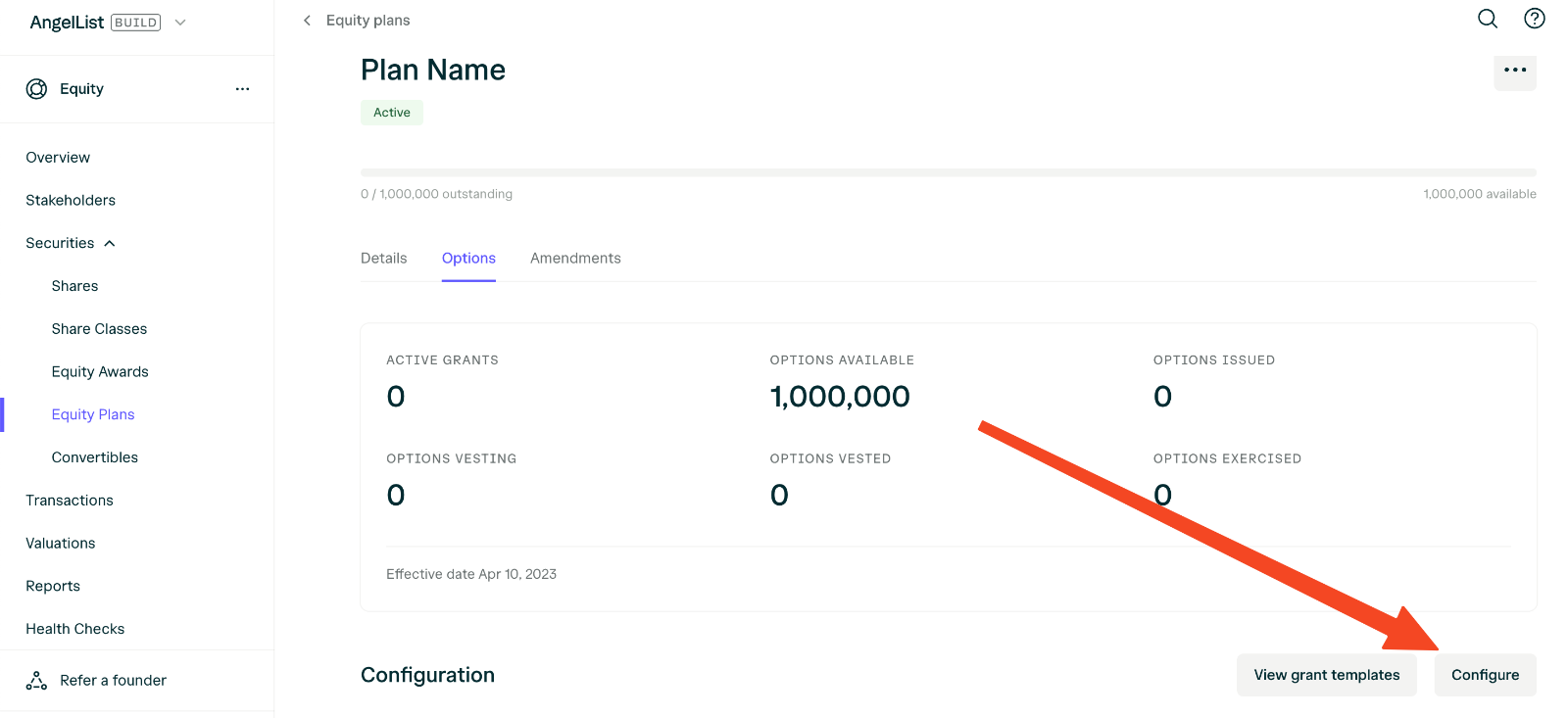
Alternatively, you can also ask your lawyer to configure your options for you by clicking "Loop in law firm".

#### Enable online exercises through AngelList
Online exercises are available to Growth, Growth +, and Scale plan customers.
Enable stakeholders to exercise on AngelList by selecting the **Allow exercises through the AngelList platform** toggle. If you haven't linked a bank account for online exercise payments, follow the instructions [here](/equity/equity-admin/equity-plan-setup#link-a-bank-account-to-receive-online-exercise-payments).

If you didn't configure the option exercise agreement when you set up your option grant template, you'll also need to update the grant template to include a configured exercise agreement [here](/equity/equity-admin/equity-plan-setup#configuring-grant-document-templates).
***
## Configuring Grant Document Templates
Not all equity grant templates are the same. We strongly recommend checking with your legal team to ensure equity grant templates are configured for their intended use.
If you prefer to issue and exercise equity awards outside of AngelList Equity, you can skip grant template configuration.
Configuring grant document templates allows you to generate and sign equity awards and complete option exercises using AngelList Equity.
The steps to configure grant templates are as follows:
1. Navigate to Equity > Configuration > Grant Templates and click "Add".
2. Fill out the form with the information relevant to the template.
3. Open the .docx file for your option, RSA or exercise agreement.
4. Configure fields you'd like populated using variables listed in the table below.
5. Save and upload the configured .docx files in the relevant sections of the template workflow.
## Template Document Variables
Variables are used to populate fields in template documents for a specific award or exercise. The value that populates is based on the corresponding value stored in the system when the award document is generated.
For example, if a Company's name is "TestCo, Inc." the `{{company_legal_name}}` variable in the template document will be replaced with "TestCo, Inc."
Note that signature block variables generally will not function if placed within tables or columns in a template word document.
If you have a question about the use of a specific variable, please contact our team at [startups@angellist.com](mailto:startups@angellist.com).
**General Template Variables**
| Variable | Definition |
| - | - |
| `{{company_legal_name}}` | Company's legal name, eg. "TestCo, Inc." |
| `{{company_state}}` | Company's state of incorporation. |
| `{{company_address}}` | Company's physical address. |
| `{{plan_name}}` | Formal name of the company's equity plan. |
| `{{share_class_name}}` | Share class of the shares subject to a grant or exercise. |
| `{{grantee_name}}` | Name of the award recipient. |
| `{{grantee_email}}` | Email address of the award recipient. |
| `{{grantee_address}}` | Physical address of the award recipient. |
| `{{grantee_title}}` | Employment title of the award recipient. |
| `{{employee_id}}` | Employee ID of the award recipient. |
| `{{grant_date}}` | Grant date for an award. Usually this is the date of approval by the board. |
| `{{board_approval_date}}` | Board approval date for the option or RSA. |
| `{{grant_id}}` | Identifier used for the security -- such as "ES-023". |
| `{{num_granted}}` | Number of shares or units granted in an option or RSA. |
| `{{grant_type}}` | Option type for US tax purposes. Will populate as either "ISO" or "NSO". |
| `{{expiration_date}}` | Initial expiration date for an option. Sometimes referred to as the "termination date" or "expiration date". |
| `{{exercise_price_per_share}}` | Exercise price per share for an option. |
| `{{total_grant_exercise_cost}}` | Aggregate exercise price for all shares originally subject to an option. Note: a different variable listed below *`{{total_exercise_price}}`* should be used in *exercise* templates to represent the exercise price for a specific number of shares being exercised. |
| `{{issue_price_per_share}}` | Purchase price per share or award value for RSA grants. |
| `{{issue_date}}` | The date of transfer or purchase of shares subject to an RSA. |
| `{{total_purchase_price}}` | Aggregate purchase price for all shares issued in an RSA. |
**Vesting Variables**
| Variable | Definition |
| - | - |
| `{{vesting_description_with_name}}` | Shortened name of a vesting schedule together with its full-length legal description |
| `{{vesting_description}}` | Full-length legal vesting description by itself *without* the shortened name of the vesting schedule. |
| `{{vesting_start_date}}` | Vesting commencement date specified in the vesting schedule being used for an award. |
| `{{acceleration_terms}}` | Legal acceleration terms based on the acceleration terms template associated with an award. This variable populates as blank if no acceleration is set for an award. |
**Exercise Agreement Variables**
| Variable | Definition |
| - | - |
| `{{exercise_date}}` | Date the exercise notice is being signed and submitted. |
| `{{num_exercise}}` | Total number of options being exercised in the exercise. This number may be less than the total options granted. |
| `{{exercise_price_per_share}}` | Price per share to exercise. |
| `{{total_exercise_price}}` | Total price of the exercise, excluding tax withholdings. |
| `{{grantee_tax_id}}` | The SSN or other tax ID of the exercising optionholder. |
**Signature Variables**
| Variable | Definition |
| - | - |
| `{{company_signature_block}}` | Company signature block. Includes selected header, name, title, physical address, email and signature line. Signature by the company adds the date of signature. 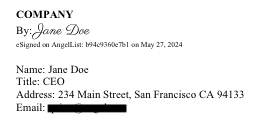 |
| `{{grantee_signature_block}}` | Grantee signature block. Includes selected header, name, title, physical address, email and signature line. Signature by the grantee adds the date of signature.  |
| `{{spouse_signature_block}}` | Signature block for grantee's spouse. Will only prompt for signature and populate if spousal signature is required on a grant. |
| `{{grantee_signed_at}}` | Populates the date of the grantee signature (without the signature itself). |
| `{{company_signed_at}}` | Populates the date of the company signature (without the signature itself). |
| `{{spouse_signed_at}}` | Populates the date of the grantee's spouse signature (without the signature itself). |
## Optional Inclusion of Vesting Tables
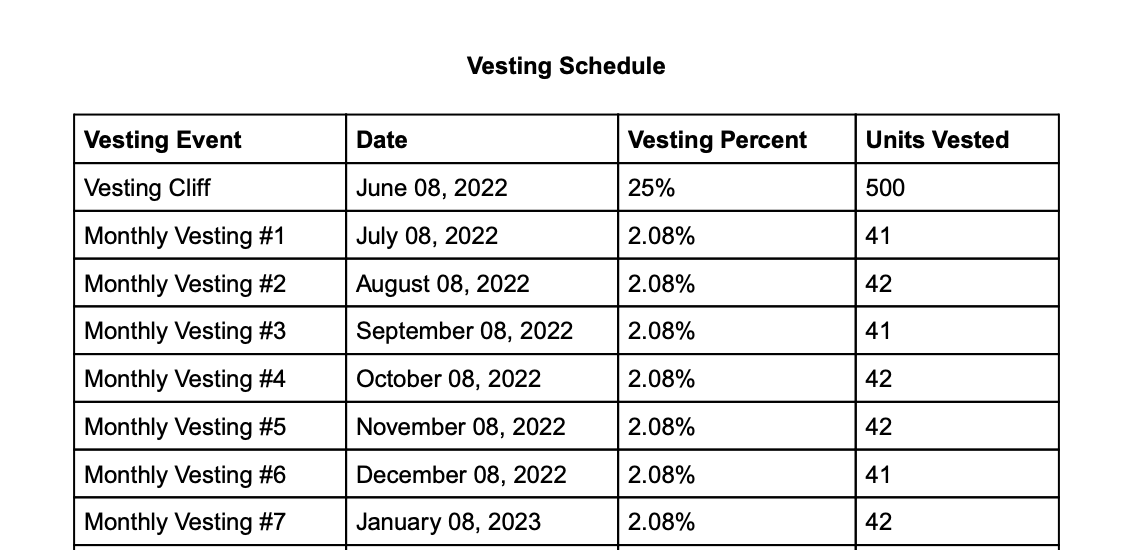
You can choose to optionally to include a dynamically generated table that displays vesting events in your grant template.
To enable this for a grant template, navigate to the grant template and enable the selector for including a vesting events table:

When this feature is enabled, a table is inserted as a page in the generated grant pdf that looks like this:
***
## Configuring Vesting Templates
You can customize vesting templates under Equity -> Configuration -> Vesting Templates.
Configuring vesting templates allows you to:
1. Record and track common vesting schedules across securities in your cap table.
2. Use the vesting description from the template to generate new grant documents with the appropriate vesting terms description.
When generating grant documents, vesting templates will be inserted using the variables described [above](/equity/equity-admin/equity-plan-setup#configuring-grant-document-templates).
## Configuring Acceleration Templates
You can customize a wide variety of acceleration templates under Equity -> Configuration -> Acceleration Templates.
Configuring acceleration templates allows you to both:
1. Record and track common acceleration terms across securities in your cap table.
2. Use the acceleration terms from a template to generate grant documents with acceleration terms.
**Important**
If you want the terms from an acceleration template to populate in a new grant using a grant template, make sure that the grant template includes the acceleration variable: `{{acceleration_terms}}`.
## Recording Amendments to an Equity Plan
Company administrators can record amendments to Equity Plans by navigating to the Equity Plans section of the dashboard. Click on the plan you wish to amend to access its details.
**Important:**
Recording an amendment to your equity plan within AngelList Equity does not constitute a legal amendment. Work with your legal team to ensure the proper amendment documentation and board and stockholders consents have been completed before recording the amendment.
In the plan's details, find and click on the Amendments tab and click Add Amendment. Follow the prompts to note the changes being made. If you are reducing the authorized shares available, simply input a negative number.


Once you've entered the details and uploaded any necessary documents, double-check for accuracy and click Done to apply the changes.
If you need to make multiple amendments, repeat the process for each one by clicking New. After finalizing the amendments, we recommend that you communicate any changes to the effected plan participants, as advised by your legal counsel.
# Issuing Equity
Source: https://help.angelliststack.com/equity/equity-admin/issuing-equity
## Platform Basics
Adding a new share class or security on AngelList Equity is not the equivalent of legally forming a new share class or legally issuing equity. Make sure you've taken the legal steps to create a share class and issue equity before recording them in AngelList Equity.
### How do I create and edit share classes in AngelList Equity?
Navigate to Equity > Configuration > Share Classes:
# Equity Plans
Source: https://help.angelliststack.com/equity/equity-admin/equity-plan-setup
Setting up an equity plan (option pool) in AngelList Equity allows you to track the status of your equity plan shares and make equity awards using configured grant templates.
Making equity grants through AngelList Equity allows the company and recipients to legally sign grants without the need for another e-signature tool. It also automatically updates your cap table as the grants are issued.
The setup instructions here assume you have already legally formed an equity plan and received any required board and stockholder approvals to do so.
We strongly recommend consulting with your legal team before creating an equity plan or option pool. If you need an introduction to an attorney specializing in startups, please email us at [startups@angellist.com](mailto:startups@angellist.com) for referrals based on your stage and needs.
***
### What grant documents will I need?
You will need a few documents in order to configure your equity plan:
* **The Equity Incentive Plan (.pdf)**: This is the core document that is approved by the board and stockholders. It includes general terms that apply to all grants made out of the plan. It also establishes the number of authorized shares and the types of equity grants that can be made. If you've amended your equity plan, you'll also need the amendment documents.
* **Board and Stockholder Consents (.pdf)**: These documents are records of the authorizations required to legally create an equity plan and make any amendments to it.
* **Forms of Grant Templates (.docx)**: These documents outline the legal terms of a grant. Most plans have separate templates for options and restricted stock awards (RSAs). Some plans have multiple forms of template for options and RSAs. Later-stage equity plans may also include templates for RSUs and SARs.
* **Form of Exercise Agreement Template (.docx)**: This agreement is used to legally exercise an option. If your equity plan allows for the early exercise of options, it may have separate forms of exercise agreement for early exercise and standard exercise (or it may have a single form that covers both).
***
## Getting Started
### What grant documents will I need?
You will need a few documents in order to configure your equity plan:
* **The Equity Incentive Plan (.pdf)**: This is the core document that is approved by the board and stockholders. It includes general terms that apply to all grants made out of the plan. It also establishes the number of authorized shares and the types of equity grants that can be made. If you've amended your equity plan, you'll also need the amendment documents.
* **Board and Stockholder Consents (.pdf)**: These documents are records of the authorizations required to legally create an equity plan and make any amendments to it.
* **Forms of Grant Templates (.docx)**: These documents outline the legal terms of a grant. Most plans have separate templates for options and restricted stock awards (RSAs). Some plans have multiple forms of template for options and RSAs. Later-stage equity plans may also include templates for RSUs and SARs.
* **Form of Exercise Agreement Template (.docx)**: This agreement is used to legally exercise an option. If your equity plan allows for the early exercise of options, it may have separate forms of exercise agreement for early exercise and standard exercise (or it may have a single form that covers both).
***
## Adding your Equity Incentive Plan
Navigate to Equity > Equity Plans and click **Add**. Complete the form and upload the primary equity plan document in PDF form.
In order to create your plan you will need to have already created each share class that will be used by your equity plan. For most plans, this will be a class of common stock.

### Link a bank account to receive online exercise payments
Online exercises are available to Growth and Scale plan customers.
In the next step, [Configuring option details](/equity/equity-admin/equity-plan-setup#configuring-option-details), we'll show you how to enable your stakeholders to process exercises on AngelList. Before you do that, link the bank account where you'd like to receive exercise payments. You can also do this later, following [this guide](/equity/transactions/option-exercise#link-an-account-to-receive-exercise-payments).
1. On the Bank Details tab, click "Link an account" under the **Online payment account** section

2. If this is your first time linking an account, you will be asked to verify some information about your business. We use this information to ensure safe transactions. This step is only required the first time you link an account.

Your business details will be verified within a few hours to a day. Online payment will be available to your option holders once this is complete.
3\. Next, link you will be prompted to link an account.

4. Finally, select your account from the dropdown. Once your business verification is processed, your stakeholders will see the option to pay for their exercises online.

### Configuring option details
After adding the equity plan, you'll need to configure the option details of the Equity Plan in order to generate and complete option grant issuances.
The details needed to configure your equity plan for granting options can generally be found in your Equity Plan itself. (An Equity Plan is sometimes also called a "Stock Option Plan" or "Equity Incentive Plan".)
To configure the option settings, click into the equity plan, select Options, and click Configure.

Alternatively, you can also ask your lawyer to configure your options for you by clicking "Loop in law firm".

#### Enable online exercises through AngelList
Online exercises are available to Growth, Growth +, and Scale plan customers.
Enable stakeholders to exercise on AngelList by selecting the **Allow exercises through the AngelList platform** toggle. If you haven't linked a bank account for online exercise payments, follow the instructions [here](/equity/equity-admin/equity-plan-setup#link-a-bank-account-to-receive-online-exercise-payments).

If you didn't configure the option exercise agreement when you set up your option grant template, you'll also need to update the grant template to include a configured exercise agreement [here](/equity/equity-admin/equity-plan-setup#configuring-grant-document-templates).
***
## Configuring Grant Document Templates
Not all equity grant templates are the same. We strongly recommend checking with your legal team to ensure equity grant templates are configured for their intended use.
If you prefer to issue and exercise equity awards outside of AngelList Equity, you can skip grant template configuration.
Configuring grant document templates allows you to generate and sign equity awards and complete option exercises using AngelList Equity.
The steps to configure grant templates are as follows:
1. Navigate to Equity > Configuration > Grant Templates and click "Add".
2. Fill out the form with the information relevant to the template.
3. Open the .docx file for your option, RSA or exercise agreement.
4. Configure fields you'd like populated using variables listed in the table below.
5. Save and upload the configured .docx files in the relevant sections of the template workflow.
## Template Document Variables
Variables are used to populate fields in template documents for a specific award or exercise. The value that populates is based on the corresponding value stored in the system when the award document is generated.
For example, if a Company's name is "TestCo, Inc." the `{{company_legal_name}}` variable in the template document will be replaced with "TestCo, Inc."
Note that signature block variables generally will not function if placed within tables or columns in a template word document.
If you have a question about the use of a specific variable, please contact our team at [startups@angellist.com](mailto:startups@angellist.com).
**General Template Variables**
| Variable | Definition |
| - | - |
| `{{company_legal_name}}` | Company's legal name, eg. "TestCo, Inc." |
| `{{company_state}}` | Company's state of incorporation. |
| `{{company_address}}` | Company's physical address. |
| `{{plan_name}}` | Formal name of the company's equity plan. |
| `{{share_class_name}}` | Share class of the shares subject to a grant or exercise. |
| `{{grantee_name}}` | Name of the award recipient. |
| `{{grantee_email}}` | Email address of the award recipient. |
| `{{grantee_address}}` | Physical address of the award recipient. |
| `{{grantee_title}}` | Employment title of the award recipient. |
| `{{employee_id}}` | Employee ID of the award recipient. |
| `{{grant_date}}` | Grant date for an award. Usually this is the date of approval by the board. |
| `{{board_approval_date}}` | Board approval date for the option or RSA. |
| `{{grant_id}}` | Identifier used for the security -- such as "ES-023". |
| `{{num_granted}}` | Number of shares or units granted in an option or RSA. |
| `{{grant_type}}` | Option type for US tax purposes. Will populate as either "ISO" or "NSO". |
| `{{expiration_date}}` | Initial expiration date for an option. Sometimes referred to as the "termination date" or "expiration date". |
| `{{exercise_price_per_share}}` | Exercise price per share for an option. |
| `{{total_grant_exercise_cost}}` | Aggregate exercise price for all shares originally subject to an option. Note: a different variable listed below *`{{total_exercise_price}}`* should be used in *exercise* templates to represent the exercise price for a specific number of shares being exercised. |
| `{{issue_price_per_share}}` | Purchase price per share or award value for RSA grants. |
| `{{issue_date}}` | The date of transfer or purchase of shares subject to an RSA. |
| `{{total_purchase_price}}` | Aggregate purchase price for all shares issued in an RSA. |
**Vesting Variables**
| Variable | Definition |
| - | - |
| `{{vesting_description_with_name}}` | Shortened name of a vesting schedule together with its full-length legal description |
| `{{vesting_description}}` | Full-length legal vesting description by itself *without* the shortened name of the vesting schedule. |
| `{{vesting_start_date}}` | Vesting commencement date specified in the vesting schedule being used for an award. |
| `{{acceleration_terms}}` | Legal acceleration terms based on the acceleration terms template associated with an award. This variable populates as blank if no acceleration is set for an award. |
**Exercise Agreement Variables**
| Variable | Definition |
| - | - |
| `{{exercise_date}}` | Date the exercise notice is being signed and submitted. |
| `{{num_exercise}}` | Total number of options being exercised in the exercise. This number may be less than the total options granted. |
| `{{exercise_price_per_share}}` | Price per share to exercise. |
| `{{total_exercise_price}}` | Total price of the exercise, excluding tax withholdings. |
| `{{grantee_tax_id}}` | The SSN or other tax ID of the exercising optionholder. |
**Signature Variables**
| Variable | Definition |
| - | - |
| `{{company_signature_block}}` | Company signature block. Includes selected header, name, title, physical address, email and signature line. Signature by the company adds the date of signature.  |
| `{{grantee_signature_block}}` | Grantee signature block. Includes selected header, name, title, physical address, email and signature line. Signature by the grantee adds the date of signature.  |
| `{{spouse_signature_block}}` | Signature block for grantee's spouse. Will only prompt for signature and populate if spousal signature is required on a grant. |
| `{{grantee_signed_at}}` | Populates the date of the grantee signature (without the signature itself). |
| `{{company_signed_at}}` | Populates the date of the company signature (without the signature itself). |
| `{{spouse_signed_at}}` | Populates the date of the grantee's spouse signature (without the signature itself). |
## Optional Inclusion of Vesting Tables
You can choose to optionally to include a dynamically generated table that displays vesting events in your grant template.
To enable this for a grant template, navigate to the grant template and enable the selector for including a vesting events table:

When this feature is enabled, a table is inserted as a page in the generated grant pdf that looks like this:

***
## Configuring Vesting Templates
You can customize vesting templates under Equity -> Configuration -> Vesting Templates.
Configuring vesting templates allows you to:
1. Record and track common vesting schedules across securities in your cap table.
2. Use the vesting description from the template to generate new grant documents with the appropriate vesting terms description.
When generating grant documents, vesting templates will be inserted using the variables described [above](/equity/equity-admin/equity-plan-setup#configuring-grant-document-templates).
## Configuring Acceleration Templates
You can customize a wide variety of acceleration templates under Equity -> Configuration -> Acceleration Templates.
Configuring acceleration templates allows you to both:
1. Record and track common acceleration terms across securities in your cap table.
2. Use the acceleration terms from a template to generate grant documents with acceleration terms.
**Important**
If you want the terms from an acceleration template to populate in a new grant using a grant template, make sure that the grant template includes the acceleration variable: `{{acceleration_terms}}`.
## Recording Amendments to an Equity Plan
Company administrators can record amendments to Equity Plans by navigating to the Equity Plans section of the dashboard. Click on the plan you wish to amend to access its details.
**Important:**
Recording an amendment to your equity plan within AngelList Equity does not constitute a legal amendment. Work with your legal team to ensure the proper amendment documentation and board and stockholders consents have been completed before recording the amendment.
In the plan's details, find and click on the Amendments tab and click Add Amendment. Follow the prompts to note the changes being made. If you are reducing the authorized shares available, simply input a negative number.


Once you've entered the details and uploaded any necessary documents, double-check for accuracy and click Done to apply the changes.
If you need to make multiple amendments, repeat the process for each one by clicking New. After finalizing the amendments, we recommend that you communicate any changes to the effected plan participants, as advised by your legal counsel.
# Issuing Equity
Source: https://help.angelliststack.com/equity/equity-admin/issuing-equity
## Platform Basics
Adding a new share class or security on AngelList Equity is not the equivalent of legally forming a new share class or legally issuing equity. Make sure you've taken the legal steps to create a share class and issue equity before recording them in AngelList Equity.
### How do I create and edit share classes in AngelList Equity?
Navigate to Equity > Configuration > Share Classes:
![]() Click an existing share class to edit it, or click Add in the top right to create a new share class:
Click an existing share class to edit it, or click Add in the top right to create a new share class:
![]() ### How do I amend or modify an existing share class?
Select the share class you need to amend/modify, then visit the Amendments tab:
### How do I amend or modify an existing share class?
Select the share class you need to amend/modify, then visit the Amendments tab:
![]() Amending a share class on AngelList Equity is not the equivalent of legally amending a share class. Make sure you've taken the legal steps to amend a share class before recording them in AngelList Equity.
Before you can record an amendment to a share class in AngelList Equity, you will need to have the filed Amended and Restated Certificate of Incorporation on hand to upload. If you don't have this document, contact your legal team:
Amending a share class on AngelList Equity is not the equivalent of legally amending a share class. Make sure you've taken the legal steps to amend a share class before recording them in AngelList Equity.
Before you can record an amendment to a share class in AngelList Equity, you will need to have the filed Amended and Restated Certificate of Incorporation on hand to upload. If you don't have this document, contact your legal team:
![]() ### How do I add stakeholders?
Navigate to Equity > Stakeholders and click on **Add**. You can choose to add stakeholders one at a time or as a bulk upload.
### How do I add stakeholders?
Navigate to Equity > Stakeholders and click on **Add**. You can choose to add stakeholders one at a time or as a bulk upload.
![]() To add one shareholder at a time, select **Add Stakeholder** and complete the form:
To add one shareholder at a time, select **Add Stakeholder** and complete the form:
![]() Once the shareholder has been added, you can upload shared documents, preview their dashboard, and send them an invite email.
### How do I draft or record a share certificate?
Navigate to Equity > Securities > Shares and click **Add** on the top right. You can choose to add one share at a time or add multiple shares via a bulk upload.
Once the shareholder has been added, you can upload shared documents, preview their dashboard, and send them an invite email.
### How do I draft or record a share certificate?
Navigate to Equity > Securities > Shares and click **Add** on the top right. You can choose to add one share at a time or add multiple shares via a bulk upload.
![]() Fill out the form with the necessary information and upload the certificate documents at the bottom.
Fill out the form with the necessary information and upload the certificate documents at the bottom.
![]() If this is a share certificate that has not yet been issued, click into the share and select **Issue** (in the gray box). This will invite the shareholder to review and sign their share certificate. The equity admin will be able to countersign, after which point the shares will be active and reflected on the cap table. The share certificate will also be available for view in the shareholder dashboard.
If this is a share certificate that has not yet been issued, click into the share and select **Issue** (in the gray box). This will invite the shareholder to review and sign their share certificate. The equity admin will be able to countersign, after which point the shares will be active and reflected on the cap table. The share certificate will also be available for view in the shareholder dashboard.
![]() ### How do I add convertible investment documents?
To upload previously signed SAFEs or other convertible investments, [add all your investors as stakeholders](/equity/equity-admin/issuing-equity#how-do-i-add-shareholders) (both individuals and entities) then navigate to Equity > Securities > Convertibles.
### How do I add convertible investment documents?
To upload previously signed SAFEs or other convertible investments, [add all your investors as stakeholders](/equity/equity-admin/issuing-equity#how-do-i-add-shareholders) (both individuals and entities) then navigate to Equity > Securities > Convertibles.
![]() Fill out the form with the necessary information and upload relevant documents.
Fill out the form with the necessary information and upload relevant documents.
![]() For issuing future SAFEs, check out the [on-platform SAFE generator](/raise/direct/manage-your-raise-round#setting-up-your-round).
***
### What is the Drafts page?
The Drafts page is a staging area where you can add new securities - including shares, options, and convertibles - before they are added to your cap table.
### How do I access the Drafts page?
Navigate to the **Drafts** page to view all securities that are currently in draft status. From this page, you can:
* Add new draft securities
* View/Edit/Delete draft securities
* Delete draft securities
* Publish drafts to your cap table
For issuing future SAFEs, check out the [on-platform SAFE generator](/raise/direct/manage-your-raise-round#setting-up-your-round).
***
### What is the Drafts page?
The Drafts page is a staging area where you can add new securities - including shares, options, and convertibles - before they are added to your cap table.
### How do I access the Drafts page?
Navigate to the **Drafts** page to view all securities that are currently in draft status. From this page, you can:
* Add new draft securities
* View/Edit/Delete draft securities
* Delete draft securities
* Publish drafts to your cap table
![Drafts tab]() ### Creating securities in draft status
To add a new security:
1. Navigate to the Drafts page
2. Click **Add** to create a new security
3. Fill out the required information
4. Click **Save**
5. The security will then be saved to the Drafts table
### Creating securities in draft status
To add a new security:
1. Navigate to the Drafts page
2. Click **Add** to create a new security
3. Fill out the required information
4. Click **Save**
5. The security will then be saved to the Drafts table
![Create draft dropdown]() ### Reviewing and editing draft securities
Before publishing drafts to your cap table:
1. Navigate to the **Drafts** page
2. Click on a draft security to review its details
3. Make any necessary edits to the security information
4. You can save changes and continue editing, or proceed to publish
Securities in draft status are not reflected on the cap table or stakeholder dashboards until published.
To view a cap table report that includes draft securities, you can toggle on 'Include Drafts' when running the Detailed Cap Table report. There is also a separate 'Draft Securities Report' that includes only the Draft securities.
### Reviewing and editing draft securities
Before publishing drafts to your cap table:
1. Navigate to the **Drafts** page
2. Click on a draft security to review its details
3. Make any necessary edits to the security information
4. You can save changes and continue editing, or proceed to publish
Securities in draft status are not reflected on the cap table or stakeholder dashboards until published.
To view a cap table report that includes draft securities, you can toggle on 'Include Drafts' when running the Detailed Cap Table report. There is also a separate 'Draft Securities Report' that includes only the Draft securities.
![Include Drafts in report]() ### Publishing drafts to the cap table
Once you've reviewed and confirmed that a draft security is ready:
1. Navigate to the **Drafts** page
2. Select the draft security you want to publish and click **Publish to Cap Table**
### Publishing drafts to the cap table
Once you've reviewed and confirmed that a draft security is ready:
1. Navigate to the **Drafts** page
2. Select the draft security you want to publish and click **Publish to Cap Table**
![Publish Draft]() After publishing, the security will:
* Be reflected on the cap table
* Appear in reports
* Be visible to the associated stakeholder (if applicable)
* Move from Draft status to the appropriate security status
### Bulk publishing drafts
If you have multiple draft securities ready to publish at once:
1. Navigate to the **Drafts** page
2. Select multiple draft securities using the checkboxes
3. Click **Bulk Actions > Publish Selected**
4. Review the summary and confirm the bulk publication
After publishing, the security will:
* Be reflected on the cap table
* Appear in reports
* Be visible to the associated stakeholder (if applicable)
* Move from Draft status to the appropriate security status
### Bulk publishing drafts
If you have multiple draft securities ready to publish at once:
1. Navigate to the **Drafts** page
2. Select multiple draft securities using the checkboxes
3. Click **Bulk Actions > Publish Selected**
4. Review the summary and confirm the bulk publication
![Bulk publish drafts]() ## Granting Equity Awards from your Equity Plan
You should consult legal counsel before creating an equity plan or an option pool.
If you need an introduction to a trusted attorney, let us know at [startups@angellist.com](mailto:startups@angellist.com).
### What to do before I can grant equity awards from an equity plan?
Before you can grant equity awards, you first need to:
1. Create an equity plan with your lawyer and [add it to AngelList](/equity/equity-admin/issuing-equity#how-do-i-create-and-implement-an-equity-plan).
2. Ensure that all relevant [board consents](/platform/platform-tools/board-consents#board-consents) have been signed by board members.
3. If necessary, [obtain a 409A valuation](/equity/equity-admin/409a), which you can do from the Valuations page (for Growth, Growth +, and Scale Plan customers).
4. Ensure that all [stakeholders have been added to AngelList](/equity/equity-admin/issuing-equity#how-do-i-add-shareholders).
5. [Configure your grant document templates](/equity/equity-admin/equity-plan-setup) so that your grant agreements are automatically generated.
For detailed directions on each step, continue reading below.
### How do I create an Equity Plan and configure it in AngelList Equity?
To legally form/file an Equity Plan, you'll need to work with legal counsel. If you need an introduction to a trusted attorney, let us know at [startups@angellist.com](mailto:startups@angellist.com).
Once your law firm has finished creating your equity plan and the associated [share class](/equity/equity-admin/issuing-equity#how-do-i-create-a-share-class-in-angellist-equity) is configured, you can [set up your equity plan](/equity/equity-admin/equity-plan-setup#adding-your-equity-incentive-plan) in AngelList Equity.
### What board consents do I need for an Equity Plan? How can I create or upload them?
If your attorney already created a Board Consent for your Equity Plan, upload the Board Consent by navigating to Legal > Board Consents. You can **Loop in law firm** or add it by clicking **Add > Upload executed consent.**
Before creating a Board Consent, make sure you've [added the relevant board members](/equity/equity-admin/stakeholder-management#general) who will be signing and the relevant [employees and advisors](/equity/equity-admin/issuing-equity#how-do-i-add-shareholders) who will be receiving grants on the platform.
To create a Board Consent, navigate to Legal > Board Consents and click New Board Consent > **Generate using template.** Fill out the form with necessary information and click **Create draft.**
## Granting Equity Awards from your Equity Plan
You should consult legal counsel before creating an equity plan or an option pool.
If you need an introduction to a trusted attorney, let us know at [startups@angellist.com](mailto:startups@angellist.com).
### What to do before I can grant equity awards from an equity plan?
Before you can grant equity awards, you first need to:
1. Create an equity plan with your lawyer and [add it to AngelList](/equity/equity-admin/issuing-equity#how-do-i-create-and-implement-an-equity-plan).
2. Ensure that all relevant [board consents](/platform/platform-tools/board-consents#board-consents) have been signed by board members.
3. If necessary, [obtain a 409A valuation](/equity/equity-admin/409a), which you can do from the Valuations page (for Growth, Growth +, and Scale Plan customers).
4. Ensure that all [stakeholders have been added to AngelList](/equity/equity-admin/issuing-equity#how-do-i-add-shareholders).
5. [Configure your grant document templates](/equity/equity-admin/equity-plan-setup) so that your grant agreements are automatically generated.
For detailed directions on each step, continue reading below.
### How do I create an Equity Plan and configure it in AngelList Equity?
To legally form/file an Equity Plan, you'll need to work with legal counsel. If you need an introduction to a trusted attorney, let us know at [startups@angellist.com](mailto:startups@angellist.com).
Once your law firm has finished creating your equity plan and the associated [share class](/equity/equity-admin/issuing-equity#how-do-i-create-a-share-class-in-angellist-equity) is configured, you can [set up your equity plan](/equity/equity-admin/equity-plan-setup#adding-your-equity-incentive-plan) in AngelList Equity.
### What board consents do I need for an Equity Plan? How can I create or upload them?
If your attorney already created a Board Consent for your Equity Plan, upload the Board Consent by navigating to Legal > Board Consents. You can **Loop in law firm** or add it by clicking **Add > Upload executed consent.**
Before creating a Board Consent, make sure you've [added the relevant board members](/equity/equity-admin/stakeholder-management#general) who will be signing and the relevant [employees and advisors](/equity/equity-admin/issuing-equity#how-do-i-add-shareholders) who will be receiving grants on the platform.
To create a Board Consent, navigate to Legal > Board Consents and click New Board Consent > **Generate using template.** Fill out the form with necessary information and click **Create draft.**
![]() To add details, first click **Add** to attach any necessary documents (like a 409A valuation). Then input the details of the exhibit and click **Create.** Once all exhibits are added, click **Confirm Exhibits** to move on to the next step.
To add details, first click **Add** to attach any necessary documents (like a 409A valuation). Then input the details of the exhibit and click **Create.** Once all exhibits are added, click **Confirm Exhibits** to move on to the next step.
![]() After adding the exhibits, you can have your law firm review them by clicking **Request**, which sends a direct message to your legal team. Alternatively, you can pass this review by selecting **skip**
The final step invites your board members to sign the consent. First, ensure the correct signers are listed by selecting **Edit Signers** on the draft page. Then, click **Invite** and optionally add a message for your board members. They will receive an immediate email notification to log in to AngelList and approve the Board Consent.
After adding the exhibits, you can have your law firm review them by clicking **Request**, which sends a direct message to your legal team. Alternatively, you can pass this review by selecting **skip**
The final step invites your board members to sign the consent. First, ensure the correct signers are listed by selecting **Edit Signers** on the draft page. Then, click **Invite** and optionally add a message for your board members. They will receive an immediate email notification to log in to AngelList and approve the Board Consent.
![]() Once all board members have signed the consent, the administrative team will receive an email notification confirming the approval. The document's effective date and signatures will be automatically added to the signature page, which the company admins can then download.
### How do I record option grants that were previously executed?
Navigate to the Options tab, then click Add. You can add one or multiple at a time. Be sure to attach the grant agreements.
Once all board members have signed the consent, the administrative team will receive an email notification confirming the approval. The document's effective date and signatures will be automatically added to the signature page, which the company admins can then download.
### How do I record option grants that were previously executed?
Navigate to the Options tab, then click Add. You can add one or multiple at a time. Be sure to attach the grant agreements.
![]() ## Steps to granting equity awards from the equity plan
Reminder: [configure your grant document templates](/equity/equity-admin/equity-plan-setup#configuring-grant-document-templates) before granting equity from your equity plan to ensure documents generate and are ready for signature.
### Step 1: Draft the equity awards
AngelList Equity enables you to draft and execute options or restricted stock (commonly referred to as "RSAs", short for "Restricted Stock Awards") from your equity plan.
To grant options, navigate to Equity > Securities > Options. Click Add and select Add Equity Award. You can add multiple equity awards by selecting that option in the dropdown.
## Steps to granting equity awards from the equity plan
Reminder: [configure your grant document templates](/equity/equity-admin/equity-plan-setup#configuring-grant-document-templates) before granting equity from your equity plan to ensure documents generate and are ready for signature.
### Step 1: Draft the equity awards
AngelList Equity enables you to draft and execute options or restricted stock (commonly referred to as "RSAs", short for "Restricted Stock Awards") from your equity plan.
To grant options, navigate to Equity > Securities > Options. Click Add and select Add Equity Award. You can add multiple equity awards by selecting that option in the dropdown.
![]()
![]() Fill out the form with the necessary information. Note - each equity award must be linked to a grant document template in order to draft the grant letters/agreements. Do this by selecting Grant status and choosing the appropriate document from the dropdown.
Fill out the form with the necessary information. Note - each equity award must be linked to a grant document template in order to draft the grant letters/agreements. Do this by selecting Grant status and choosing the appropriate document from the dropdown.
![]() Repeat until all your drafts are prepared.
### Step 2: Draft board consent
As you draft an option/RSAs, you'll see a step for "Board Approval". The company signatory won't be able to sign the grant until one of the following is true for each grant:
* There is an attached fully executed board consent.
* You choose to override this requirement by adding the effective date of the board consent.
Repeat until all your drafts are prepared.
### Step 2: Draft board consent
As you draft an option/RSAs, you'll see a step for "Board Approval". The company signatory won't be able to sign the grant until one of the following is true for each grant:
* There is an attached fully executed board consent.
* You choose to override this requirement by adding the effective date of the board consent.
![]() You can upload a consent that is executed offline via your law firm. Or AngelList Equity supports the generation and e-signing
of board consents for options/RSAs. Navigate to Documents & Legal > Board Consents to get started. Then click Add > Generate using template:
You can upload a consent that is executed offline via your law firm. Or AngelList Equity supports the generation and e-signing
of board consents for options/RSAs. Navigate to Documents & Legal > Board Consents to get started. Then click Add > Generate using template:
![]() Once you create the draft board consent, add the draft equity awards to the consent's exhibit:
Once you create the draft board consent, add the draft equity awards to the consent's exhibit:
![]() After saving, you can preview and download the auto-generated consent PDF:
After saving, you can preview and download the auto-generated consent PDF:
![]() Once the consent is ready, you can invite your law firm to review the consent prior to inviting the board members to sign the consent:
Once the consent is ready, you can invite your law firm to review the consent prior to inviting the board members to sign the consent:
![]() The law firm team member you choose will receive an email, requesting their review
The law firm team member you choose will receive an email, requesting their review
![]() The law firm team member of your choice can download the PDF, then one-click approve:
The law firm team member of your choice can download the PDF, then one-click approve:
![]() The law firm's approval does not automatically send the draft consent to board members for their signature. Either the law firm or the company admin must then invite the board to sign here:
The law firm's approval does not automatically send the draft consent to board members for their signature. Either the law firm or the company admin must then invite the board to sign here:
![]() The board members will receive an email to review and sign:
The board members will receive an email to review and sign:
![]()
![]() After all board members have signed, the state of the consent will update to "Executed":
After all board members have signed, the state of the consent will update to "Executed":
![]() Executing a board consent for equity awards applies the effective date of the board consent to all equity awards as the grant date. The equity awards are not automatically signed by the company when the board consent is executed.
### Step 3: Executing agreements
To execute the equity award agreements, nagivate to Equity > Securities > Options. All board approved equity awards that are ready for company signature will be visible here:
Executing a board consent for equity awards applies the effective date of the board consent to all equity awards as the grant date. The equity awards are not automatically signed by the company when the board consent is executed.
### Step 3: Executing agreements
To execute the equity award agreements, nagivate to Equity > Securities > Options. All board approved equity awards that are ready for company signature will be visible here:
![]() Click "Bulk sign", then follow the steps to either sign the grants (if you are the company signatory) or invite the signatory to sign:
Click "Bulk sign", then follow the steps to either sign the grants (if you are the company signatory) or invite the signatory to sign:
![]() By default, once the company signs, the equity award recipients will automatically receive email invitations to countersign. Optionally, the company can choose to not automatically send stakeholders invitations to countersign.
To resend / remind stakeholders to sign, click "Invite to sign" under Pending Stakeholder:
By default, once the company signs, the equity award recipients will automatically receive email invitations to countersign. Optionally, the company can choose to not automatically send stakeholders invitations to countersign.
To resend / remind stakeholders to sign, click "Invite to sign" under Pending Stakeholder:
![]() Once both the company and the stakeholder have signed the award agreement, the award will have an Outstanding status.
## What is a stock certificate, and why does it exist?
Certificates look like this:
Once both the company and the stakeholder have signed the award agreement, the award will have an Outstanding status.
## What is a stock certificate, and why does it exist?
Certificates look like this:
![]() In addition to certificates, you still need the Stock Purchase Agreement (SPA), which must be drafted by your law firm. They come in a variety of forms, but they have characteristics like these:
In addition to certificates, you still need the Stock Purchase Agreement (SPA), which must be drafted by your law firm. They come in a variety of forms, but they have characteristics like these:
![]() The reason why certificates exist: Before cap table software existed, companies kept physical share certificates in filing cabinets. When cap table software arrived, companies and their stakeholders were accustomed to having these share certificates, so you can use AngelList Equity to generate these certificates. Many companies have stopped generating them and have adopted one [one of these issuance methods](/equity/equity-admin/issuing-equity#what-are-other-options-for-stock-issuance,-if-i-don't-want-certificated-stock). Contact your law firm to confirm what your company's legal documents permit.
### How can I issue stock certificates?
This feature is only available for US companies on AngelList.
To issue certificated stock, first specify the signatories for your company by navigating to Legal > Signatories. Note - signatories must be users with cap table management permissions for your company.
Once you have specified signatories, initiate the issuance on the share page (Equity > Securities > Shares) by selecting the share you'd like to issue, and clicking the **Issue** button in the grey box.
The reason why certificates exist: Before cap table software existed, companies kept physical share certificates in filing cabinets. When cap table software arrived, companies and their stakeholders were accustomed to having these share certificates, so you can use AngelList Equity to generate these certificates. Many companies have stopped generating them and have adopted one [one of these issuance methods](/equity/equity-admin/issuing-equity#what-are-other-options-for-stock-issuance,-if-i-don't-want-certificated-stock). Contact your law firm to confirm what your company's legal documents permit.
### How can I issue stock certificates?
This feature is only available for US companies on AngelList.
To issue certificated stock, first specify the signatories for your company by navigating to Legal > Signatories. Note - signatories must be users with cap table management permissions for your company.
Once you have specified signatories, initiate the issuance on the share page (Equity > Securities > Shares) by selecting the share you'd like to issue, and clicking the **Issue** button in the grey box.
![]() Confirm the shareholder details and choose "Certificated Stock Issuance" as the issuance method.
Confirm the shareholder details and choose "Certificated Stock Issuance" as the issuance method.
![]() This will send an email to the signatories to authorize the share certificate. Once the primary signatory (and if necessary, the secondary signatory) signs, the shareholder will receive an email to accept their share certificate.
### What are other options for stock issuance, if I don't want certificated stock?
AngelList offers 3 additional options for issuing stock:
* Certificate Free Stock Issuance- this method will notify the holder via email and they will confirm their receipt of a notice of issuance, but they will not receive a digital certificate.
* Book Entry Only- this method will not email the holder and will not create a notice of issuance or a digital certificate.
* Only Send Invite to Shareholder- this method will not create a notice of issuance, or a certificate, but will invite the holder to access their dashboard where they can view/track their equity.
### Bulk Issuance Share Certificates
If you have many share certificates to issue, you can issue them in bulk by selecting multiple and then selecting "Actions".
[Read more about bulk issuance here](/equity/equity-admin/signing).
***
## Advisors
**Note: There are many ways to issue equity to advisors. You should work with your counsel to understand how each option differs and what works best for your company.**
#### Granting Options
Before granting options, you need to have previously [created an equity plan](/equity/equity-admin/issuing-equity#how-do-i-create-and-implement-an-equity-plan) and option pool.
Once you've [added your advisor as a Stakeholder](/equity/equity-admin/issuing-equity#how-do-i-add-shareholders), follow the same steps as outlined in [Employee Stock Options and Grants](/equity/equity-admin/issuing-equity#employee-stock-options-and-grants).
#### Issuing Shares
To perform this step, you need to have previously [created a share class](/equity/equity-admin/issuing-equity#how-do-i-create-a-share-class-in-angellist-equity) and [added your advisor](/equity/equity-admin/issuing-equity#how-do-i-add-shareholders) to the dashboard. You can then create a [share certificate](/equity/equity-admin/issuing-equity#how-do-i-create-a-share-certificate). Note that issuing shares typically is done with a Stock Purchase Agreement or RSA from your plan.
#### FAST + Restricted Stock Award (RSA)
Many early-stage companies use an agreement like the [FAST](https://fi.co/fast) with their advisors and pair that with an RSA grant. The FAST provides an outline of typical advisor agreement and terms for early-stage companies.
***
## Bulk Actions
### Can I bulk upload grants?
AngelList makes it possible for you to bulk upload multiple employee grants in a single go.
First, add the stakeholders:
* For option holders, add Service Providers
* For share recipients, add Shareholders.
Navigate to Equity > Securities > Equity Awards. Click Add New and select Add Multiple Equity Awards.
This will send an email to the signatories to authorize the share certificate. Once the primary signatory (and if necessary, the secondary signatory) signs, the shareholder will receive an email to accept their share certificate.
### What are other options for stock issuance, if I don't want certificated stock?
AngelList offers 3 additional options for issuing stock:
* Certificate Free Stock Issuance- this method will notify the holder via email and they will confirm their receipt of a notice of issuance, but they will not receive a digital certificate.
* Book Entry Only- this method will not email the holder and will not create a notice of issuance or a digital certificate.
* Only Send Invite to Shareholder- this method will not create a notice of issuance, or a certificate, but will invite the holder to access their dashboard where they can view/track their equity.
### Bulk Issuance Share Certificates
If you have many share certificates to issue, you can issue them in bulk by selecting multiple and then selecting "Actions".
[Read more about bulk issuance here](/equity/equity-admin/signing).
***
## Advisors
**Note: There are many ways to issue equity to advisors. You should work with your counsel to understand how each option differs and what works best for your company.**
#### Granting Options
Before granting options, you need to have previously [created an equity plan](/equity/equity-admin/issuing-equity#how-do-i-create-and-implement-an-equity-plan) and option pool.
Once you've [added your advisor as a Stakeholder](/equity/equity-admin/issuing-equity#how-do-i-add-shareholders), follow the same steps as outlined in [Employee Stock Options and Grants](/equity/equity-admin/issuing-equity#employee-stock-options-and-grants).
#### Issuing Shares
To perform this step, you need to have previously [created a share class](/equity/equity-admin/issuing-equity#how-do-i-create-a-share-class-in-angellist-equity) and [added your advisor](/equity/equity-admin/issuing-equity#how-do-i-add-shareholders) to the dashboard. You can then create a [share certificate](/equity/equity-admin/issuing-equity#how-do-i-create-a-share-certificate). Note that issuing shares typically is done with a Stock Purchase Agreement or RSA from your plan.
#### FAST + Restricted Stock Award (RSA)
Many early-stage companies use an agreement like the [FAST](https://fi.co/fast) with their advisors and pair that with an RSA grant. The FAST provides an outline of typical advisor agreement and terms for early-stage companies.
***
## Bulk Actions
### Can I bulk upload grants?
AngelList makes it possible for you to bulk upload multiple employee grants in a single go.
First, add the stakeholders:
* For option holders, add Service Providers
* For share recipients, add Shareholders.
Navigate to Equity > Securities > Equity Awards. Click Add New and select Add Multiple Equity Awards.
![]() Use the template provided or manually enter your data in the table provided.
Use the template provided or manually enter your data in the table provided.
![]() ### Can I bulk e-sign grants?
Yes! Check out this [detailed guide](/equity/equity-admin/signing).
### What other bulk actions can I take?
While managing employee grants, you can use a few other bulk actions like generate and delete grants, re-configure e-Sign links, and trigger multiple employee invite emails to reduce the manual effort of making individual changes. Please note that bulk actions cannot be undone.
### How can I upload shares or grants in bulk?
The system automatically creates stakeholder profiles during the bulk upload itself. Note - all employees must have unique email IDs. The bulk upload maps the grants to the existing employees using the email addresses.
If no employee exists in the system for an email address in the excel sheet, a new employee profile will automatically be created.
### How can I bulk upload already executed grants?
You can create these grants using the same bulk upload feature mentioned above. Note - the executed documents for these grants will need to be individually uploaded to each record.
For companies subscribed to our Growth Plan, you can email us the PDFs or docx with us, preferably in a .zip folder. These files should have the Grant ID in the file names for us to be able to map them against the correct grants in the system.
***
## Inviting Shareholders
### How can I invite shareholders to whom I've issued equity?
For step-by-step instructions on inviting Shareholders, go to our [Stakeholder Management](/equity/equity-admin/stakeholder-management) page.
# Reports
Source: https://help.angelliststack.com/equity/equity-admin/reports
AngelList Equity offers many reports available for export to Excel from your cap table. To access reporting, navigate to Equity > Reports.
### Available equity management reports:
* **Summary Cap Table Report**: An overview of your cap table without stakeholder-level detail.
* **Detailed Cap Table Report**: Stakeholder-level view and also breaks out securities by share class.
* **Open Cap Table Format (OCT)**: An OCF format export of your cap table.
* **Security Ledger Report**: A complete history of all securities on the cap table.
* **Equity Plan Overview**: Provides an overview of your Equity Plan, total shares allocated, exercised, vested, etc.
* **Equity Award Vesting Report**: A detailed report of all vesting events.
* **ISO Option Details**: A detailed report of all ISO option grants.
* **ISO/NSO Split Details**: A detailed report of all option grants that include ISO/NSO splits.
* **Returning to Plan Report**: details on the equity awards that subsequently returned to the plan.
* **Financial Year Vesting Report**: An all-inclusive report for your year-end accounting requirements.
* **Secondary Transaction Ledger**: A complete history of all secondary transactions on the cap table.
* **Tax Withholdings Report**: A detailed report of all taxes withheld
* **Rule 701 Analysis Report**: Generates a Rule 701 report based on FMV and balance sheet asset value.
* **ASC 718 Analysis Report**: Available in Scale Plan, a report that uses a Black-Scholes model (using US Treasury data for risk-free rate calculation) to provide grant & tranche level breakdowns for actual vesting, straight-line, or accelerated / graded recognition.
* **Tie Out Report**: A detailed report of inconsistencies identified by [Tie Out Assistant](https://www.angellist.com/startups/equity/tie-out).
### Other Reports:
* **Stakeholder Contact Details**
* **Grant E-Signature Report**: Check the status of signatures on grants
Don't see a report you need? Contact us and we will be happy to help.
# SAFE Cleanups
Source: https://help.angelliststack.com/equity/equity-admin/safe-cleanups
## The SAFE Cleanup offering has been replaced by Consolidation Vehicles:
We have replaced SAFE Cleanups with a new product, that does move investors into a single line retroactively
To learn more about this, please consult Rollups.com
## For Startups
This guide will help you launch your SAFE Cleanup. It covers:
* How to use SAFE Cleanups in AngelList
* How to inform your legal counsel
* How to inform your SAFE holders
Visit the Investor's SAFE Cleanup FAQ [here](/equity/stakeholder-experience/safe-cleanups-for-Investors) for details on how SAFE Cleanups work.
### Are SAFE Cleanups different from Roll Up Vehicles (RUVs)?
Yes. RUVs streamline future fundraises. SAFE Cleanups streamline previously signed SAFEs. If you're looking for RUVs, [click here](https://www.angellist.com/ruv).
* Neither change the financial terms of the existing underlying agreement.
* SAFE Cleanups work for existing SAFEs.
* RUVs work for new SAFEs, equity rounds, and convertible notes.
* Both are available for a one-time fee or as part of AngelList [Growth plan](https://www.angellist.com/startups/pricing).
### How do I use SAFE Cleanups in AngelList?
Using SAFE Cleanups is easy. If you're not already on AngelList, you'll need to [sign up](https://stack.angellist.com/get-started).
Complete these steps:
1. Navigate to Equity > Stakeholders, and add your SAFE holders and their email addresses.
2. Navigate to Equity > Securities > Convertibles, then import all SAFEs that have already been signed. This prepares them for SAFE Cleanups.
3. Once imported, click "Bulk Issue SAFE Cleanups" in the top right to initiate the SAFE Cleanup, and complete the steps.
That's it! Once invited, your investors will receive an email asking them to sign the SAFE Cleanup Agreement. The executed agreement is emailed to both parties and automatically attached to the SAFE in AngelList.
### Which pricing plan do I need?
SAFE Cleanups are available independently or as part of AngelList's [Growth plan](https://www.angellist.com/startups/pricing). To upgrade from within your dashboard, navigate to Company > Billing.
### How do I invite investors?
Navigate to the SAFE that you would like to Cleanup. Within the SAFE, click `Send Rollup Agreement`. We've included some suggested copy, but you'll be able to customize the message for each investor.
### Can I bulk e-sign grants?
Yes! Check out this [detailed guide](/equity/equity-admin/signing).
### What other bulk actions can I take?
While managing employee grants, you can use a few other bulk actions like generate and delete grants, re-configure e-Sign links, and trigger multiple employee invite emails to reduce the manual effort of making individual changes. Please note that bulk actions cannot be undone.
### How can I upload shares or grants in bulk?
The system automatically creates stakeholder profiles during the bulk upload itself. Note - all employees must have unique email IDs. The bulk upload maps the grants to the existing employees using the email addresses.
If no employee exists in the system for an email address in the excel sheet, a new employee profile will automatically be created.
### How can I bulk upload already executed grants?
You can create these grants using the same bulk upload feature mentioned above. Note - the executed documents for these grants will need to be individually uploaded to each record.
For companies subscribed to our Growth Plan, you can email us the PDFs or docx with us, preferably in a .zip folder. These files should have the Grant ID in the file names for us to be able to map them against the correct grants in the system.
***
## Inviting Shareholders
### How can I invite shareholders to whom I've issued equity?
For step-by-step instructions on inviting Shareholders, go to our [Stakeholder Management](/equity/equity-admin/stakeholder-management) page.
# Reports
Source: https://help.angelliststack.com/equity/equity-admin/reports
AngelList Equity offers many reports available for export to Excel from your cap table. To access reporting, navigate to Equity > Reports.
### Available equity management reports:
* **Summary Cap Table Report**: An overview of your cap table without stakeholder-level detail.
* **Detailed Cap Table Report**: Stakeholder-level view and also breaks out securities by share class.
* **Open Cap Table Format (OCT)**: An OCF format export of your cap table.
* **Security Ledger Report**: A complete history of all securities on the cap table.
* **Equity Plan Overview**: Provides an overview of your Equity Plan, total shares allocated, exercised, vested, etc.
* **Equity Award Vesting Report**: A detailed report of all vesting events.
* **ISO Option Details**: A detailed report of all ISO option grants.
* **ISO/NSO Split Details**: A detailed report of all option grants that include ISO/NSO splits.
* **Returning to Plan Report**: details on the equity awards that subsequently returned to the plan.
* **Financial Year Vesting Report**: An all-inclusive report for your year-end accounting requirements.
* **Secondary Transaction Ledger**: A complete history of all secondary transactions on the cap table.
* **Tax Withholdings Report**: A detailed report of all taxes withheld
* **Rule 701 Analysis Report**: Generates a Rule 701 report based on FMV and balance sheet asset value.
* **ASC 718 Analysis Report**: Available in Scale Plan, a report that uses a Black-Scholes model (using US Treasury data for risk-free rate calculation) to provide grant & tranche level breakdowns for actual vesting, straight-line, or accelerated / graded recognition.
* **Tie Out Report**: A detailed report of inconsistencies identified by [Tie Out Assistant](https://www.angellist.com/startups/equity/tie-out).
### Other Reports:
* **Stakeholder Contact Details**
* **Grant E-Signature Report**: Check the status of signatures on grants
Don't see a report you need? Contact us and we will be happy to help.
# SAFE Cleanups
Source: https://help.angelliststack.com/equity/equity-admin/safe-cleanups
## The SAFE Cleanup offering has been replaced by Consolidation Vehicles:
We have replaced SAFE Cleanups with a new product, that does move investors into a single line retroactively
To learn more about this, please consult Rollups.com
## For Startups
This guide will help you launch your SAFE Cleanup. It covers:
* How to use SAFE Cleanups in AngelList
* How to inform your legal counsel
* How to inform your SAFE holders
Visit the Investor's SAFE Cleanup FAQ [here](/equity/stakeholder-experience/safe-cleanups-for-Investors) for details on how SAFE Cleanups work.
### Are SAFE Cleanups different from Roll Up Vehicles (RUVs)?
Yes. RUVs streamline future fundraises. SAFE Cleanups streamline previously signed SAFEs. If you're looking for RUVs, [click here](https://www.angellist.com/ruv).
* Neither change the financial terms of the existing underlying agreement.
* SAFE Cleanups work for existing SAFEs.
* RUVs work for new SAFEs, equity rounds, and convertible notes.
* Both are available for a one-time fee or as part of AngelList [Growth plan](https://www.angellist.com/startups/pricing).
### How do I use SAFE Cleanups in AngelList?
Using SAFE Cleanups is easy. If you're not already on AngelList, you'll need to [sign up](https://stack.angellist.com/get-started).
Complete these steps:
1. Navigate to Equity > Stakeholders, and add your SAFE holders and their email addresses.
2. Navigate to Equity > Securities > Convertibles, then import all SAFEs that have already been signed. This prepares them for SAFE Cleanups.
3. Once imported, click "Bulk Issue SAFE Cleanups" in the top right to initiate the SAFE Cleanup, and complete the steps.
That's it! Once invited, your investors will receive an email asking them to sign the SAFE Cleanup Agreement. The executed agreement is emailed to both parties and automatically attached to the SAFE in AngelList.
### Which pricing plan do I need?
SAFE Cleanups are available independently or as part of AngelList's [Growth plan](https://www.angellist.com/startups/pricing). To upgrade from within your dashboard, navigate to Company > Billing.
### How do I invite investors?
Navigate to the SAFE that you would like to Cleanup. Within the SAFE, click `Send Rollup Agreement`. We've included some suggested copy, but you'll be able to customize the message for each investor.
![]()
![]() ### What will investors be emailed?
First, investors will receive the custom invitation you send. After that, they'll get an invitation to sign the SAFE Cleanups Agreement. This SAFE Cleanups Agreement email also contains a link to an investor specific FAQ.
### What will investors be emailed?
First, investors will receive the custom invitation you send. After that, they'll get an invitation to sign the SAFE Cleanups Agreement. This SAFE Cleanups Agreement email also contains a link to an investor specific FAQ.
![]() ### Where can I see the executed SAFE Cleanups Agreement?
To view an individual, fully-executed SAFE Cleanup Agreement, navigate to the specific SAFE and select Documents.
### Where can I see the executed SAFE Cleanups Agreement?
To view an individual, fully-executed SAFE Cleanup Agreement, navigate to the specific SAFE and select Documents.
![]() Once cleaned up, SAFEs appear as one line on the AngelList Equity Overview page, which can be expanded to reveal the individual SAFEs. Scroll to the bottom of the Full Cap Table to see the line item.
### Does my legal team need to be part of this?
It’s a good idea to loop in your company's legal team on your decision to run a SAFE Cleanup.
The SAFE Cleanup Agreement was carefully drafted by legal professionals and has been signed by leading venture funds.
If your legal team has feedback on the terms or structure of the SAFE Cleanup Agreement, we’ll happily receive it for consideration in future versions. Our ability to offer the software infrastructure to support SAFE Cleanups economically means we need to keep the terms standardized. We can't make one-off markups to the template agreements.
Here is some messaging you can use your counsel:
Hello,
As you know, we have multiple SAFE investors. We wanted to give you a heads up that we will be using [SAFE Cleanups](https://www.angellist.com/startups/equity/safe-cleanups) to streamline future company transactions.
SAFE Cleanups streamline how many signatures our team needs to collect when we close future transactions by granting a limited power of attorney and voting proxy to approve certain transactions on behalf of our SAFE investors and the shares issued upon SAFE conversion.
We understand this approach is not the historical “norm,” but many great venture-backed companies are using it and leading venture funds are signing it. If you have questions, please see the [FAQ for law firms](/equity/equity-admin/safe-cleanups#for-law-firms). We are excited to innovate in ways that save everyone time and money.
### What should I tell my SAFE holders?
AngelList automatically sends an email to your investors that explains SAFE Cleanups, but you may also want to email your existing SAFE holders more details ahead of time.
Here is a template you can use:
Hello,
We've been using [AngelList](http://angellist.com/startups) to manage our raise capital and get the most out of our equity. They have a new product, [SAFE Cleanups](https://www.angellist.com/startups/equity/safe-cleanups), that will allow us to accommodate a distributed investor base and close future company transactions quickly and efficiently.
You should receive an invitation to sign the SAFE Cleanup Agreement shortly that will contain more information. You can also review the [Investor FAQ](/equity/stakeholder-experience/safe-cleanups-for-Investors).
The SAFE Cleanups Agreement does not change the economic terms of your investment. Instead, it streamlines how many signatures our team needs to collect when we close future transactions by granting a limited power of attorney and voting proxy to approve certain transactions on behalf of your SAFE and the shares issued upon its conversion.
The document includes additional context, and we have cc’d [AngelList](mailto:startups@angellist.com) who can answer any questions you might have.
We hope to have signatures completed by \[date].
Thank you,
\[Founder]
***
## For Law Firms
Visit the [Investor's SAFE Cleanup FAQ](/equity/stakeholder-experience/safe-cleanups-for-Investors#for-investors) for details on how SAFE Cleanups work. View the SAFE Cleanup Agreement [here](https://docsend.com/view/xjmtc96zqizmpvjt).
### How do I refer my clients to AngelList for SAFE Cleanups?
Email [startups@angellist.com](mailto:startups@angellist.com) with the company cc'd. Preferred law firms can extend their clients 15-20% discounts on SAFE Cleanups.
### What does the SAFE Cleanups Agreement do?
The SAFE Cleanups Agreement reduces the administrative costs of SAFE conversions for investors and the company. It allows the company to sign SAFE conversion documents on investors’ behalf for an equity financing round if the SAFE is converting according to its terms.
The SAFE Cleanups Agreement allows investors to retain the economic and information rights of their SAFE investment while eliminating the need to sign off on every company transaction.
### What does the SAFE Cleanups Agreement not do?
This agreement does not change the economic terms of existing SAFEs.
### How does the SAFE Cleanups Agreement work?
The SAFE Cleanups Agreement features a limited power of attorney that authorizes the company to convert the SAFE according to its terms without further signatures from the investor.
The SAFE Cleanups Agreement also provides a voting proxy that allows the company to vote the shares issued to SAFE investors in line with the shares voted by a majority of the company’s investors (typically this would be the lead investors from subsequent rounds).
### Can I submit feedback on the SAFE Cleanups Agreement?
The SAFE Cleanups Agreement was carefully drafted by legal professionals, and leading venture funds have signed the SAFE Cleanups Agreement. If you have feedback on the terms or structure of the SAFE Cleanups Agreement, please send it to [startups@angellist.com](mailto:startups@angellist.com). We'll happily take it into consideration in future versions — but we can’t accept one-off markups to the template agreements. Our ability to offer the software infrastructure to support SAFE Cleanups economically means we need to keep the terms standardized.
# Bulk Signing
Source: https://help.angelliststack.com/equity/equity-admin/signing
E-signing many documents at once can take a lot of time. AngelList solves this problem with bulk e-sign, which enables administrators to sign an unlimited number of documents at once.
### How do I add my company's signatories?
Navigate to Legal > Signatories in AngelList. Add the signatory's name and official title.
Once cleaned up, SAFEs appear as one line on the AngelList Equity Overview page, which can be expanded to reveal the individual SAFEs. Scroll to the bottom of the Full Cap Table to see the line item.
### Does my legal team need to be part of this?
It’s a good idea to loop in your company's legal team on your decision to run a SAFE Cleanup.
The SAFE Cleanup Agreement was carefully drafted by legal professionals and has been signed by leading venture funds.
If your legal team has feedback on the terms or structure of the SAFE Cleanup Agreement, we’ll happily receive it for consideration in future versions. Our ability to offer the software infrastructure to support SAFE Cleanups economically means we need to keep the terms standardized. We can't make one-off markups to the template agreements.
Here is some messaging you can use your counsel:
Hello,
As you know, we have multiple SAFE investors. We wanted to give you a heads up that we will be using [SAFE Cleanups](https://www.angellist.com/startups/equity/safe-cleanups) to streamline future company transactions.
SAFE Cleanups streamline how many signatures our team needs to collect when we close future transactions by granting a limited power of attorney and voting proxy to approve certain transactions on behalf of our SAFE investors and the shares issued upon SAFE conversion.
We understand this approach is not the historical “norm,” but many great venture-backed companies are using it and leading venture funds are signing it. If you have questions, please see the [FAQ for law firms](/equity/equity-admin/safe-cleanups#for-law-firms). We are excited to innovate in ways that save everyone time and money.
### What should I tell my SAFE holders?
AngelList automatically sends an email to your investors that explains SAFE Cleanups, but you may also want to email your existing SAFE holders more details ahead of time.
Here is a template you can use:
Hello,
We've been using [AngelList](http://angellist.com/startups) to manage our raise capital and get the most out of our equity. They have a new product, [SAFE Cleanups](https://www.angellist.com/startups/equity/safe-cleanups), that will allow us to accommodate a distributed investor base and close future company transactions quickly and efficiently.
You should receive an invitation to sign the SAFE Cleanup Agreement shortly that will contain more information. You can also review the [Investor FAQ](/equity/stakeholder-experience/safe-cleanups-for-Investors).
The SAFE Cleanups Agreement does not change the economic terms of your investment. Instead, it streamlines how many signatures our team needs to collect when we close future transactions by granting a limited power of attorney and voting proxy to approve certain transactions on behalf of your SAFE and the shares issued upon its conversion.
The document includes additional context, and we have cc’d [AngelList](mailto:startups@angellist.com) who can answer any questions you might have.
We hope to have signatures completed by \[date].
Thank you,
\[Founder]
***
## For Law Firms
Visit the [Investor's SAFE Cleanup FAQ](/equity/stakeholder-experience/safe-cleanups-for-Investors#for-investors) for details on how SAFE Cleanups work. View the SAFE Cleanup Agreement [here](https://docsend.com/view/xjmtc96zqizmpvjt).
### How do I refer my clients to AngelList for SAFE Cleanups?
Email [startups@angellist.com](mailto:startups@angellist.com) with the company cc'd. Preferred law firms can extend their clients 15-20% discounts on SAFE Cleanups.
### What does the SAFE Cleanups Agreement do?
The SAFE Cleanups Agreement reduces the administrative costs of SAFE conversions for investors and the company. It allows the company to sign SAFE conversion documents on investors’ behalf for an equity financing round if the SAFE is converting according to its terms.
The SAFE Cleanups Agreement allows investors to retain the economic and information rights of their SAFE investment while eliminating the need to sign off on every company transaction.
### What does the SAFE Cleanups Agreement not do?
This agreement does not change the economic terms of existing SAFEs.
### How does the SAFE Cleanups Agreement work?
The SAFE Cleanups Agreement features a limited power of attorney that authorizes the company to convert the SAFE according to its terms without further signatures from the investor.
The SAFE Cleanups Agreement also provides a voting proxy that allows the company to vote the shares issued to SAFE investors in line with the shares voted by a majority of the company’s investors (typically this would be the lead investors from subsequent rounds).
### Can I submit feedback on the SAFE Cleanups Agreement?
The SAFE Cleanups Agreement was carefully drafted by legal professionals, and leading venture funds have signed the SAFE Cleanups Agreement. If you have feedback on the terms or structure of the SAFE Cleanups Agreement, please send it to [startups@angellist.com](mailto:startups@angellist.com). We'll happily take it into consideration in future versions — but we can’t accept one-off markups to the template agreements. Our ability to offer the software infrastructure to support SAFE Cleanups economically means we need to keep the terms standardized.
# Bulk Signing
Source: https://help.angelliststack.com/equity/equity-admin/signing
E-signing many documents at once can take a lot of time. AngelList solves this problem with bulk e-sign, which enables administrators to sign an unlimited number of documents at once.
### How do I add my company's signatories?
Navigate to Legal > Signatories in AngelList. Add the signatory's name and official title.
![]() The primary and (optional) secondary signer are used as the signatories of share certificates (when using certificated share issuance).
### How do I bulk sign equity grants?
Navigate to the grants table by going to Equity > Securities > Grants. Use the Status dropdown to select all grants that are Pending Company Signature.
The primary and (optional) secondary signer are used as the signatories of share certificates (when using certificated share issuance).
### How do I bulk sign equity grants?
Navigate to the grants table by going to Equity > Securities > Grants. Use the Status dropdown to select all grants that are Pending Company Signature.
![]() Grants in Draft state are not ready to be signed. This means they are missing required values or lack board consent. If admins attempt sign them, they will see a notification:
Grants in Draft state are not ready to be signed. This means they are missing required values or lack board consent. If admins attempt sign them, they will see a notification:
![]() Once all required values are entered and board consent are present, the equity award will be "Pending Issuance", and then the admin can sign.
To streamline the board consent process (which often determines the grant date), the company can sign grants ahead of a grant date being inputted into the grant. But the recipient of the grant can't be invited to sign until there is a grant date and associated expiry date. If admins attempt to invite recipients to sign in advance of these values being present on the grant, they will see a notification:
Once all required values are entered and board consent are present, the equity award will be "Pending Issuance", and then the admin can sign.
To streamline the board consent process (which often determines the grant date), the company can sign grants ahead of a grant date being inputted into the grant. But the recipient of the grant can't be invited to sign until there is a grant date and associated expiry date. If admins attempt to invite recipients to sign in advance of these values being present on the grant, they will see a notification:
![]() .
Once all grants are Pending Issuance, and they are multi-selected, admins can select Sign as Company from the bulk action bar at the bottom of the screen:
.
Once all grants are Pending Issuance, and they are multi-selected, admins can select Sign as Company from the bulk action bar at the bottom of the screen:
![]() Fill out the form with the necessary information and consent to the terms to complete the bulk e-sign.
Fill out the form with the necessary information and consent to the terms to complete the bulk e-sign.
![]() If you are not the company's signatory, you may invite the signatory to sign by selecting "Choose company signatory". They will receive an email invitation to sign the grants that you have selected:
If you are not the company's signatory, you may invite the signatory to sign by selecting "Choose company signatory". They will receive an email invitation to sign the grants that you have selected:
![]() ### How do I identify the documents that need signature?
There are two methods of identifying outstanding signatures.
* You can check for outstanding signatures by filtering via the Status dropdown as seen above.
* Another way to double check is via a report. Navigate to Equity > Reports, scroll down to Other Reports, and download the Grant E-Signature Report.
### How do I identify the documents that need signature?
There are two methods of identifying outstanding signatures.
* You can check for outstanding signatures by filtering via the Status dropdown as seen above.
* Another way to double check is via a report. Navigate to Equity > Reports, scroll down to Other Reports, and download the Grant E-Signature Report.
![]() ### Inviting grant recipients to sign
There are two methods for inviting recipients to sign via an email invite.
* Invite button on the grant/share: Navigate to Equity > Securities > Shares or Equity Awards. Select the security that requires signature and click the Invite button in the gray box.
### Inviting grant recipients to sign
There are two methods for inviting recipients to sign via an email invite.
* Invite button on the grant/share: Navigate to Equity > Securities > Shares or Equity Awards. Select the security that requires signature and click the Invite button in the gray box.
![]() * You can also bulk send signature invitations by checking the desired securities (you can use the Stage dropdown to filter to make it easier), then clicking Send Employee Email Invites.
* You can also bulk send signature invitations by checking the desired securities (you can use the Stage dropdown to filter to make it easier), then clicking Send Employee Email Invites.
![]() ### Bulk Issuing Share Certificates
To issue multiple share certificates at once, you can select multiple certificates on the Shares page and select "Issue"
### Bulk Issuing Share Certificates
To issue multiple share certificates at once, you can select multiple certificates on the Shares page and select "Issue"
![Bulk Invite.mp4]() If required values or board consents are missing from any selected securities, then admins will not be able to sign them. Instead, they will see a notification:
If required values or board consents are missing from any selected securities, then admins will not be able to sign them. Instead, they will see a notification:
![]() # Stakeholder Management
Source: https://help.angelliststack.com/equity/equity-admin/stakeholder-management
## General
### What is a stakeholder?
A stakeholder is a person or entity that has equity in your company. This includes founders, employees, advisors, and investors.
### What do stakeholders see when I invite them to AngelList?
Stakeholders can see their personal holdings, settings and associated documents. They will not be able to see the company’s cap table or any admin-level information or features.
You have the option of providing stakeholders access to their fully diluted ownership percentage and certain valuation information if you choose. Company admins can manage these settings in the company dashboard.
To preview what a stakeholder will see, navigate to **Equity > Stakeholders** and select the stakeholder whose dashboard you'd like to preview.
From the Stakeholder page select **Actions > Preview Dashbaord**.
# Stakeholder Management
Source: https://help.angelliststack.com/equity/equity-admin/stakeholder-management
## General
### What is a stakeholder?
A stakeholder is a person or entity that has equity in your company. This includes founders, employees, advisors, and investors.
### What do stakeholders see when I invite them to AngelList?
Stakeholders can see their personal holdings, settings and associated documents. They will not be able to see the company’s cap table or any admin-level information or features.
You have the option of providing stakeholders access to their fully diluted ownership percentage and certain valuation information if you choose. Company admins can manage these settings in the company dashboard.
To preview what a stakeholder will see, navigate to **Equity > Stakeholders** and select the stakeholder whose dashboard you'd like to preview.
From the Stakeholder page select **Actions > Preview Dashbaord**.
![]() This preview provides view and limited edit access to the stakeholder's dashboard for your company. You cannot see securities that this stakeholder may hold for other companies.
***
## Inviting Stakeholders
### How do I add a new stakeholder?
Learn how to create a new stakeholder [here](/equity/equity-admin/issuing-equity#how-do-i-add-shareholders). You can always edit the stakeholder information after you have cerated one.
### Should I use personal or work emails for stakeholders?
For individuals, it’s best to use a personal email address. That way, if they have holdings and leave the company, they can still easily access their holdings without any further changes.
For institutions, such as investment firms, it’s best to use their work email address. That way, investors with work email addresses will be able to view their investment in their fund account, not their personal account.
### How can I invite a stakeholder to their dashboard?
To invite stakeholders to view their dashboards outside of an equity issuance workflow, navigate to Equity > Stakeholders.
Click the **Bulk Invite** buttonon the "Not Invited" card at the top of the page. This will open a modal to select the stakeholders you would like to invite.
This preview provides view and limited edit access to the stakeholder's dashboard for your company. You cannot see securities that this stakeholder may hold for other companies.
***
## Inviting Stakeholders
### How do I add a new stakeholder?
Learn how to create a new stakeholder [here](/equity/equity-admin/issuing-equity#how-do-i-add-shareholders). You can always edit the stakeholder information after you have cerated one.
### Should I use personal or work emails for stakeholders?
For individuals, it’s best to use a personal email address. That way, if they have holdings and leave the company, they can still easily access their holdings without any further changes.
For institutions, such as investment firms, it’s best to use their work email address. That way, investors with work email addresses will be able to view their investment in their fund account, not their personal account.
### How can I invite a stakeholder to their dashboard?
To invite stakeholders to view their dashboards outside of an equity issuance workflow, navigate to Equity > Stakeholders.
Click the **Bulk Invite** buttonon the "Not Invited" card at the top of the page. This will open a modal to select the stakeholders you would like to invite.
![]() You can alternatively direct stakeholders to stack.angellist.com/login and provide them with the login email address associated with their stakeholder account.
### What does the invite email look like?
#### Dashboard Invite Email
You can alternatively direct stakeholders to stack.angellist.com/login and provide them with the login email address associated with their stakeholder account.
### What does the invite email look like?
#### Dashboard Invite Email
![]() #### Stock Issuance Email
#### Stock Issuance Email
![]() ***
## Administration
### How do I change the login email for a stakeholder?
Navigate to the individual's detail page and click the edit pencil next to the Login Email. Replace the email address, then click save.
### How do I delete a stakeholder?
If a stakeholder has ever held equity in the company, then you cannot delete the stakeholder. It is important that you maintain an accurate historical ledger of your cap table.
If the stakeholder has never had any equity holdings, then they can be deleted by visiting the Stakeholder table, and clicking edit.
### How can I add my stakeholder's back office to their dashboard?
If a stakeholder has advisors, partners, or others who they wish to grant access to their dashboard, you can add access by:
* Navigating to **Equity > Stakeholders**.
* Select the stakeholder.
* Click **Actions > Preview Dashboard**.
* In the stakeholder dashboard, use the menu to navigate to the **Identity** section and **Shared Access**.
* Click **Grant Access** to provide access.
You'll be able to select the relevant permission level for each user:
***
## Administration
### How do I change the login email for a stakeholder?
Navigate to the individual's detail page and click the edit pencil next to the Login Email. Replace the email address, then click save.
### How do I delete a stakeholder?
If a stakeholder has ever held equity in the company, then you cannot delete the stakeholder. It is important that you maintain an accurate historical ledger of your cap table.
If the stakeholder has never had any equity holdings, then they can be deleted by visiting the Stakeholder table, and clicking edit.
### How can I add my stakeholder's back office to their dashboard?
If a stakeholder has advisors, partners, or others who they wish to grant access to their dashboard, you can add access by:
* Navigating to **Equity > Stakeholders**.
* Select the stakeholder.
* Click **Actions > Preview Dashboard**.
* In the stakeholder dashboard, use the menu to navigate to the **Identity** section and **Shared Access**.
* Click **Grant Access** to provide access.
You'll be able to select the relevant permission level for each user:
![]() ### How can I export Stakeholder information?
You can get a spreadsheet of all stakeholders by navigating to Equity > Reports. Scroll down to Other Reports and click Stakeholder Contact Details.
### How can I export Stakeholder information?
You can get a spreadsheet of all stakeholders by navigating to Equity > Reports. Scroll down to Other Reports and click Stakeholder Contact Details.
![]() ***
## Administrative Users
Administrative users can be added and managed under Company Settings > Users & Permissions, where all permission levels and settings are customizable. You can assign roles to users, which configures their default permissions and settings on the platform. To modify these defaults, simply use the dropdown menus or toggles as needed. Remember to click **Invite** at the top of the page to save any changes you make.
***
## Administrative Users
Administrative users can be added and managed under Company Settings > Users & Permissions, where all permission levels and settings are customizable. You can assign roles to users, which configures their default permissions and settings on the platform. To modify these defaults, simply use the dropdown menus or toggles as needed. Remember to click **Invite** at the top of the page to save any changes you make.
![]() Users added during onboarding by a staff member will not receive an invite until an Account Owner sends one manually.
## Board Members
Board members can be added and managed by navigating to **Documents & Legal > Board members.** You can Add or Edit existing members, designate their title, select Active board member or Board observer. You may also choose to give the board member visibility of your AngelList account as an Account owner, Editor, or Auditor.
Users added during onboarding by a staff member will not receive an invite until an Account Owner sends one manually.
## Board Members
Board members can be added and managed by navigating to **Documents & Legal > Board members.** You can Add or Edit existing members, designate their title, select Active board member or Board observer. You may also choose to give the board member visibility of your AngelList account as an Account owner, Editor, or Auditor.
![]() If you add a board member with No Admin Access, they will not receive a notification from AngelList until you send a board consent through the software. Selecting any other level of permission will give you the option to send them an invitation to create their account and log in. Simply toggle the option to invite and click save at the top. This is what your board member will receive:
If you add a board member with No Admin Access, they will not receive a notification from AngelList until you send a board consent through the software. Selecting any other level of permission will give you the option to send them an invitation to create their account and log in. Simply toggle the option to invite and click save at the top. This is what your board member will receive:
![]() Click here to learn more about [sending a board consent](/equity/equity-admin/issuing-equity#what-board-consents-do-i-need-for-an-equity-plan-how-can-i-create-or-upload-them).
***
### Update user details
To update the user profile, click on the icon at the bottom left of the screen > Profile.
Click here to learn more about [sending a board consent](/equity/equity-admin/issuing-equity#what-board-consents-do-i-need-for-an-equity-plan-how-can-i-create-or-upload-them).
***
### Update user details
To update the user profile, click on the icon at the bottom left of the screen > Profile.
![]() From this page you can update your AngelList profile, your phone number, and manage multiple company accounts. To modify your name, email, and other preferences click Update AngelList Profile. Click Save when finished.
From this page you can update your AngelList profile, your phone number, and manage multiple company accounts. To modify your name, email, and other preferences click Update AngelList Profile. Click Save when finished.
![]() # Tie Out Assistant
Source: https://help.angelliststack.com/equity/equity-admin/tie-out-assistant
AngelList's [Tie Out Assistant](https://www.angellist.com/startups/equity/tie-out) utilizes AI to identify potential mismatches between values in your legal documents and your cap table.
AngelList does not allow company cap table data to be used for training models on any third party systems.
You can learn more about privacy and security [here](https://stack.angellist.com/security): "Beyond what we need to provide you with the services available on AngelList, we will not share de-anonymized data to third parties without your consent."
Please note that not all highlighted discrepancies are actual errors.
If unsure about a detection or how to address a confirmed discrepancy, we advise consulting your legal team.
### Health Check Dashboard
The Health Checks dashboard provides an overview of potential cap table inconsistencies that have been identified through automated system checks. Clicking into each Health Check category allows you to evaluate and address any issues:
# Tie Out Assistant
Source: https://help.angelliststack.com/equity/equity-admin/tie-out-assistant
AngelList's [Tie Out Assistant](https://www.angellist.com/startups/equity/tie-out) utilizes AI to identify potential mismatches between values in your legal documents and your cap table.
AngelList does not allow company cap table data to be used for training models on any third party systems.
You can learn more about privacy and security [here](https://stack.angellist.com/security): "Beyond what we need to provide you with the services available on AngelList, we will not share de-anonymized data to third parties without your consent."
Please note that not all highlighted discrepancies are actual errors.
If unsure about a detection or how to address a confirmed discrepancy, we advise consulting your legal team.
### Health Check Dashboard
The Health Checks dashboard provides an overview of potential cap table inconsistencies that have been identified through automated system checks. Clicking into each Health Check category allows you to evaluate and address any issues:
![]() To review a flagged issue, you can navigate to the applicable page by selecting ‘Take me to fix’ from the ellipsis dropdown menu:
To review a flagged issue, you can navigate to the applicable page by selecting ‘Take me to fix’ from the ellipsis dropdown menu:
![]() To dismiss a Health Check, you can either ‘Mark as Resolved’ or ‘Ignore’:
* ‘Mark as Resolved’ should be used when the information has been updated and the Health Check no longer applies.
* ‘Ignore’ should be used if the ‘Health Check’ is not applicable - such as when the information is already correct or was incorrectly flagged as an issue.
### Health Checks on Securities
Health Checks are also visible from each Security dashboard, where you can review each issue and resolve or ignore, as applicable.
To dismiss a Health Check, you can either ‘Mark as Resolved’ or ‘Ignore’:
* ‘Mark as Resolved’ should be used when the information has been updated and the Health Check no longer applies.
* ‘Ignore’ should be used if the ‘Health Check’ is not applicable - such as when the information is already correct or was incorrectly flagged as an issue.
### Health Checks on Securities
Health Checks are also visible from each Security dashboard, where you can review each issue and resolve or ignore, as applicable.
![]() ![]()
### Health Checks for Grant Templates
Grant templates automate the generation of equity award agreements [learn more here](equity/equity-admin/equity-plan-setup).
Grant Templates that have missing variables are flagged on the ‘Grant Template’ dashboard. Updating the grant template to include the missing variable should resolve these Health Checks. If the variable is not applicable for a given template, you can choose to ‘Ignore Health Check’ from the Grant Template dashboard.
![]()
### Health Checks for Grant Templates
Grant templates automate the generation of equity award agreements [learn more here](equity/equity-admin/equity-plan-setup).
Grant Templates that have missing variables are flagged on the ‘Grant Template’ dashboard. Updating the grant template to include the missing variable should resolve these Health Checks. If the variable is not applicable for a given template, you can choose to ‘Ignore Health Check’ from the Grant Template dashboard.
![]() Note that certain missing variables will block use of the template set until these Health Checks are addressed.
Note that certain missing variables will block use of the template set until these Health Checks are addressed.
![]() # Vesting
Source: https://help.angelliststack.com/equity/equity-admin/vesting
Changing vesting schedules in AngelList Equity does not constitute a change to the underlying legal agreements. We strongly recommend that you work with legal counsel to make any changes to vesting schedules on active securities.
### What are vesting templates?
Vesting templates are a pre-configured set of vesting timelines that make it easy to create vesting schedules on securities.
To manage vesting templates, navigate to Equity > Configuration > Vesting Templates:
# Vesting
Source: https://help.angelliststack.com/equity/equity-admin/vesting
Changing vesting schedules in AngelList Equity does not constitute a change to the underlying legal agreements. We strongly recommend that you work with legal counsel to make any changes to vesting schedules on active securities.
### What are vesting templates?
Vesting templates are a pre-configured set of vesting timelines that make it easy to create vesting schedules on securities.
To manage vesting templates, navigate to Equity > Configuration > Vesting Templates:
![]() AngelList Equity comes ready with commonly used vesting templates. It is also easy to build your own vesting templates.
AngelList Equity comes ready with commonly used vesting templates. It is also easy to build your own vesting templates.
![]() ### What are acceleration templates?
Acceleration templates are a pre-configured set of terms for how vesting should be accelerated upon certain conditions. Given that these terms are not standard, AngelList Equity does not come ready with acceleration templates. Contact your law firm to acquire the terms necessary to add acceleration templates.
To manage acceleration templates, navigate to Equity > Configuration > Acceleration Templates:
### What are acceleration templates?
Acceleration templates are a pre-configured set of terms for how vesting should be accelerated upon certain conditions. Given that these terms are not standard, AngelList Equity does not come ready with acceleration templates. Contact your law firm to acquire the terms necessary to add acceleration templates.
To manage acceleration templates, navigate to Equity > Configuration > Acceleration Templates:
![]() ### How are vesting and acceleration templates used?
1.) To record the vesting and acceleration terms on securities:
You can add vesting and acceleration templates to securities by drafting or editing a security, then selecting the template from the drop down menu:
### How are vesting and acceleration templates used?
1.) To record the vesting and acceleration terms on securities:
You can add vesting and acceleration templates to securities by drafting or editing a security, then selecting the template from the drop down menu:
![]() Adding the vesting and acceleration templates generates the vesting schedule according to the vesting start date:
Adding the vesting and acceleration templates generates the vesting schedule according to the vesting start date:
![]() 2.) To generate grant documents:
You can automatically insert vesting schedules and acceleration terms into the grant documents generated by AngelList Equity by configuring them within your grant document templates. Learn more about configuring vesting and acceleration terms in grant document templates [here](/equity/equity-admin/equity-plan-setup#configuring-vesting-templates).
2.) To generate grant documents:
You can automatically insert vesting schedules and acceleration terms into the grant documents generated by AngelList Equity by configuring them within your grant document templates. Learn more about configuring vesting and acceleration terms in grant document templates [here](/equity/equity-admin/equity-plan-setup#configuring-vesting-templates).
![]() ### How do I create/edit a vesting template?
Navigate to Equity > Configuration > Vesting Templates, then click Add New.
Complete the steps:
### How do I create/edit a vesting template?
Navigate to Equity > Configuration > Vesting Templates, then click Add New.
Complete the steps:
![]() Tip: to set vesting duration or cliff date to a partial year, use decimals. For example, an 18 month vesting duration would be "1.5".
### How do I create/edit an acceleration template?
Navigate to Equity > Configuration > Vesting Templates, then click Add New.
Complete the steps:
Tip: to set vesting duration or cliff date to a partial year, use decimals. For example, an 18 month vesting duration would be "1.5".
### How do I create/edit an acceleration template?
Navigate to Equity > Configuration > Vesting Templates, then click Add New.
Complete the steps:
![]() ### How do I use vesting and acceleration templates when generating grant documents?
Learn more about configuring vesting and acceleration terms in grant document templates [here](/equity/equity-admin/equity-plan-setup#configuring-vesting-templates).
### How do I amend or modify vesting on an active/outstanding security?
You may record a modification of vesting/acceleration on active/outstanding securities only after formally amending the security with the help of legal counsel. As a reminder, changes made in the online cap table do not change legal rights contained in underlying agreements.
### How do I change vesting on a draft security?
Open the draft security, and navigate to the tab containing vesting:
### How do I use vesting and acceleration templates when generating grant documents?
Learn more about configuring vesting and acceleration terms in grant document templates [here](/equity/equity-admin/equity-plan-setup#configuring-vesting-templates).
### How do I amend or modify vesting on an active/outstanding security?
You may record a modification of vesting/acceleration on active/outstanding securities only after formally amending the security with the help of legal counsel. As a reminder, changes made in the online cap table do not change legal rights contained in underlying agreements.
### How do I change vesting on a draft security?
Open the draft security, and navigate to the tab containing vesting:
![]() ### What are vesting notifications?
They are automated congratulatory/informational emails sent to equity holders on the day their equity vests. These automated emails are **turned OFF by default** to ensure no emails are sent by surprise.
Equity holders cannot choose to turn them on. Equity admins must turn them on.
*As of April 1, 2024, vesting event notifications can be sent for option grants. We are working to add vesting event notifications for other security types.*
Here is an example. The copy/contents are customizable for Scale Plan customers:
### What are vesting notifications?
They are automated congratulatory/informational emails sent to equity holders on the day their equity vests. These automated emails are **turned OFF by default** to ensure no emails are sent by surprise.
Equity holders cannot choose to turn them on. Equity admins must turn them on.
*As of April 1, 2024, vesting event notifications can be sent for option grants. We are working to add vesting event notifications for other security types.*
Here is an example. The copy/contents are customizable for Scale Plan customers:
![]() ### How do I enable vesting notification emails?
By default, vesting notification emails are turned **OFF**. You do not need to take action to ensure they are not sent.
To enable vesting notifications (steps to disable are here):
1. Navigate to Company Settings, and toggle on vesting notifications for your account. This is a company-level configuration. Doing so **will not trigger** any notifications:
### How do I enable vesting notification emails?
By default, vesting notification emails are turned **OFF**. You do not need to take action to ensure they are not sent.
To enable vesting notifications (steps to disable are here):
1. Navigate to Company Settings, and toggle on vesting notifications for your account. This is a company-level configuration. Doing so **will not trigger** any notifications:
![]() 2. Navigate to the option grant, edit it, and toggle on vesting notifications. Doing so **will trigger** notifications for **future** vesting events, but not previous vesting events:
2. Navigate to the option grant, edit it, and toggle on vesting notifications. Doing so **will trigger** notifications for **future** vesting events, but not previous vesting events:
![]() Vesting notifications are triggered daily at 08:00 AM Pacific Time (PT). If the above steps are completed before that time, then the equity holder(s) will receive a vesting notification.
### How do I disable vesting notifications?
To completely disable all vesting notifications for all securities, 1. navigate to Company Settings, and toggle off vesting notifications for your account. This is a company-level configuration. Doing so will disable vesting notifications for all securities:
Vesting notifications are triggered daily at 08:00 AM Pacific Time (PT). If the above steps are completed before that time, then the equity holder(s) will receive a vesting notification.
### How do I disable vesting notifications?
To completely disable all vesting notifications for all securities, 1. navigate to Company Settings, and toggle off vesting notifications for your account. This is a company-level configuration. Doing so will disable vesting notifications for all securities:
![]() To disable vesting notifications for individual securities, navigate to the security, and toggle vesting notifications off, then save. Doing so will disable vesting notifications for the one security:
To disable vesting notifications for individual securities, navigate to the security, and toggle vesting notifications off, then save. Doing so will disable vesting notifications for the one security:
![]() Vesting notifications are triggered daily at 08:00 AM Pacific Time (PT). If the above steps are completed before that time, then the equity holder(s) will not receive a vesting notification.
### How do I set custom vesting on a security?
For securities with unique vesting schedules, you can design a custom vesting schedule by navigating to the security's vesting table, then clicking "Manually set vesting schedule".
Vesting notifications are triggered daily at 08:00 AM Pacific Time (PT). If the above steps are completed before that time, then the equity holder(s) will not receive a vesting notification.
### How do I set custom vesting on a security?
For securities with unique vesting schedules, you can design a custom vesting schedule by navigating to the security's vesting table, then clicking "Manually set vesting schedule".
![]() To adjust a vesting tranche, click the triple-dot menu next to the tranche and select **Edit.** This feature is particularly helpful for accelerating vesting, applying performance or milestone criteria, or pausing a vesting schedule. If you need to modify the quantity of the vesting tranche, first change the "Number of units" and click save, then adjust the percentage and save again to ensure all changes are properly applied.
To adjust a vesting tranche, click the triple-dot menu next to the tranche and select **Edit.** This feature is particularly helpful for accelerating vesting, applying performance or milestone criteria, or pausing a vesting schedule. If you need to modify the quantity of the vesting tranche, first change the "Number of units" and click save, then adjust the percentage and save again to ensure all changes are properly applied.
![]() If you need any assistance with customizing vesting schedules please contact our support team at [StartUps@AngelList.com](mailto:startups@angellist.com)
# Accepting Securities
Source: https://help.angelliststack.com/equity/stakeholder-experience/accepting-securities
### What happens when I am issued a security (shares or options)?
When the company issues a security, you will receive a notification in your email. Once logged in, you can accept and acknowledge receipt of the instrument through an e-signature. When you accept the instrument, you will be asked to confirm your entity information.
If you need any assistance with customizing vesting schedules please contact our support team at [StartUps@AngelList.com](mailto:startups@angellist.com)
# Accepting Securities
Source: https://help.angelliststack.com/equity/stakeholder-experience/accepting-securities
### What happens when I am issued a security (shares or options)?
When the company issues a security, you will receive a notification in your email. Once logged in, you can accept and acknowledge receipt of the instrument through an e-signature. When you accept the instrument, you will be asked to confirm your entity information.
![]() ### Do I get a certificate for my security?
Companies can set their certificate settings to issue printable certificates or issue securities in book entry form, without a printable certificate.
In either case, you will receive a notice and be able to access a record of your security on your [investor dashboard](/equity/stakeholder-experience/stakeholder-experience#dashboard-management).
### What happens when I sign a SAFE through AngelList?
When you sign a SAFE through AngelList, you and the company will each get an email with a partially executed version of the SAFE. Once the company counter-signs the investment agreement you will receive a fully executed version via email. Typically, this happens when the company receives funds for the investment.
Once the SAFE is fully executed, a [shareholder dashboard](/equity/stakeholder-experience/stakeholder-experience#dashboard-management) will be created for you. You'll be able to log in to AngelList at any time to view your SAFE, contact the company, and see other relevant details.
# Adding / Updating Stakeholder Bank Details
Source: https://help.angelliststack.com/equity/stakeholder-experience/bank-details
As a stakeholder, you may need to provide bank account details so that the company — or third parties such as buyers of your securities — can send you payments. This includes proceeds like dividend distributions, exercise payments, or transfer proceeds.
You can add your bank account information directly from the Stakeholder Dashboard and receive proceeds in either a US or non-US bank account.
## Getting started
1. Navigate to the **Identity & Access** tab in your [Stakeholder Dashboard](https://stack.angellist.com/login).
2. Scroll to **Banking Details** and click **Add bank details**.
### Do I get a certificate for my security?
Companies can set their certificate settings to issue printable certificates or issue securities in book entry form, without a printable certificate.
In either case, you will receive a notice and be able to access a record of your security on your [investor dashboard](/equity/stakeholder-experience/stakeholder-experience#dashboard-management).
### What happens when I sign a SAFE through AngelList?
When you sign a SAFE through AngelList, you and the company will each get an email with a partially executed version of the SAFE. Once the company counter-signs the investment agreement you will receive a fully executed version via email. Typically, this happens when the company receives funds for the investment.
Once the SAFE is fully executed, a [shareholder dashboard](/equity/stakeholder-experience/stakeholder-experience#dashboard-management) will be created for you. You'll be able to log in to AngelList at any time to view your SAFE, contact the company, and see other relevant details.
# Adding / Updating Stakeholder Bank Details
Source: https://help.angelliststack.com/equity/stakeholder-experience/bank-details
As a stakeholder, you may need to provide bank account details so that the company — or third parties such as buyers of your securities — can send you payments. This includes proceeds like dividend distributions, exercise payments, or transfer proceeds.
You can add your bank account information directly from the Stakeholder Dashboard and receive proceeds in either a US or non-US bank account.
## Getting started
1. Navigate to the **Identity & Access** tab in your [Stakeholder Dashboard](https://stack.angellist.com/login).
2. Scroll to **Banking Details** and click **Add bank details**.
![Banking Details section showing the Add bank details button.]() 3. Select your **Bank country** from the dropdown.
3. Select your **Bank country** from the dropdown.
![Add Bank Account dialog with bank country selector.]() ## Receiving proceeds in a US bank account
If you wish to receive proceeds in a US-based bank account, you'll choose a transfer method and provide your beneficiary and account details.
**1. Select a transfer method**
After selecting **United States** as the bank country, choose your preferred transfer method:
* **ACH Transfer** — Standard electronic transfer between US bank accounts. Typically takes 1–3 business days.
* **Wire Transfer** — Faster transfer option, usually processed same-day or next business day.
## Receiving proceeds in a US bank account
If you wish to receive proceeds in a US-based bank account, you'll choose a transfer method and provide your beneficiary and account details.
**1. Select a transfer method**
After selecting **United States** as the bank country, choose your preferred transfer method:
* **ACH Transfer** — Standard electronic transfer between US bank accounts. Typically takes 1–3 business days.
* **Wire Transfer** — Faster transfer option, usually processed same-day or next business day.
![Transfer method selection showing ACH Transfer and Wire Transfer options.]() **2. Enter beneficiary information**
Provide the details of the person or entity receiving the funds:
* **Beneficiary name** — The name on the bank account.
* **Beneficiary address** — The full mailing address associated with the account holder, including country, street address, city, state, and ZIP code.
**2. Enter beneficiary information**
Provide the details of the person or entity receiving the funds:
* **Beneficiary name** — The name on the bank account.
* **Beneficiary address** — The full mailing address associated with the account holder, including country, street address, city, state, and ZIP code.
![Beneficiary information form with name and address fields.]() **3. Enter bank account details**
Provide your bank account information for receiving funds:
* **Bank name**
* **Routing number**
* **Account number**
**3. Enter bank account details**
Provide your bank account information for receiving funds:
* **Bank name**
* **Routing number**
* **Account number**
![Bank account details form with routing number, account number, and additional reference fields.]() **4. Additional Reference Information**
Depending on your bank or payment processor, you may need to provide additional reference details to ensure funds are routed correctly to your account. These fields are optional but can be critical in certain situations — for example, if you are receiving proceeds into a brokerage account (such as Fidelity, Charles Schwab, or E\*TRADE), the brokerage typically receives incoming wires through a custodial bank on behalf of its clients. The **FFC (For Further Credit)** field must include your individual brokerage account number so the custodian can route the funds to your account. Without it, the transfer may be rejected or held.
* **Memo / Account Reference** — A reference number or note required by your bank to identify and allocate incoming funds to your account.
* **FFC (For Further Credit)** — Specifies the final recipient when funds are received through a custodial or intermediary bank. For brokerage accounts, this is typically your individual account number.
* **Purpose Code** — A code that identifies the reason for the payment, sometimes required for regulatory compliance.
* **Originator to Beneficiary Code** — Additional information passed from the sender to the recipient's bank.
Check with your bank to confirm what information is required to receive USD payments. Missing or incorrect details in these fields may result in failed or lost transfers.
**5.** Review all details carefully to ensure they are correct, then click **Save** to add the bank account.
Double-check your routing number, account number, and beneficiary information before saving. Incorrect bank details may result in delayed or lost funds.
## Receiving proceeds in a non-US bank account
If you wish to receive proceeds in a bank account outside the United States, payments are sent via SWIFT wire transfer. This requires your SWIFT/BIC code and may require a correspondent (intermediary) bank to process USD payments.
**1. Select your country and transfer method**
After selecting your bank's country, **SWIFT Wire Transfer** will be automatically selected as the transfer method.
**4. Additional Reference Information**
Depending on your bank or payment processor, you may need to provide additional reference details to ensure funds are routed correctly to your account. These fields are optional but can be critical in certain situations — for example, if you are receiving proceeds into a brokerage account (such as Fidelity, Charles Schwab, or E\*TRADE), the brokerage typically receives incoming wires through a custodial bank on behalf of its clients. The **FFC (For Further Credit)** field must include your individual brokerage account number so the custodian can route the funds to your account. Without it, the transfer may be rejected or held.
* **Memo / Account Reference** — A reference number or note required by your bank to identify and allocate incoming funds to your account.
* **FFC (For Further Credit)** — Specifies the final recipient when funds are received through a custodial or intermediary bank. For brokerage accounts, this is typically your individual account number.
* **Purpose Code** — A code that identifies the reason for the payment, sometimes required for regulatory compliance.
* **Originator to Beneficiary Code** — Additional information passed from the sender to the recipient's bank.
Check with your bank to confirm what information is required to receive USD payments. Missing or incorrect details in these fields may result in failed or lost transfers.
**5.** Review all details carefully to ensure they are correct, then click **Save** to add the bank account.
Double-check your routing number, account number, and beneficiary information before saving. Incorrect bank details may result in delayed or lost funds.
## Receiving proceeds in a non-US bank account
If you wish to receive proceeds in a bank account outside the United States, payments are sent via SWIFT wire transfer. This requires your SWIFT/BIC code and may require a correspondent (intermediary) bank to process USD payments.
**1. Select your country and transfer method**
After selecting your bank's country, **SWIFT Wire Transfer** will be automatically selected as the transfer method.
![Non-US bank account setup showing SWIFT Wire Transfer as the transfer method.]() **2. Enter beneficiary information**
Provide the details of the person or entity receiving the funds:
* **Beneficiary name** — The name on the bank account.
* **Beneficiary address** — The full mailing address associated with the account holder, including country, street address, city, province/state, and postal code.
**2. Enter beneficiary information**
Provide the details of the person or entity receiving the funds:
* **Beneficiary name** — The name on the bank account.
* **Beneficiary address** — The full mailing address associated with the account holder, including country, street address, city, province/state, and postal code.
![Beneficiary information form for a non-US bank account.]() **3. Enter bank account details**
Provide your bank account information for receiving funds:
* **Bank name**
* **Account number**
* **SWIFT/BIC code** — Your bank's unique international identifier. Contact your bank if you don't know this code.
**3. Enter bank account details**
Provide your bank account information for receiving funds:
* **Bank name**
* **Account number**
* **SWIFT/BIC code** — Your bank's unique international identifier. Contact your bank if you don't know this code.
![Bank account details form showing bank name, account number, SWIFT/BIC code, and correspondent bank fields.]() **4. Add correspondent or intermediary bank (if applicable)**
A correspondent bank is a financial institution — typically located in the country where the payment currency is issued — that acts as an intermediary between the sending bank and your bank. When a US-based company sends USD to a non-US bank, the payment often routes through a correspondent bank to reach your account.
In many cases, the sending bank can automatically identify the correct correspondent bank. However, providing this information yourself ensures the transfer is processed without delays.
If your bank requires a correspondent bank to receive USD and you don't include it, the payment may be delayed, returned, or lost. Contact your bank to confirm whether a correspondent bank is needed and to get the correct SWIFT code.
If your bank requires a correspondent bank, toggle on **Add correspondent or intermediary bank** and enter the **Correspondent bank SWIFT code**.
**5. Additional Reference Information**
Depending on your bank or payment processor, you may need to provide additional reference details to ensure funds are routed correctly to your account. These fields are optional but can be critical in certain situations — for example, if you are receiving proceeds into a brokerage account (such as Fidelity, Charles Schwab, or E\*TRADE), the brokerage typically receives incoming wires through a custodial bank on behalf of its clients. The **FFC (For Further Credit)** field must include your individual brokerage account number so the custodian can route the funds to your account. Without it, the transfer may be rejected or held.
* **Memo / Account Reference** — A reference number or note required by your bank to identify and allocate incoming funds to your account.
* **FFC (For Further Credit)** — Specifies the final recipient when funds are received through a custodial or intermediary bank. For brokerage accounts, this is typically your individual account number.
* **Purpose Code** — A code that identifies the reason for the payment, sometimes required for regulatory compliance.
* **Originator to Beneficiary Code** — Additional information passed from the sender to the recipient's bank.
**4. Add correspondent or intermediary bank (if applicable)**
A correspondent bank is a financial institution — typically located in the country where the payment currency is issued — that acts as an intermediary between the sending bank and your bank. When a US-based company sends USD to a non-US bank, the payment often routes through a correspondent bank to reach your account.
In many cases, the sending bank can automatically identify the correct correspondent bank. However, providing this information yourself ensures the transfer is processed without delays.
If your bank requires a correspondent bank to receive USD and you don't include it, the payment may be delayed, returned, or lost. Contact your bank to confirm whether a correspondent bank is needed and to get the correct SWIFT code.
If your bank requires a correspondent bank, toggle on **Add correspondent or intermediary bank** and enter the **Correspondent bank SWIFT code**.
**5. Additional Reference Information**
Depending on your bank or payment processor, you may need to provide additional reference details to ensure funds are routed correctly to your account. These fields are optional but can be critical in certain situations — for example, if you are receiving proceeds into a brokerage account (such as Fidelity, Charles Schwab, or E\*TRADE), the brokerage typically receives incoming wires through a custodial bank on behalf of its clients. The **FFC (For Further Credit)** field must include your individual brokerage account number so the custodian can route the funds to your account. Without it, the transfer may be rejected or held.
* **Memo / Account Reference** — A reference number or note required by your bank to identify and allocate incoming funds to your account.
* **FFC (For Further Credit)** — Specifies the final recipient when funds are received through a custodial or intermediary bank. For brokerage accounts, this is typically your individual account number.
* **Purpose Code** — A code that identifies the reason for the payment, sometimes required for regulatory compliance.
* **Originator to Beneficiary Code** — Additional information passed from the sender to the recipient's bank.
![Correspondent bank toggle enabled with SWIFT code field, and Additional Reference Information section.]() **6.** Review all details carefully, then click **Save** to add the bank account.
## Editing or removing bank details
To update or delete an existing bank account, navigate to the **Banking Details** section under **Identity & Access** in your Stakeholder Dashboard. Click the menu icon (**...**) next to the bank account you'd like to modify, then select **Edit** or **Delete**.
If you need to change the bank country or transfer method, delete the existing entry and add a new one.
***
If you have any issues adding or updating your banking details, contact [startups@angellist.com](mailto:startups@angellist.com) for assistance.
# Employee Experience
Source: https://help.angelliststack.com/equity/stakeholder-experience/employee-experience
The Employee Dashboard is where employees can view and manage their securities (such as options, shares, RSAs, etc.) across all the companies they are associated with on AngelList.
For employees with securities from multiple companies, using the same personal email address will ensure all equity is easily accessible within the same login.
If some security holdings are not showing, it is likely due to multiple logins. To merge them contact [startups@angellist.com](mailto:startups@angellist.com).
## Dashboard Management
### Inviting an employee to their dashboard
Employees of companies using AngelList need to sign in to accept and manage their equity. Complete the steps below to access your AngelList Stakeholder Dashboard.
* Once companies on AngelList invite employees, they will receive an email invite.
For accessing previously granted equity, there is no need to re-sign documents. Your equity is still active. Clicking "Click here to login" will automatically log you in to view your existing equity:
**6.** Review all details carefully, then click **Save** to add the bank account.
## Editing or removing bank details
To update or delete an existing bank account, navigate to the **Banking Details** section under **Identity & Access** in your Stakeholder Dashboard. Click the menu icon (**...**) next to the bank account you'd like to modify, then select **Edit** or **Delete**.
If you need to change the bank country or transfer method, delete the existing entry and add a new one.
***
If you have any issues adding or updating your banking details, contact [startups@angellist.com](mailto:startups@angellist.com) for assistance.
# Employee Experience
Source: https://help.angelliststack.com/equity/stakeholder-experience/employee-experience
The Employee Dashboard is where employees can view and manage their securities (such as options, shares, RSAs, etc.) across all the companies they are associated with on AngelList.
For employees with securities from multiple companies, using the same personal email address will ensure all equity is easily accessible within the same login.
If some security holdings are not showing, it is likely due to multiple logins. To merge them contact [startups@angellist.com](mailto:startups@angellist.com).
## Dashboard Management
### Inviting an employee to their dashboard
Employees of companies using AngelList need to sign in to accept and manage their equity. Complete the steps below to access your AngelList Stakeholder Dashboard.
* Once companies on AngelList invite employees, they will receive an email invite.
For accessing previously granted equity, there is no need to re-sign documents. Your equity is still active. Clicking "Click here to login" will automatically log you in to view your existing equity:
![]() For reviewing and accepting new option grants or shares, you will receive an invitation to review and accept your new equity. Clicking "Review and Sign Grant" will take you to a review and acceptance page:
For reviewing and accepting new option grants or shares, you will receive an invitation to review and accept your new equity. Clicking "Review and Sign Grant" will take you to a review and acceptance page:
![]() Contact [startups@angellist.com](mailto:startups@angellist.com) if you believe they were supposed to receive an email but didn't.
* After logging in, if the employee has securities in multiple companies on AngelList, they will see a page where they can switch between entities.
Contact [startups@angellist.com](mailto:startups@angellist.com) if you believe they were supposed to receive an email but didn't.
* After logging in, if the employee has securities in multiple companies on AngelList, they will see a page where they can switch between entities.
![]() * Once the stakeholder has accessed their dashboard, they will be able to view and manage their equity. See below for more detail on what stakeholders can do within the dashboard.
* If applicable, the employee can accept/sign for equity in the dashboard by following these steps:
* Once the stakeholder has accessed their dashboard, they will be able to view and manage their equity. See below for more detail on what stakeholders can do within the dashboard.
* If applicable, the employee can accept/sign for equity in the dashboard by following these steps:
![]() ### What information is stored in the dashboard?
The dashboard stores active securities, estimates the future value of options, FAQs, and more. Contact information and beneficiaries can also be updated from directly within the dashboard.
If an employee has equity in multiple companies, they can switch between companies by navigating to Your Companies > Choose Companies at the bottom of the menu.
### What information is stored in the dashboard?
The dashboard stores active securities, estimates the future value of options, FAQs, and more. Contact information and beneficiaries can also be updated from directly within the dashboard.
If an employee has equity in multiple companies, they can switch between companies by navigating to Your Companies > Choose Companies at the bottom of the menu.
![]() Note - if your securities are in draft state (for example, if they aren't yet board approved or haven't been fully executed) they will not appear in your dashboard. Contact your company equity administrator for status updates.
### How do I log in to my employee dashboard?
All logins for AngelList happen at [stack.angellist.com/login](https://stack.angellist.com/login). Once logged in there, there will be a full list of companies with which the user is associated as a founder, employee, board member, or stakeholder.
For more details about logging in, see the [Dashboard page](/platform/administration/dashboard).
### How do I reset 2-factor authorization (2FA)?
For security purposes, contact [startups@angellist.com](mailto:startups@angellist.com) to request a reset of your 2FA.
### Will I still have access to my employee dashboard if I leave the company?
Yes. It's best to add your personal email to your account to ensure ongoing access. If your account is currently associated with your company email, request that your company administrator add your personal email to your account.
## Personal profile and updates
On the left menu you can access the Identity page. From here you can request a name change, change your address, add banking details, or add a beneficiary.
Note - if your securities are in draft state (for example, if they aren't yet board approved or haven't been fully executed) they will not appear in your dashboard. Contact your company equity administrator for status updates.
### How do I log in to my employee dashboard?
All logins for AngelList happen at [stack.angellist.com/login](https://stack.angellist.com/login). Once logged in there, there will be a full list of companies with which the user is associated as a founder, employee, board member, or stakeholder.
For more details about logging in, see the [Dashboard page](/platform/administration/dashboard).
### How do I reset 2-factor authorization (2FA)?
For security purposes, contact [startups@angellist.com](mailto:startups@angellist.com) to request a reset of your 2FA.
### Will I still have access to my employee dashboard if I leave the company?
Yes. It's best to add your personal email to your account to ensure ongoing access. If your account is currently associated with your company email, request that your company administrator add your personal email to your account.
## Personal profile and updates
On the left menu you can access the Identity page. From here you can request a name change, change your address, add banking details, or add a beneficiary.
![]() ### How to change your name
**Note:** AngelList's support team cannot process name or contact info changes without approval from the company's equity administrator. This is an important step to ensure compliance with the company's ROFR and transfer agreements.
To request a name change, simply click Request Change. Correct/Update the information as needed, add any additional notes, and click Submit. This sends a notification to the company's equity administrator to review the request.
### How to change your name
**Note:** AngelList's support team cannot process name or contact info changes without approval from the company's equity administrator. This is an important step to ensure compliance with the company's ROFR and transfer agreements.
To request a name change, simply click Request Change. Correct/Update the information as needed, add any additional notes, and click Submit. This sends a notification to the company's equity administrator to review the request.
![]() ### How to add a beneficiary
You can easily add one or more beneficiaries by simply inputting their contact information as desired.
### How to add a beneficiary
You can easily add one or more beneficiaries by simply inputting their contact information as desired.
![]() ### How to add, update, or delete your address
Including your address on AngelList enhances the accuracy of your tax withholdings calculations. You have the flexibility to easily add, update, or remove your address at any time. Just click Add address or use the menu to edit or delete a stored address.
### How to add, update, or delete your address
Including your address on AngelList enhances the accuracy of your tax withholdings calculations. You have the flexibility to easily add, update, or remove your address at any time. Just click Add address or use the menu to edit or delete a stored address.
![]() ### How to add Banking Details or Link Your Account
For detailed instructions on adding or updating your bank account information, including steps for both US and non-US bank accounts, see [Adding / Updating Stakeholder Bank Details](/equity/stakeholder-experience/bank-details).
### How to share your Stakeholder portal with another user
Giving a trusted individual, such as your spouse, attorney, or accountant, access to your investment portfolio is beneficial and easy on AngelList. Just click "Grant access," enter their details, and choose their access level.
### How to add Banking Details or Link Your Account
For detailed instructions on adding or updating your bank account information, including steps for both US and non-US bank accounts, see [Adding / Updating Stakeholder Bank Details](/equity/stakeholder-experience/bank-details).
### How to share your Stakeholder portal with another user
Giving a trusted individual, such as your spouse, attorney, or accountant, access to your investment portfolio is beneficial and easy on AngelList. Just click "Grant access," enter their details, and choose their access level.
![]() ### Where can I view and download documents associated with my holdings?
There are two ways to view the attached documents.
1. On the left menu, navigate to Documents. Here you will see a list of all documents and the security they are connected with.
### Where can I view and download documents associated with my holdings?
There are two ways to view the attached documents.
1. On the left menu, navigate to Documents. Here you will see a list of all documents and the security they are connected with.
![]() 2. From the Home page, you will see a list of all your Holdings. Clicking on each security will give you a detailed view and visibility of the attached documents.
2. From the Home page, you will see a list of all your Holdings. Clicking on each security will give you a detailed view and visibility of the attached documents.
![]() ## How do I exercise my options?
If your company admin has authorized the ability to exercise through the platform, you'll be able to click on the option grant you wish to exercise and click Exercise.
## How do I exercise my options?
If your company admin has authorized the ability to exercise through the platform, you'll be able to click on the option grant you wish to exercise and click Exercise.
![]() You'll then be directed to the exercise page where you can select how many options to exercise, confirm personal details, and estimated tax withholdings.
You'll then be directed to the exercise page where you can select how many options to exercise, confirm personal details, and estimated tax withholdings.
![]() **Note**: It is important to consider tax withholding requirements and details of gains/losses with the help of your legal and accounting teams prior to approving the exercise request.
Once you've signed and submitted the request, you'll be navigated to a confirmation page summarizing the details of your exercise request.
**Note**: It is important to consider tax withholding requirements and details of gains/losses with the help of your legal and accounting teams prior to approving the exercise request.
Once you've signed and submitted the request, you'll be navigated to a confirmation page summarizing the details of your exercise request.
![]() Company admins will receive a notification to review your exercise and reject or approve it. If approved, you'll be asked to make a payment. If your company allows online payments you'll be guided to pay by wire transfer. If not, you'll receive instructions to arrange payment directly with your company administrator.
Once payment has been received the equity administrator will issue a record of the transactions and your new security to you electronically. You can read more here about the types of certificates on AngelList and more details about receiving your certificate.
Company Admins can learn more about exercises [here](/equity/transactions/option-exercis#how-do-stakeholders-exercise-their-options).
## How do I contact support?
On your stakeholder home page, you can contact AngelList Support for software-related questions. For inquiries about your holdings, please contact your company's equity administrator.
# Venture Fund GP Experience
Source: https://help.angelliststack.com/equity/stakeholder-experience/fund-experience
Fund GPs on AngelList have better reporting when their portfolio companies are using AngelList Equity for cap table management and when the company admin has enabled data sharing.
## What is AngelList Equity and what data is shared?
AngelList Equity is cap table management software. It is trusted by thousands of companies from pre-seed to late-stage to streamline cap table and equity management.
Companies can easily manage equity, issue grants, and keep track of shareholders all in one place. It includes 409A valuations, financial reporting, and compliance tools to help your portfolio companies stay on top of legal and financial obligations.
Companies can choose which data are shared with which stakeholders.
## Inviting portfolio companies to AngelList Equity
Invite portfolio companies to AngelList Equity from your Fund Admin Portfolio page by clicking "Choose Companies" in the banner above your Finalized Investments table:
Company admins will receive a notification to review your exercise and reject or approve it. If approved, you'll be asked to make a payment. If your company allows online payments you'll be guided to pay by wire transfer. If not, you'll receive instructions to arrange payment directly with your company administrator.
Once payment has been received the equity administrator will issue a record of the transactions and your new security to you electronically. You can read more here about the types of certificates on AngelList and more details about receiving your certificate.
Company Admins can learn more about exercises [here](/equity/transactions/option-exercis#how-do-stakeholders-exercise-their-options).
## How do I contact support?
On your stakeholder home page, you can contact AngelList Support for software-related questions. For inquiries about your holdings, please contact your company's equity administrator.
# Venture Fund GP Experience
Source: https://help.angelliststack.com/equity/stakeholder-experience/fund-experience
Fund GPs on AngelList have better reporting when their portfolio companies are using AngelList Equity for cap table management and when the company admin has enabled data sharing.
## What is AngelList Equity and what data is shared?
AngelList Equity is cap table management software. It is trusted by thousands of companies from pre-seed to late-stage to streamline cap table and equity management.
Companies can easily manage equity, issue grants, and keep track of shareholders all in one place. It includes 409A valuations, financial reporting, and compliance tools to help your portfolio companies stay on top of legal and financial obligations.
Companies can choose which data are shared with which stakeholders.
## Inviting portfolio companies to AngelList Equity
Invite portfolio companies to AngelList Equity from your Fund Admin Portfolio page by clicking "Choose Companies" in the banner above your Finalized Investments table:
![]() Next, you can learn more about AngelList Equity, then choose which portfolio companies you want to invite to AngelList Equity:
Next, you can learn more about AngelList Equity, then choose which portfolio companies you want to invite to AngelList Equity:
![]()
![]() Last, you will send the invitations. Alternatively, you can share a link with them (see bottom left of screen above). Please note that there might be a delay in sending the invite if our team needs to manually identify the email address of the founder/co-founders to invite them.
Last, you will send the invitations. Alternatively, you can share a link with them (see bottom left of screen above). Please note that there might be a delay in sending the invite if our team needs to manually identify the email address of the founder/co-founders to invite them.
![]() ## What does the portfolio company invite email look like?
## What does the portfolio company invite email look like?
![]() ## Who at the company receives the invite?
The owners of the AngelList Equity account with authorization to share data.
# SAFE Cleanups
Source: https://help.angelliststack.com/equity/stakeholder-experience/safe-cleanups-for-Investors
## For Investors
### What does the SAFE Cleanup Agreement do?
The SAFE Cleanup Agreement is designed to reduce the administrative costs of SAFE conversion for you and the company. It allows the company to sign SAFE conversion documents on your behalf during an equity financing round if the SAFE is converting according to its terms.
A SAFE Cleanup Agreement allows you to retain the economic and information rights of your SAFE investment while eliminating the need to sign off on every company transaction.
### What does the SAFE Cleanup Agreement not do?
This agreement **does not** change the economic terms of your SAFE investment(s).
### How does the SAFE Cleanup Agreement work?
The SAFE Cleanup Agreement features a limited power of attorney that authorizes the company to convert the SAFE according to its terms without further signatures from you as the investor.
The SAFE Cleanup Agreement also provides a voting proxy that allows the company to vote the shares issued to SAFE investors in line with a majority of the company’s investors (typically this would be the lead investors from subsequent rounds).
### Why do startups use SAFE Cleanups?
Startups use SAFE Cleanups to reduce the administrative costs of managing investments during and after a SAFE conversion. By using a SAFE Cleanups Agreement, companies can avoid coordinating a large number of investor signatures in the time crunch of a financing closing or other company transaction.
### How are SAFE Cleanups different from RUVs (Roll Up Vehicles)?
SAFE Cleanups are generally for existing SAFE investments. RUVs are for founders to raise new capital.
| Category | SAFE Cleanups | RUVs |
| - | - | - |
| **Legal Structure** | POA, Proxy, and drag along terms | SPV, Proxy (optional) |
| **Use Case** | SAFE Cleanups are generally for existing SAFEs on your cap table. | RUVs are for new rounds where you will be raising a large number of SAFEs, convertible notes, or equity rounds. |
| **K-1s** | You are still a direct investor, so SAFE Cleanups do not require K-1s to be issued. You will receive tax reports from the company. | K-1s are required. |
| **KYC Checks** | No. SAFE Cleanups are executed after an investment has already been made. | KYC checks are performed. |
### What happens at the time of conversion for SAFE holders?
At the time the SAFE converts, the company will execute the financing docs on your behalf based on the terms of the SAFE, and you will receive copies of the relevant financing documents.
### What happens once the SAFE has converted?
When the SAFE converts, you will receive shares subject to the terms of the equity financing agreements just like you would without a SAFE Cleanup Agreement.
The voting proxy in the SAFE Cleanups Agreement allows the company to vote the conversion shares consistently with a majority of investor shares, subject to customary limitations.
Typically this means shares will be voted in the same way as shares voted by the lead investors from subsequent financing rounds.
### Is this different from investing directly?
After signing the SAFE Cleanup Agreement, you are still a direct investor in the company and maintain both your economic and informational rights. The voting agreement in this document allows the company to vote the converted shares from the SAFE in a manner consistent with the vote of a majority of preferred shareholders, simplifying the administration of future company transactions.
### Do venture funds sign the SAFE Cleanup Agreement?
Yes. Leading funds and institutional firms have signed the SAFE Cleanup Agreement.
### Do SAFE Cleanups Impact QSBS?
Executing a SAFE Cleanup Agreement does not impact QSBS eligibility. There is no transfer of ownership and any QSBS benefits would still apply. Please note that while the IRS has not qualified their position either on either QSBS or SAFEs, some SAFEs may have a clause that outlines that for tax purposes, the SAFE is to be treated as Common Stock. In either case, the SAFE Cleanup Agreement is designed to not have an impact on this treatment.
### Do SAFE Cleanups and pro rata side letters work together?
Investors still retain rights under pro rata side letters --companies will need to ask investors with these rights if they want to participate and collect funds just like any other investment in a subsequent round.
### Can investors terminate the agreement?
The agreement will automatically be terminated if there is a liquidity event, a dissolution or winding up of the Company. You can also terminate the agreement with the company’s written consent.
### What happens if the company is sold?
You will participate in the exit along with other investors on the same terms. Your economic rights will not be impacted.
### What if investors want to sell their shares prior to a company exit?
The SAFE Cleanup Agreement does not change the ability to sell your shares. Any transfer restrictions in the SAFE and conversion documents (as well as restricted legends on the conversion shares) will still apply.
### How do I sign the SAFE Cleanup Agreement?
You will receive an email from AngelList inviting you to sign. Follow the steps included in the email and in AngelList. Having trouble? Email [startups@angellist.com](mailto:startups@angellist.com).
### What email should I use to sign the SAFE Cleanup Agreement?
For individual shareholders, it’s best to use a personal email address. That way, if they have holdings and leave the company, then they can still easily access their holdings without any further changes.
For institutions, such as investment firms, it’s best to use their work email address. That way, investors with work email addresses will be able to view their investment in their fund account, not their personal account.
### How can I access my SAFE Cleanup Agreement after I sign?
Log into your AngelList investor dashboard, view the SAFE, and you will find the executed SAFE Cleanup Agreement attached.
# Overview
Source: https://help.angelliststack.com/equity/stakeholder-experience/stakeholder-experience
The stakeholder experience happens in the Stakeholder Dashboard. All holdings (convertible notes, shares, transfers, etc) from all of a stakeholder's companies that are on AngelList are available in the dashboard. For stakeholders with holdings in multiple companies, using the same email address (personal or fund) will ensure all equity is easily accessible using the same login.
If some of holdings are not showing, it is likely due to multiple security types or having multiple logins. To merge them, contact [startups@angellist.com](mailto:startups@angellist.com).
## Dashboard Management
### Inviting a stakeholder to their dashboard
Stakeholders of companies using AngelList need to sign in to accept and manage their equity. Complete the steps below to access your AngelList Stakeholder Dashboard.
* Once companies on AngelList invite stakeholders, they will receive an email invite.
For stakeholders with previously issued securities, clicking "Click here to login" will take them to a login page.
## Who at the company receives the invite?
The owners of the AngelList Equity account with authorization to share data.
# SAFE Cleanups
Source: https://help.angelliststack.com/equity/stakeholder-experience/safe-cleanups-for-Investors
## For Investors
### What does the SAFE Cleanup Agreement do?
The SAFE Cleanup Agreement is designed to reduce the administrative costs of SAFE conversion for you and the company. It allows the company to sign SAFE conversion documents on your behalf during an equity financing round if the SAFE is converting according to its terms.
A SAFE Cleanup Agreement allows you to retain the economic and information rights of your SAFE investment while eliminating the need to sign off on every company transaction.
### What does the SAFE Cleanup Agreement not do?
This agreement **does not** change the economic terms of your SAFE investment(s).
### How does the SAFE Cleanup Agreement work?
The SAFE Cleanup Agreement features a limited power of attorney that authorizes the company to convert the SAFE according to its terms without further signatures from you as the investor.
The SAFE Cleanup Agreement also provides a voting proxy that allows the company to vote the shares issued to SAFE investors in line with a majority of the company’s investors (typically this would be the lead investors from subsequent rounds).
### Why do startups use SAFE Cleanups?
Startups use SAFE Cleanups to reduce the administrative costs of managing investments during and after a SAFE conversion. By using a SAFE Cleanups Agreement, companies can avoid coordinating a large number of investor signatures in the time crunch of a financing closing or other company transaction.
### How are SAFE Cleanups different from RUVs (Roll Up Vehicles)?
SAFE Cleanups are generally for existing SAFE investments. RUVs are for founders to raise new capital.
| Category | SAFE Cleanups | RUVs |
| - | - | - |
| **Legal Structure** | POA, Proxy, and drag along terms | SPV, Proxy (optional) |
| **Use Case** | SAFE Cleanups are generally for existing SAFEs on your cap table. | RUVs are for new rounds where you will be raising a large number of SAFEs, convertible notes, or equity rounds. |
| **K-1s** | You are still a direct investor, so SAFE Cleanups do not require K-1s to be issued. You will receive tax reports from the company. | K-1s are required. |
| **KYC Checks** | No. SAFE Cleanups are executed after an investment has already been made. | KYC checks are performed. |
### What happens at the time of conversion for SAFE holders?
At the time the SAFE converts, the company will execute the financing docs on your behalf based on the terms of the SAFE, and you will receive copies of the relevant financing documents.
### What happens once the SAFE has converted?
When the SAFE converts, you will receive shares subject to the terms of the equity financing agreements just like you would without a SAFE Cleanup Agreement.
The voting proxy in the SAFE Cleanups Agreement allows the company to vote the conversion shares consistently with a majority of investor shares, subject to customary limitations.
Typically this means shares will be voted in the same way as shares voted by the lead investors from subsequent financing rounds.
### Is this different from investing directly?
After signing the SAFE Cleanup Agreement, you are still a direct investor in the company and maintain both your economic and informational rights. The voting agreement in this document allows the company to vote the converted shares from the SAFE in a manner consistent with the vote of a majority of preferred shareholders, simplifying the administration of future company transactions.
### Do venture funds sign the SAFE Cleanup Agreement?
Yes. Leading funds and institutional firms have signed the SAFE Cleanup Agreement.
### Do SAFE Cleanups Impact QSBS?
Executing a SAFE Cleanup Agreement does not impact QSBS eligibility. There is no transfer of ownership and any QSBS benefits would still apply. Please note that while the IRS has not qualified their position either on either QSBS or SAFEs, some SAFEs may have a clause that outlines that for tax purposes, the SAFE is to be treated as Common Stock. In either case, the SAFE Cleanup Agreement is designed to not have an impact on this treatment.
### Do SAFE Cleanups and pro rata side letters work together?
Investors still retain rights under pro rata side letters --companies will need to ask investors with these rights if they want to participate and collect funds just like any other investment in a subsequent round.
### Can investors terminate the agreement?
The agreement will automatically be terminated if there is a liquidity event, a dissolution or winding up of the Company. You can also terminate the agreement with the company’s written consent.
### What happens if the company is sold?
You will participate in the exit along with other investors on the same terms. Your economic rights will not be impacted.
### What if investors want to sell their shares prior to a company exit?
The SAFE Cleanup Agreement does not change the ability to sell your shares. Any transfer restrictions in the SAFE and conversion documents (as well as restricted legends on the conversion shares) will still apply.
### How do I sign the SAFE Cleanup Agreement?
You will receive an email from AngelList inviting you to sign. Follow the steps included in the email and in AngelList. Having trouble? Email [startups@angellist.com](mailto:startups@angellist.com).
### What email should I use to sign the SAFE Cleanup Agreement?
For individual shareholders, it’s best to use a personal email address. That way, if they have holdings and leave the company, then they can still easily access their holdings without any further changes.
For institutions, such as investment firms, it’s best to use their work email address. That way, investors with work email addresses will be able to view their investment in their fund account, not their personal account.
### How can I access my SAFE Cleanup Agreement after I sign?
Log into your AngelList investor dashboard, view the SAFE, and you will find the executed SAFE Cleanup Agreement attached.
# Overview
Source: https://help.angelliststack.com/equity/stakeholder-experience/stakeholder-experience
The stakeholder experience happens in the Stakeholder Dashboard. All holdings (convertible notes, shares, transfers, etc) from all of a stakeholder's companies that are on AngelList are available in the dashboard. For stakeholders with holdings in multiple companies, using the same email address (personal or fund) will ensure all equity is easily accessible using the same login.
If some of holdings are not showing, it is likely due to multiple security types or having multiple logins. To merge them, contact [startups@angellist.com](mailto:startups@angellist.com).
## Dashboard Management
### Inviting a stakeholder to their dashboard
Stakeholders of companies using AngelList need to sign in to accept and manage their equity. Complete the steps below to access your AngelList Stakeholder Dashboard.
* Once companies on AngelList invite stakeholders, they will receive an email invite.
For stakeholders with previously issued securities, clicking "Click here to login" will take them to a login page.
![]() For stakeholders with new securities to accept, clicking "Accept and acknowledge receipt of \[security name]" will take them to a security acceptance page.
For stakeholders with new securities to accept, clicking "Accept and acknowledge receipt of \[security name]" will take them to a security acceptance page.
![]() Contact [startups@angellist.com](mailto:startups@angellist.com) if you believe they were supposed to receive an email but didn't.
* After logging in, if the stakeholder has securities in multiple companies on AngelList, they will see a page where they can switch between entities.
Contact [startups@angellist.com](mailto:startups@angellist.com) if you believe they were supposed to receive an email but didn't.
* After logging in, if the stakeholder has securities in multiple companies on AngelList, they will see a page where they can switch between entities.
![]() * Once the stakeholder has accessed their dashboard, they will be able to view and manage their equity. See below for more detail on what stakeholders can do within the dashboard.
### How does a stakeholder login to their dashboard after they've accepted their invitation?
All logins for AngelList happen at [stack.angellist.com/login](https://stack.angellist.com/login). Once logged in there, there will be a full list of companies with which the user is associated as a founder, employee, board member, or stakeholder.
For more details about logging in, see the [Dashboard page](/platform/administration/dashboard).
### What information is stored in the dashboard?
The stakeholder dashboard lists all of the securities held for a specific company. For each security, details shown include the exact amount invested, terms of the investment, and any underlying documents.
* Once the stakeholder has accessed their dashboard, they will be able to view and manage their equity. See below for more detail on what stakeholders can do within the dashboard.
### How does a stakeholder login to their dashboard after they've accepted their invitation?
All logins for AngelList happen at [stack.angellist.com/login](https://stack.angellist.com/login). Once logged in there, there will be a full list of companies with which the user is associated as a founder, employee, board member, or stakeholder.
For more details about logging in, see the [Dashboard page](/platform/administration/dashboard).
### What information is stored in the dashboard?
The stakeholder dashboard lists all of the securities held for a specific company. For each security, details shown include the exact amount invested, terms of the investment, and any underlying documents.
![]() ### If one user holds securities in multiple AngelList companies, how do they see each?
Each company has its own dashboard. To see securities held in another company, navigate to Your Companies > Choose Companies at the bottom of the menu.
### If one user holds securities in multiple AngelList companies, how do they see each?
Each company has its own dashboard. To see securities held in another company, navigate to Your Companies > Choose Companies at the bottom of the menu.
![]() ### How can I add my back office or team to my account?
You can grant dashboard access to investment advisors, partners, or others at any time. Once in the dashboard, use the menu to navigate to Account Access > Share Access with Others. Click Add New User to provide access.
### How can I add my back office or team to my account?
You can grant dashboard access to investment advisors, partners, or others at any time. Once in the dashboard, use the menu to navigate to Account Access > Share Access with Others. Click Add New User to provide access.
![]() Select the appropriate permission level for each user.
Select the appropriate permission level for each user.
![]() ### How can I make changes to other account information?
You can view and update your account information from the **Identity & Access** tab in your Stakeholder Dashboard. If you have multiple entities, each will be available to you for editing. Within each entity, you can request that the company update entity name and key info, add account beneficiaries, add addresses, add bank information for receiving payments, and grant others access to your dashboard.
### How can I make changes to other account information?
You can view and update your account information from the **Identity & Access** tab in your Stakeholder Dashboard. If you have multiple entities, each will be available to you for editing. Within each entity, you can request that the company update entity name and key info, add account beneficiaries, add addresses, add bank information for receiving payments, and grant others access to your dashboard.
![Identity & Access tab in the Stakeholder Dashboard showing entity information, beneficiaries, addresses, and banking details.]() #### Updating Entity Information
Your entity information — such as stakeholder type, legal name, and email — is managed by the company that issued your securities. To request an update:
1. Navigate to the **Identity & Access** tab in your Stakeholder Dashboard.
2. Under **Entity Information**, click **Request Change**.
3. Review the pre-filled fields and edit the information you'd like to update.
4. Optionally, add a note to provide context for your request.
5. Click **Submit** to send the request to the company for review.
Updating entity information through this process does not constitute a transfer of ownership of any securities.
#### Updating Entity Information
Your entity information — such as stakeholder type, legal name, and email — is managed by the company that issued your securities. To request an update:
1. Navigate to the **Identity & Access** tab in your Stakeholder Dashboard.
2. Under **Entity Information**, click **Request Change**.
3. Review the pre-filled fields and edit the information you'd like to update.
4. Optionally, add a note to provide context for your request.
5. Click **Submit** to send the request to the company for review.
Updating entity information through this process does not constitute a transfer of ownership of any securities.
![Request change dialog for entity information showing stakeholder type, name, login email, and optional notes fields.]() Once submitted, the company will review and approve the change. You'll see the updated information reflected in your dashboard after it has been processed.
#### Updating Banking Details
For detailed instructions on adding or updating your bank account information, including steps for both US and non-US bank accounts, see [Adding / Updating Stakeholder Bank Details](/equity/stakeholder-experience/bank-details).
# Conversions
Source: https://help.angelliststack.com/equity/transactions/conversions
It's important to execute the relevant conversion agreements before recording them in your cap table. Recording the conversion in the cap table by itself does not effectuate the legal conversion transaction.
## Using Cap Table Simulations
One input to the conversion process (within the context of SAFEs/CNs and equity financings) is the cap table pro forma, which forecasts share counts and fully diluted ownership post-conversion event.
To request a Simulation (pro forma), navigate to the Simulations tab, ensure that you have subscribed to a pricing plan that includes Simulations, then complete the request form.
It will produce an Excel-based pro forma (the format that your legal team and prospective investors will want to see it in because it contains the underlying formulas).
Once submitted, the company will review and approve the change. You'll see the updated information reflected in your dashboard after it has been processed.
#### Updating Banking Details
For detailed instructions on adding or updating your bank account information, including steps for both US and non-US bank accounts, see [Adding / Updating Stakeholder Bank Details](/equity/stakeholder-experience/bank-details).
# Conversions
Source: https://help.angelliststack.com/equity/transactions/conversions
It's important to execute the relevant conversion agreements before recording them in your cap table. Recording the conversion in the cap table by itself does not effectuate the legal conversion transaction.
## Using Cap Table Simulations
One input to the conversion process (within the context of SAFEs/CNs and equity financings) is the cap table pro forma, which forecasts share counts and fully diluted ownership post-conversion event.
To request a Simulation (pro forma), navigate to the Simulations tab, ensure that you have subscribed to a pricing plan that includes Simulations, then complete the request form.
It will produce an Excel-based pro forma (the format that your legal team and prospective investors will want to see it in because it contains the underlying formulas).
![]() ## Recording SAFE/Convertible Note Conversions
Once you've legally executed a SAFE/Convertible Note conversion, you can record the conversion and upload the conversion agreements in your cap table:
1. Navigate to **Securities > Shares**.
2. Add a share security for the conversion shares:
## Recording SAFE/Convertible Note Conversions
Once you've legally executed a SAFE/Convertible Note conversion, you can record the conversion and upload the conversion agreements in your cap table:
1. Navigate to **Securities > Shares**.
2. Add a share security for the conversion shares:
![]() 3. Complete the share creation workflow:
3. Complete the share creation workflow:
![]() 4. Navigate to **Securities -> Convertibles** and open the SAFE/Convertible Note you'd like to convert
5. Select the relevant share security from the "Converted to" field and add the conversion date.
## Recording Conversions of other Security Types
To record the conversion of other security types, such as shares, navigate to the share, then click "Record conversion":
4. Navigate to **Securities -> Convertibles** and open the SAFE/Convertible Note you'd like to convert
5. Select the relevant share security from the "Converted to" field and add the conversion date.
## Recording Conversions of other Security Types
To record the conversion of other security types, such as shares, navigate to the share, then click "Record conversion":
![]() ## Where can I view historical conversions?
There are two places to view conversions:
1. All option exercises, share repurchases, share transfers, and conversions appear in the **Transactions** tab:
## Where can I view historical conversions?
There are two places to view conversions:
1. All option exercises, share repurchases, share transfers, and conversions appear in the **Transactions** tab:
![]() 2. You may focus on an individual security's transactions by visiting the security, then clicking on the **Transactions sub tab**:
2. You may focus on an individual security's transactions by visiting the security, then clicking on the **Transactions sub tab**:
![]() You may also download various reports that contain conversion-related information from the **Reports** tab:
You may also download various reports that contain conversion-related information from the **Reports** tab:
![]() # Option Exercises
Source: https://help.angelliststack.com/equity/transactions/option-exercise
**Note**: Option exercise transactions are only available to companies on the Growth, Growth Plus, and Scale plans.
## Enabling Option Exercise in AngelList Equity
To enable option exercises through the app, navigate to Equity > Equity Plans and select the plan you'd like to enable option exercises for. Navigate to the Options tab and click Configure. Toggle on **Allow exercises through the AngelList platform** and **Save**.
If you haven't link a bank account for online exercise payments, follow the instructions below.

If you didn't configure the option exercise agreement when you set up your option grant template, you'll also need to update the grant template to include a configured exercise agreement [here](/equity/equity-admin/equity-plan-setup#configuring-grant-document-templates).
### Link a bank account to receive exercise payments
1. Navigate to your equity plan and click **Actions > Managed linked bank accounts**.

2. Click **Link an account** to link a bank account:

3. If this is your first time linking a bank account, you will be asked to provide information about your business. This is used for security purposes in order to verify the account. This step is only required the first time you link an account.

Your business details will typically be verified in less than one business day.
4. Finally, select your account from the dropdown. Once your business verification is processed, your stakeholders will see the option to pay for exercises online.

## How do option holders exercise their options?
If in-app exercises are enabled, option holders can click Exercise Options on their dashboards to select an option grant to exercise. This takes them to a page where they can specify the number of options to exercise, verify their personal information, and view exercise costs and estimated taxes. Upon submission, they're directed to a confirmation page.
[Click here](/equity/stakeholder-experience/employee-experience#how-do-i-exercise-my-options) to view the process from the stakeholder's perspective
Company admins then receive a notification to review the exercise request, including withholding tax amounts, the option holder address, the status of the option (ISO/NSO), along with the exercise agreements.
**Note**: It's important to consider tax withholding requirements with the help of your legal or accounting teams prior to approving an exercise request.
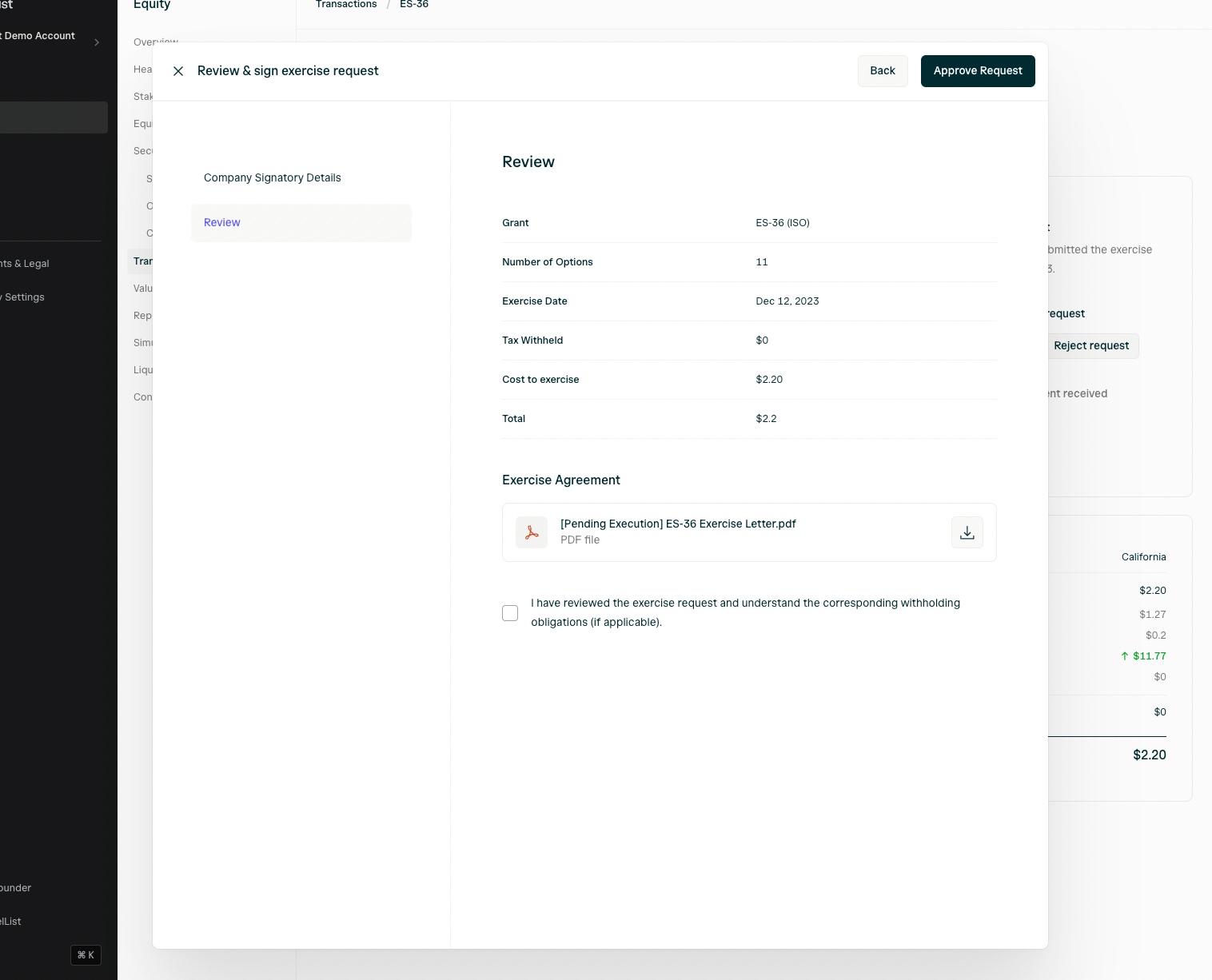
During the review phase, company admins can address issues prior to approving or rejecting the exercise request:

Once approved, the exercising optionee receives an email notification letting them know that their request was approved and that they can now pay for their exercise:
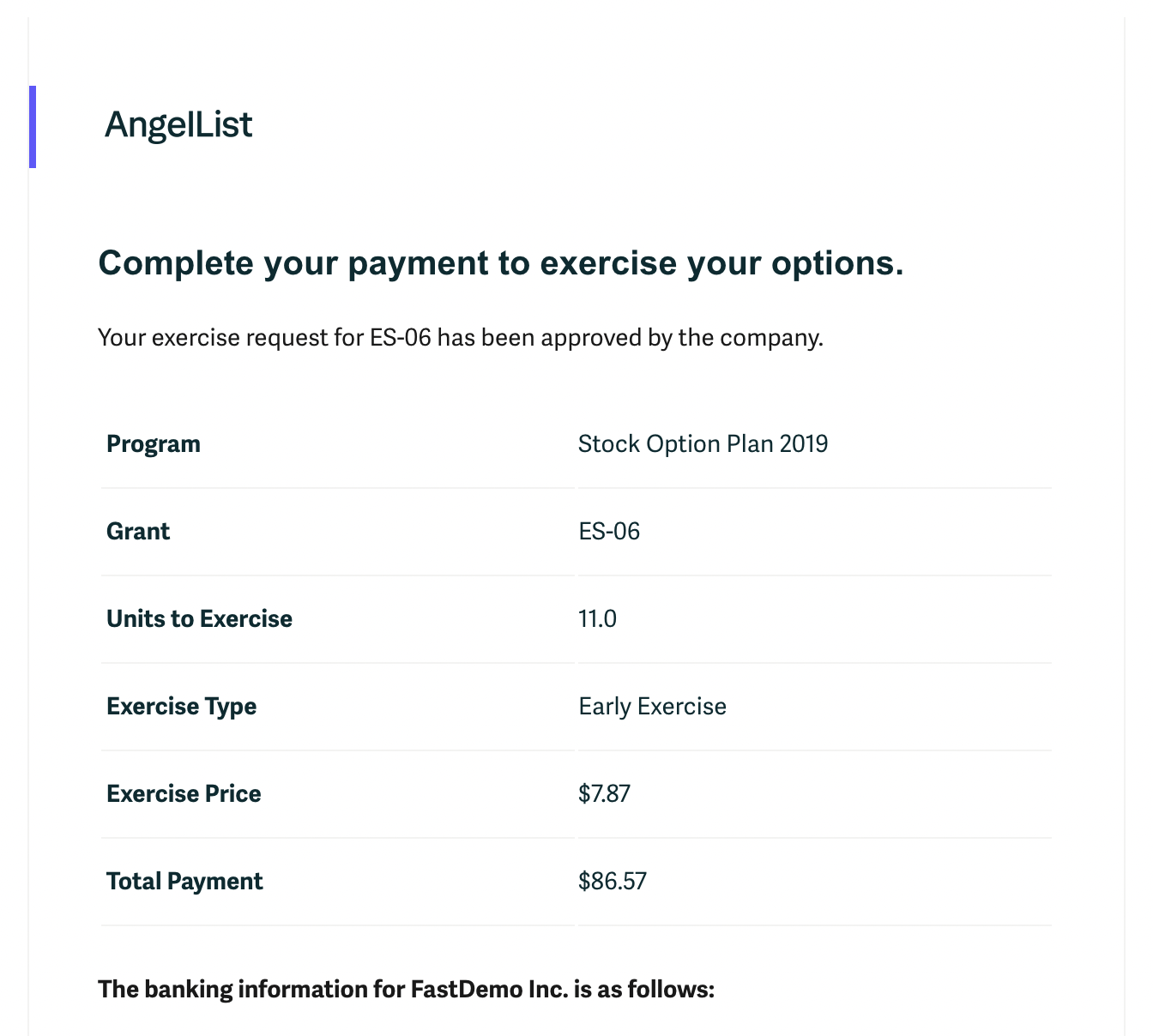
Payment information is made available within the platform for the optionee.
### After the Company receives exercise payment
Company admins are able to record the payment date in the cap table and issue the resulting shares to the exercising stakeholder.
## How do I update the bank account information shown to exercising optionholders?
You may connect a third-party bank account in Company Settings > Banking Information:

After adding a bank account, navigate to your Equity Plan, edit it, and select the bank account from the drop down menu. If it doesn't appear, then refresh the page and try again:

## How do I record a historical exercise that has already been executed?
Navigate to the option page for the exercised option from **Securities > Options**.
From the option page, navigate to the **Transactions** tab and select "Add existing exercise".

Complete the form with the relevant details.
**Note**: Manually recording an exercise does not automatically generate a resulting share entry/certificate. If you also need to issue shares, then you need to separately follow the share issuance steps [here](/equity/equity-admin/issuing-equity#how-do-i-create-a-share-certificate).
## Where can I view historical exercises?
Transactions (option exercises, share repurchases, share transfers, and conversions) appear in the **Transactions** tab:

You may also view the details of an exercise, create and store 83(b)s, and generate and share Forms 3921 from the **exercise detail page**:

You may also download various reports that contain exercise-related information from the **Reports** tab:

## Tax Reporting for Option Exercises - Form 3921
Company admins can either generate or upload and share a Form 3921 with option holders who have exercised their options during a tax year.
To generate Form 3921 and share it with option holders, navigate to the Transactions tab, visit the individual exercise's detail page, and scroll to the bottom of the page to find the Form 3921 section of the Exercise transaction page:


Sharing Form 3921 with option holder will make the form available on the option holder's stakeholder dashboard:

Employee's dashboard with Form 3921:

## How to File Form 3921
Form 3921 can be submitted either electronically (due by April 1) or through mail (due by February 28). Three distinct copies of the form are necessary:
* Copy A should be submitted to the IRS, either online or via mail.
* Copy B must be provided to the option holder who exercised options by January 31.
* Copy C should be retained for your company's records.
From the year 2024 onwards, if you need to submit 10 or more Form 3921s or other similar returns, you are required to file them electronically by April 1, for the tax year. To prepare for filing, you should gather:
* A roster of option holders who exercised incentive stock options in the last year.
* Their tax ID numbers, complete names, and addresses.
* Your company’s transmitter control code (TCC).
* For online filing, access to the IRS’ FIRE (Filing Information Returns Electronically) system is needed.
**For Online Filing:** If this is your first time filing online, you must file Form 4419 electronically to obtain a TCC from the IRS, which is necessary to create a FIRE account. This process could take several weeks, so it's advisable to begin at least a month before the deadline (by March 1, 2024).
**For Filing by Mail:** If filing by mail, remember that forms printed at home are not acceptable. The IRS uses specialized machines that only read forms printed on IRS-provided paper. This paper can be ordered from the [IRS website](https://www.irs.gov/instructions/i3921).
# Recording Repurchases
Source: https://help.angelliststack.com/equity/transactions/repurchases
It's important to execute the relevant repurchase agreements before recording them in your cap table. Recording the repurchase in the cap table by itself does not effectuate the legal repurchase transaction.
## Recording Share Repurchases
Once you've legally executed a share repurchase, you can record the repurchase and upload the repurchase agreements in your cap table:
1. Navigate to **Securities > Shares**.
2. Find the relevant share security and click on it to open the share security page.
3. Click on the **Actions** button in the top right corner and select **Record repurchase**.
# Option Exercises
Source: https://help.angelliststack.com/equity/transactions/option-exercise
**Note**: Option exercise transactions are only available to companies on the Growth, Growth Plus, and Scale plans.
## Enabling Option Exercise in AngelList Equity
To enable option exercises through the app, navigate to Equity > Equity Plans and select the plan you'd like to enable option exercises for. Navigate to the Options tab and click Configure. Toggle on **Allow exercises through the AngelList platform** and **Save**.
If you haven't link a bank account for online exercise payments, follow the instructions below.

If you didn't configure the option exercise agreement when you set up your option grant template, you'll also need to update the grant template to include a configured exercise agreement [here](/equity/equity-admin/equity-plan-setup#configuring-grant-document-templates).
### Link a bank account to receive exercise payments
1. Navigate to your equity plan and click **Actions > Managed linked bank accounts**.

2. Click **Link an account** to link a bank account:

3. If this is your first time linking a bank account, you will be asked to provide information about your business. This is used for security purposes in order to verify the account. This step is only required the first time you link an account.

Your business details will typically be verified in less than one business day.
4. Finally, select your account from the dropdown. Once your business verification is processed, your stakeholders will see the option to pay for exercises online.

## How do option holders exercise their options?
If in-app exercises are enabled, option holders can click Exercise Options on their dashboards to select an option grant to exercise. This takes them to a page where they can specify the number of options to exercise, verify their personal information, and view exercise costs and estimated taxes. Upon submission, they're directed to a confirmation page.
[Click here](/equity/stakeholder-experience/employee-experience#how-do-i-exercise-my-options) to view the process from the stakeholder's perspective
Company admins then receive a notification to review the exercise request, including withholding tax amounts, the option holder address, the status of the option (ISO/NSO), along with the exercise agreements.
**Note**: It's important to consider tax withholding requirements with the help of your legal or accounting teams prior to approving an exercise request.

During the review phase, company admins can address issues prior to approving or rejecting the exercise request:

Once approved, the exercising optionee receives an email notification letting them know that their request was approved and that they can now pay for their exercise:

Payment information is made available within the platform for the optionee.
### After the Company receives exercise payment
Company admins are able to record the payment date in the cap table and issue the resulting shares to the exercising stakeholder.
## How do I update the bank account information shown to exercising optionholders?
You may connect a third-party bank account in Company Settings > Banking Information:

After adding a bank account, navigate to your Equity Plan, edit it, and select the bank account from the drop down menu. If it doesn't appear, then refresh the page and try again:

## How do I record a historical exercise that has already been executed?
Navigate to the option page for the exercised option from **Securities > Options**.
From the option page, navigate to the **Transactions** tab and select "Add existing exercise".

Complete the form with the relevant details.
**Note**: Manually recording an exercise does not automatically generate a resulting share entry/certificate. If you also need to issue shares, then you need to separately follow the share issuance steps [here](/equity/equity-admin/issuing-equity#how-do-i-create-a-share-certificate).
## Where can I view historical exercises?
Transactions (option exercises, share repurchases, share transfers, and conversions) appear in the **Transactions** tab:

You may also view the details of an exercise, create and store 83(b)s, and generate and share Forms 3921 from the **exercise detail page**:

You may also download various reports that contain exercise-related information from the **Reports** tab:

## Tax Reporting for Option Exercises - Form 3921
Company admins can either generate or upload and share a Form 3921 with option holders who have exercised their options during a tax year.
To generate Form 3921 and share it with option holders, navigate to the Transactions tab, visit the individual exercise's detail page, and scroll to the bottom of the page to find the Form 3921 section of the Exercise transaction page:


Sharing Form 3921 with option holder will make the form available on the option holder's stakeholder dashboard:

Employee's dashboard with Form 3921:

## How to File Form 3921
Form 3921 can be submitted either electronically (due by April 1) or through mail (due by February 28). Three distinct copies of the form are necessary:
* Copy A should be submitted to the IRS, either online or via mail.
* Copy B must be provided to the option holder who exercised options by January 31.
* Copy C should be retained for your company's records.
From the year 2024 onwards, if you need to submit 10 or more Form 3921s or other similar returns, you are required to file them electronically by April 1, for the tax year. To prepare for filing, you should gather:
* A roster of option holders who exercised incentive stock options in the last year.
* Their tax ID numbers, complete names, and addresses.
* Your company’s transmitter control code (TCC).
* For online filing, access to the IRS’ FIRE (Filing Information Returns Electronically) system is needed.
**For Online Filing:** If this is your first time filing online, you must file Form 4419 electronically to obtain a TCC from the IRS, which is necessary to create a FIRE account. This process could take several weeks, so it's advisable to begin at least a month before the deadline (by March 1, 2024).
**For Filing by Mail:** If filing by mail, remember that forms printed at home are not acceptable. The IRS uses specialized machines that only read forms printed on IRS-provided paper. This paper can be ordered from the [IRS website](https://www.irs.gov/instructions/i3921).
# Recording Repurchases
Source: https://help.angelliststack.com/equity/transactions/repurchases
It's important to execute the relevant repurchase agreements before recording them in your cap table. Recording the repurchase in the cap table by itself does not effectuate the legal repurchase transaction.
## Recording Share Repurchases
Once you've legally executed a share repurchase, you can record the repurchase and upload the repurchase agreements in your cap table:
1. Navigate to **Securities > Shares**.
2. Find the relevant share security and click on it to open the share security page.
3. Click on the **Actions** button in the top right corner and select **Record repurchase**.
![]() 4. Enter the repurchase details and upload the executed repurchase agreement.
4. Enter the repurchase details and upload the executed repurchase agreement.
![]() 5. Review the repurchase details and confirm the repurchase.
In the case of a partial repurchase, a balance share security will be created automatically to track the remaining shares.
## Recording Repurchases of other Security Types
If you need to record the repurchase of a security that isn't a share security, please contact [startups@angellist.com](mailto:startups@angellist.com) for assistance.
## Where can I view historical repurchases?
Transactions (option exercises, share repurchases, share transfers, and conversions) appear in the **Transactions** tab:
5. Review the repurchase details and confirm the repurchase.
In the case of a partial repurchase, a balance share security will be created automatically to track the remaining shares.
## Recording Repurchases of other Security Types
If you need to record the repurchase of a security that isn't a share security, please contact [startups@angellist.com](mailto:startups@angellist.com) for assistance.
## Where can I view historical repurchases?
Transactions (option exercises, share repurchases, share transfers, and conversions) appear in the **Transactions** tab:
![]() You may also download various reports that contain repurchase-related information from the **Reports** tab:
You may also download various reports that contain repurchase-related information from the **Reports** tab:
![]() ## Recording Repurchases Associated with a Stakeholder Termination
A security repurchase associated with a stakeholder termination can also be recorded using the Stakeholder Termination [workflow](/equity/transactions/terminations).
# Recording Terminations
Source: https://help.angelliststack.com/equity/transactions/terminations
AngelList Equity enables you to record terminations and update related securities on your cap table. We **strongly recommend you work with your legal team** to ensure that any necessary legal agreements are properly executed and documented before making any changes to your cap table.
### How To Record a Termination
1. Navigate to Equity > Stakeholders.
2. Find the stakeholder to be terminated, and click them to navigate to their stakeholder details page.
3. Click on the action buttons in the row of the employee to reveal the "Terminate Employee" button.
## Recording Repurchases Associated with a Stakeholder Termination
A security repurchase associated with a stakeholder termination can also be recorded using the Stakeholder Termination [workflow](/equity/transactions/terminations).
# Recording Terminations
Source: https://help.angelliststack.com/equity/transactions/terminations
AngelList Equity enables you to record terminations and update related securities on your cap table. We **strongly recommend you work with your legal team** to ensure that any necessary legal agreements are properly executed and documented before making any changes to your cap table.
### How To Record a Termination
1. Navigate to Equity > Stakeholders.
2. Find the stakeholder to be terminated, and click them to navigate to their stakeholder details page.
3. Click on the action buttons in the row of the employee to reveal the "Terminate Employee" button.
![]() 4. Add the date and reason for termination. It's important to select the correct reason because it will set the exercise period accordingly. Add any internal notes (these will not be visible to the employee)
4. Add the date and reason for termination. It's important to select the correct reason because it will set the exercise period accordingly. Add any internal notes (these will not be visible to the employee)
![]()
![]() 5. If the stakeholder will lose access to their work email address, you may switch their login email. If the stakeholder does not have reason to maintain access to their portal (for example, they never vested), then you may revoke their access:
5. If the stakeholder will lose access to their work email address, you may switch their login email. If the stakeholder does not have reason to maintain access to their portal (for example, they never vested), then you may revoke their access:
![]() 6. You will have an opportunity to review the changes that will be made to securities held by the stakeholder:
6. You will have an opportunity to review the changes that will be made to securities held by the stakeholder:
![]() ### Termination Reasons and Exercise Periods
AngelList enables you to set default exercise periods by termination reason. When you terminate a stakeholder, you will select a termination reason, and that will in turn establish their exercise period and the date their exercisable options will expire.
To configure exercise periods, visit your Equity Plan, click Actions in the top right, then **Configure Option Grants**:
### Termination Reasons and Exercise Periods
AngelList enables you to set default exercise periods by termination reason. When you terminate a stakeholder, you will select a termination reason, and that will in turn establish their exercise period and the date their exercisable options will expire.
To configure exercise periods, visit your Equity Plan, click Actions in the top right, then **Configure Option Grants**:
![]() Set your default exercise periods for each Termination Reason and Save:
Set your default exercise periods for each Termination Reason and Save:
![]() Now, when you terminate a stakeholder, you'll be asked to select a Termination Reason, which will in turn set their exercise period according to the defaults established in your Equity Plan:
Now, when you terminate a stakeholder, you'll be asked to select a Termination Reason, which will in turn set their exercise period according to the defaults established in your Equity Plan:
![]() The following Termination Reasons are supported:
* *Resignation / Voluntary Termination*: When a stakeholder decides to leave the company out of their own volition.
* *Involuntary Termination (without cause)*: When a stakeholder is asked to leave the company without any specific fault or performance issue on the part of the employee.
* *Involuntary Termination (for cause/breach)*: When a stakeholder is asked to leave the company by the employer for breach of agreement or other violation. For purposes of illustrating the difference between *Involuntary Termination for cause/breach* and *Involuntary Termination without cause*, for cause/breach typically results in immediate expiration of exerciseable options (An exercise period of 0 days).
* *Retirement*: When a stakeholder retires from the workforce as the primary reason for leaving the company
* *Disability*: When a stakeholder leaves the company primarily due to disability.
* *Death*
### Sending Termination Notifications
By default, AngelList Equity does not send notifications to stakeholders that are being terminated. However, you may choose to send a notification by switching "Notify Stakeholder" to "Yes". Optionally, you may add a custom message:
The following Termination Reasons are supported:
* *Resignation / Voluntary Termination*: When a stakeholder decides to leave the company out of their own volition.
* *Involuntary Termination (without cause)*: When a stakeholder is asked to leave the company without any specific fault or performance issue on the part of the employee.
* *Involuntary Termination (for cause/breach)*: When a stakeholder is asked to leave the company by the employer for breach of agreement or other violation. For purposes of illustrating the difference between *Involuntary Termination for cause/breach* and *Involuntary Termination without cause*, for cause/breach typically results in immediate expiration of exerciseable options (An exercise period of 0 days).
* *Retirement*: When a stakeholder retires from the workforce as the primary reason for leaving the company
* *Disability*: When a stakeholder leaves the company primarily due to disability.
* *Death*
### Sending Termination Notifications
By default, AngelList Equity does not send notifications to stakeholders that are being terminated. However, you may choose to send a notification by switching "Notify Stakeholder" to "Yes". Optionally, you may add a custom message:
![]() The preview tab makes it easy to see the message the stakeholder will receive:
The preview tab makes it easy to see the message the stakeholder will receive:
![]() Upon clicking Confirm, the stakeholder's relationship with the company will be changed to terminated, and any shares/awards will be adjusted according to the date of termination and the reason for termination. If applicable, vesting will stop on the termination date, unvested options will return to the pool, and vested but unexercised options will be subject to expiry after the exercise period ends.
Upon clicking Confirm, the stakeholder's relationship with the company will be changed to terminated, and any shares/awards will be adjusted according to the date of termination and the reason for termination. If applicable, vesting will stop on the termination date, unvested options will return to the pool, and vested but unexercised options will be subject to expiry after the exercise period ends.
![]() If you would like to preview the stakeholder's portal to confirm what is visible and what actions are possible post-termination, click the Preview Dashboard button on the stakeholder's detail page:
If you would like to preview the stakeholder's portal to confirm what is visible and what actions are possible post-termination, click the Preview Dashboard button on the stakeholder's detail page:
![]() ### Repurchasing Shares using Termination Workflow
If a stakeholder has outstanding securities, you can repurchase shares during the termination workflow by selecting which shares to repurchase from the dashboard and clicking **Add Details**.
### Repurchasing Shares using Termination Workflow
If a stakeholder has outstanding securities, you can repurchase shares during the termination workflow by selecting which shares to repurchase from the dashboard and clicking **Add Details**.
![]() # Recording Security Transfers
Source: https://help.angelliststack.com/equity/transactions/transfers
It's important to execute the relevant transfer and any purchase agreements before recording the transfer in your cap table. Recording the transfer in the cap table by itself does not effectuate a legal change in ownership.
You can record transfers of securities by navigating to the relevant security and following the applicable transfer workflow described below.
## Recording Share Transfers
Navigate to the Share security that was transferred, and click on **Actions -> Record transfer**.
# Recording Security Transfers
Source: https://help.angelliststack.com/equity/transactions/transfers
It's important to execute the relevant transfer and any purchase agreements before recording the transfer in your cap table. Recording the transfer in the cap table by itself does not effectuate a legal change in ownership.
You can record transfers of securities by navigating to the relevant security and following the applicable transfer workflow described below.
## Recording Share Transfers
Navigate to the Share security that was transferred, and click on **Actions -> Record transfer**.
![]() Input the relevant details and upload the executed transfer agreement.
Input the relevant details and upload the executed transfer agreement.
![]() Review the details and complete the transfer recording.
If the transfer is a transfer of less than all of the shares on the original share security, a new balance security will be created for the remainder shares that were not transferred.
The transfer history will be available on the **Transactions** tab of the share security.
The transferee's share security will be generated automatically and will be ready for sharing with the transferee.
## Recording SAFE Transfers
Navigate to the Safe security that was transferred and click on **Actions -> Record transfer**
Review the details and complete the transfer recording.
If the transfer is a transfer of less than all of the shares on the original share security, a new balance security will be created for the remainder shares that were not transferred.
The transfer history will be available on the **Transactions** tab of the share security.
The transferee's share security will be generated automatically and will be ready for sharing with the transferee.
## Recording SAFE Transfers
Navigate to the Safe security that was transferred and click on **Actions -> Record transfer**
![]() Input the relevant details and upload the executed transfer agreement.
Input the relevant details and upload the executed transfer agreement.
![]() Review the details and complete the transfer recording.
If the transfer is a transfer of less than all of the the principal amount of the original SAFE, a new balance security will be created for the remainder of the Safe principal balance that was not transferred.
## Recording Transfers of other Security Types
If you need to record a transfer related to a security that is not a Share security or a Safe, please contact [stratups@angellist.com](mailto:stratups@angellist.com) for assistance.
## Where can I view historical transfers?
Transactions (option exercises, share repurchases, share transfers, and conversions) appear in the **Transactions** tab:
Review the details and complete the transfer recording.
If the transfer is a transfer of less than all of the the principal amount of the original SAFE, a new balance security will be created for the remainder of the Safe principal balance that was not transferred.
## Recording Transfers of other Security Types
If you need to record a transfer related to a security that is not a Share security or a Safe, please contact [stratups@angellist.com](mailto:stratups@angellist.com) for assistance.
## Where can I view historical transfers?
Transactions (option exercises, share repurchases, share transfers, and conversions) appear in the **Transactions** tab:
![]() You may also download various reports that contain repurchase-related information from the **Reports** tab:
You may also download various reports that contain repurchase-related information from the **Reports** tab:
![]() # Product Update & FAQ
Source: https://help.angelliststack.com/equity/update-faq
Sharing an update on our cap table product and its future
We are revising our cap table product to integrate Roll Up Vehicles and Consolidation Vehicles at the atomic level. We believe these vehicles are important enough to be a fundamental component of cap tables.
In practice, this means every investor below a threshold will join an RUV or CV on the cap table. Founders tell us these vehicles are critical for fast financings and acquisitions, which is good for all investors of all sizes.
\*\*This new offering will be the only option for any new cap table customer. \*\*
**Current customers can choose to stay on the existing version and everything will continue working as before, with no changes in software, support, or pricing**
If existing customers using our standalone cap table product wish to move to another provider, we’ve made it easy for them to transition to other cap table software providers, including J.P. Morgan and Pulley, given that we’re no longer building new features for the old version.
### No impact on Roll Up Vehicles
This announcement will not impact fundraising tools or Roll Up Vehicles, which will continue to function as normal.
As always, we will continue to offer standalone Roll Up Vehicles and standalone Consolidation Vehicles, no matter what cap table provider you use. You can learn more about them at Rollup.com
If you would like to migrate, we’ve outlined the next steps on your [dashboard](https://stack.angellist.com/captable/migrate), where you can also see a comparison table between J.P. Morgan and Pulley’s offerings. Of course, we support a move to any provider of your choice.
## FAQs for Existing Cap Table Customers
You can do nothing if you want by choosing to stay on the existing version of the product. If you choose to stay on the existing version, everything will continue working as before, with no changes in software, support, or pricing.
# Product Update & FAQ
Source: https://help.angelliststack.com/equity/update-faq
Sharing an update on our cap table product and its future
We are revising our cap table product to integrate Roll Up Vehicles and Consolidation Vehicles at the atomic level. We believe these vehicles are important enough to be a fundamental component of cap tables.
In practice, this means every investor below a threshold will join an RUV or CV on the cap table. Founders tell us these vehicles are critical for fast financings and acquisitions, which is good for all investors of all sizes.
\*\*This new offering will be the only option for any new cap table customer. \*\*
**Current customers can choose to stay on the existing version and everything will continue working as before, with no changes in software, support, or pricing**
If existing customers using our standalone cap table product wish to move to another provider, we’ve made it easy for them to transition to other cap table software providers, including J.P. Morgan and Pulley, given that we’re no longer building new features for the old version.
### No impact on Roll Up Vehicles
This announcement will not impact fundraising tools or Roll Up Vehicles, which will continue to function as normal.
As always, we will continue to offer standalone Roll Up Vehicles and standalone Consolidation Vehicles, no matter what cap table provider you use. You can learn more about them at Rollup.com
If you would like to migrate, we’ve outlined the next steps on your [dashboard](https://stack.angellist.com/captable/migrate), where you can also see a comparison table between J.P. Morgan and Pulley’s offerings. Of course, we support a move to any provider of your choice.
## FAQs for Existing Cap Table Customers
You can do nothing if you want by choosing to stay on the existing version of the product. If you choose to stay on the existing version, everything will continue working as before, with no changes in software, support, or pricing.
If you would prefer to move to another provider since we are no longer building new features for the existing version of the product you can choose to migrate to another provider at any time.
If you would like to learn more about the new offerings, please contact us or indicate your interest above.
We are only offering this new product to customers who are (or will shortly be using) both Consolidation Vehicles and Roll Up Vehicles.
You can learn more about Consolidation Vehicles and Roll Up Vehicles on Rollups.com
Please contact [team@rollups.com](mailto:team@rollups.com) to learn more about the offerings and whether it could be a good fit.
While the existing product will be maintained, our product development will be focused on the new integrated solution.
If your needs are best matched by a standalone cap table management vendor, we are providing easy migration paths to other providers. Those products will likely be a better match for your needs and could result in cost savings compared to your current AngelList plan.
In the future, you can always purchase Roll Up Vehicles or Consolidation Vehicles regardless of what cap table management software you use.
Everything will continue as usual. We have the same team available to support. Reach out to us at [startups@angellist.com](mailto:startups@angellist.com)
Certainly. We are happy to do so once we confirm that you have accessed & stored your data.
Once you have migrated or otherwise no longer need your data, log in to your dashboard and under Settings > Billing, press contact support and request a deletion of your cap table data (or your entire profile).
Once any administrator requests this, the data will be deleted and will not be able to be restored.
Your company is eligible to continue using your plan. When it comes time to upgrade or you exceed the quota allocated by your plan, we will reach out with options for you.
## FAQs about Migration to Other Providers
No. You can migrate at any time. Should you decide to migrate to J.P. Morgan, they intend to honor the time left on your subscription to AngelList such that you will not have billing overlap.
Many customers may save money by migrating compared to their existing plans, so it would make sense to evaluate your options before your renewal date.
Learn more about J.P. Morgan Workplace Solutions, view G2 reviews, read customer testimonials, and request a demo at [their dedicated AngelList migration page](https://www.jpmorganworkplacesolutions.com/angel-list-cap-table-migration/).
We've made it as easy as possible. With J.P. Morgan Workplace Solutions, the migration is automated, with your documents automatically porting over and no need for a sales call.
With Pulley, you can talk to their team here Pulley.com/angellist and they will provide instructions on how to grant Pulley access to your cap table data. The Pulley team will manage the onboarding of your data.
If you decide to migrate to another vendor, we've provided a single export file that contains all of your data.
Yes. We are not restricting your choices here. You have access to your cap table data in a simple single report that includes all documents within your reporting center, called the Open Cap Table Data Export, which is available [in the dashboard](https://stack.angellist.com/company_r/equity?path=reports)
The actual migration of your cap table data is free and handled by J.P. Morgan or Pulley. You will not need to pay upfront to evaluate the platforms. The platforms will work with you or your team to ensure the cap table migration is completed accurately.
You can add your legal teams to your new cap table to review if you would like.
Your data will become read only, but you'll maintain access to the reports to be able to migrate elsewhere when you are ready.
J.P. Morgan acquired a business called Global Shares in 2022 and has since rebranded it as J.P. Morgan Workplace Solutions. Global Shares itself was founded in 2005.
J.P. Morgan Workplace Solutions manages cap tables and employee stock plans for some of the world's most dynamic start-ups and enterprise brands.
Their platform is designed to support your company's growth, from inception through funding rounds, IPO, and beyond. Clients can track investors, manage stock option plans, and model future funding scenarios—all within the Workplace Solutions platform.
As a long-standing partner of the venture capital community, they offer a comprehensive suite of software features and services, including:
* Round modeling, board approvals, participant portal, and more
* Banking products and services via the Innovation Economy Team
* Capital markets and advisory services through the Investment Bank
* Wealth management for founders, their families, and employees
To learn more, see G2 reviews or schedule a demo [here](https://www.jpmorganworkplacesolutions.com/angel-list-cap-table-migration/).
No, if you have already paid your annual subscription fees to AngelList, you will not need to make an additional payment to J.P. Morgan for the same period. J.P. Morgan will honor all existing payments made to AngelList, ensuring a seamless transition without any additional financial burden. Any changes to the fee structure under J.P. Morgan will be communicated directly to clients. They are committed to competitive pricing and transparency, and clients will be informed well in advance of any updates.
**Support Contact:** For any J.P. Morgan support queries, please reach out to [captable.alsupport@jpmorgan.com](mailto:captable.alsupport@jpmorgan.com), and their team will respond or connect you with the appropriate contact.
## FAQs about other topics
Nothing changes. Everything will still work as usual and we are continuing to onboard new customers to AngelList.
If your company has shut down, you likely have no action required. You can have us delete the data if you would like, but investors often like having access to their own documents and portals.
We're happy to connect you with vendors who can offer standalone 409As. Aranca and Eton Valuation Partners
You do not need to subscribe to cap table software to be eligible to use a standalone 409A.
## More information about the alternative providers
**J.P. Morgan Workplace Solutions:**
J.P. Morgan Workplace Solutions supports thousands of private and public companies with equity management. Founders who have worked with them specifically highlight their pricing and support.
* We have a preferred partnership with J.P. Morgan to automate the entire data and document migration process. No sales calls, no manual rebuilding of cap tables, no painful onboarding periods. Cap table and documents transfer automatically once you initiate a migration.
* J.P. Morgan offers a free plan for companies with 40 stakeholders or fewer.
* Additionally, eligible customers using both J.P. Morgan Workplace Solutions and J.P. Morgan’s Startup Banking will receive free cap table management services for up to 100 stakeholders for three years.
**Pulley:** Pulley streamlines equity management for growing companies—from cap tables and 409A valuations to RSUs and compliance. Pulley will support AngelList customers with onboarding assistance.
**Comparison Table**
In your dashboard, you will find an comparison table of functionality between J.P. Morgan Workplace Solutions and Pulley as determined from public sources and information from the vendors.
**Other providers**
Should you want to move, you are welcome to move to any other provider of your choice as well. We provide a simple Data Export that will help you migrate your cap table in your Reports tab.
## What's next
For existing company administrators on AngelList's cap table product, you can find more information in [your dashboard, linked here](https://stack.angellist.com/captable/migrate)
Looking to launch an RUV or CV? You can get started [here](https://rollups.com). For questions on cap tables, reach out to the team at [startups@angellist.com](mailto:startups@angellist.com)
# Accounts and settings
Source: https://help.angelliststack.com/platform/administration/dashboard
## Account Access
### How do I log in?
To log in, [click here](https://stack.angellist.com/login) and enter your email.
If your AngelList account exists, you'll be emailed a magic login link and won't need a password.
![]() If you don't already have an AngelList account, you can create a new account by following the "Sign in with AngelList" link to the AngelList account creation prompt.
### How do I reset my password?
To reset your password, please head [here](https://venture.angellist.com/v/forgot).
If you have previously created a Stack-specific password (in rare cases), you can reset your password [here](https://stack.angellist.com/users/password/new).
If you don't already have an AngelList account, you can create a new account by following the "Sign in with AngelList" link to the AngelList account creation prompt.
### How do I reset my password?
To reset your password, please head [here](https://venture.angellist.com/v/forgot).
If you have previously created a Stack-specific password (in rare cases), you can reset your password [here](https://stack.angellist.com/users/password/new).
![]() ***
## Company Settings
### How do I change my logo?
You can change your logo by navigating to Company > Overview and clicking Upload Logo.
***
## Company Settings
### How do I change my logo?
You can change your logo by navigating to Company > Overview and clicking Upload Logo.
![]() ***
## Permissions
### How do I add people to the dashboard? Can I give someone read-only permissions or otherwise restrict access?
Navigate to Company > Permissions > Add New and input the user's information and permission level.
You can use the pre-set permission level based on role or modify it to fit your specific company's needs.
***
## Permissions
### How do I add people to the dashboard? Can I give someone read-only permissions or otherwise restrict access?
Navigate to Company > Permissions > Add New and input the user's information and permission level.
You can use the pre-set permission level based on role or modify it to fit your specific company's needs.
![]() ### How do I make sure someone does/doesn't get AngelList dashboard notifications?
Under Company > Permissions, select the specific user and toggle their notification settings.
### How do I make sure someone does/doesn't get AngelList dashboard notifications?
Under Company > Permissions, select the specific user and toggle their notification settings.
![]() ### Can I share my investor dashboard with my back office or legal team?
For sure! Check out the [Stakeholder Management](/equity/equity-admin/stakeholder-management#how-can-i-add-my-stakeholder's-back-office-to-their-dashboard) section.
***
## Pricing Plans
You can find AngelList's pricing plans for startups [here](https://www.angellist.com/startups/pricing#pricing-plans).
The pricing model is based on the number of team members at your company who actively hold a claim to ownership in your company.
This means:
* Investors are free! They are not team members.
* Founders, employees, contractors, advisors, or service providers with shares, options, RSUs, phantom stock, or any other form of security do count toward your team member count. They are your team members and have active claims to ownership in your company.
* Terminated founders, employees, contractors, advisors, or service providers with repurchased shares or expired options that were not exercised do not count toward your team member count.
If you need assistance in determining your price, please contact us at [startups@angellist.com](mailto:startups@angellist.com).
## Platform Security
### How do you use our data?
We do not sell or transfer your private data. Our full terms and conditions provide additional detail on how we protect your data [here](https://stack.angellist.com/terms).
### Is your platform secure?
We have successfully completed a SOC 2 audit which assesses a service organization’s internal controls governing its services and data. These controls include security, availability, processing integrity, confidentiality, and privacy as [outlined](https://www.aicpa.org/topic/audit-assurance/audit-and-assurance-greater-than-soc-2) by the American Institute of Certified Public Accountants (AICPA).
You can find additional information on our information security [here](https://stack.angellist.com/security).
***
### I have a question that isn't answered here. Who can I reach out to?
We'll be happy to help you at [startups@angellist.com](mailto:startups@angellist.com).
### Can you provide us with legal advice or act as a transfer agent?
We cannot provide legal advice.
We do not provide transfer agent services. Our focus is on supporting private US companies which rarely require a formal transfer agent.
# Overview
Source: https://help.angelliststack.com/platform/overview
Accounts, Board consents, document management, and more
Visual offers, market pay, and other tools
Fund investments and other help articles
# Employee Management
Source: https://help.angelliststack.com/platform/people/employee-management
## Onboarding
### How can I invite an employee to their dashboard?
Navigate to "Equity > Stakeholders", select the name of the employee you want to invite, and click Invite.
### Can I share my investor dashboard with my back office or legal team?
For sure! Check out the [Stakeholder Management](/equity/equity-admin/stakeholder-management#how-can-i-add-my-stakeholder's-back-office-to-their-dashboard) section.
***
## Pricing Plans
You can find AngelList's pricing plans for startups [here](https://www.angellist.com/startups/pricing#pricing-plans).
The pricing model is based on the number of team members at your company who actively hold a claim to ownership in your company.
This means:
* Investors are free! They are not team members.
* Founders, employees, contractors, advisors, or service providers with shares, options, RSUs, phantom stock, or any other form of security do count toward your team member count. They are your team members and have active claims to ownership in your company.
* Terminated founders, employees, contractors, advisors, or service providers with repurchased shares or expired options that were not exercised do not count toward your team member count.
If you need assistance in determining your price, please contact us at [startups@angellist.com](mailto:startups@angellist.com).
## Platform Security
### How do you use our data?
We do not sell or transfer your private data. Our full terms and conditions provide additional detail on how we protect your data [here](https://stack.angellist.com/terms).
### Is your platform secure?
We have successfully completed a SOC 2 audit which assesses a service organization’s internal controls governing its services and data. These controls include security, availability, processing integrity, confidentiality, and privacy as [outlined](https://www.aicpa.org/topic/audit-assurance/audit-and-assurance-greater-than-soc-2) by the American Institute of Certified Public Accountants (AICPA).
You can find additional information on our information security [here](https://stack.angellist.com/security).
***
### I have a question that isn't answered here. Who can I reach out to?
We'll be happy to help you at [startups@angellist.com](mailto:startups@angellist.com).
### Can you provide us with legal advice or act as a transfer agent?
We cannot provide legal advice.
We do not provide transfer agent services. Our focus is on supporting private US companies which rarely require a formal transfer agent.
# Overview
Source: https://help.angelliststack.com/platform/overview
Accounts, Board consents, document management, and more
Visual offers, market pay, and other tools
Fund investments and other help articles
# Employee Management
Source: https://help.angelliststack.com/platform/people/employee-management
## Onboarding
### How can I invite an employee to their dashboard?
Navigate to "Equity > Stakeholders", select the name of the employee you want to invite, and click Invite.
![]() ### Can I invite employees to their dashboards in bulk?
If they have an existing grant on the dashboard, you can invite employees in bulk using Bulk Actions.
If they do not have any grants on the dashboard yet, you'll have to either individually invite them through their Employee screen as described above.
### Can I see what an employee sees on their dashboard?
Yes - navigate to Equity > Stakeholders and select the employee. Click Actions and select Preview Employee Dashboard. You will not be able to take any action on behalf of the employee, but you will be able to see the dashboard from their view.
## Termination
### How do I manage an employee's termination?
Navigate to Equity > Stakeholders and select the employee being terminated. Click Actions and select Terminate.
### Can I invite employees to their dashboards in bulk?
If they have an existing grant on the dashboard, you can invite employees in bulk using Bulk Actions.
If they do not have any grants on the dashboard yet, you'll have to either individually invite them through their Employee screen as described above.
### Can I see what an employee sees on their dashboard?
Yes - navigate to Equity > Stakeholders and select the employee. Click Actions and select Preview Employee Dashboard. You will not be able to take any action on behalf of the employee, but you will be able to see the dashboard from their view.
## Termination
### How do I manage an employee's termination?
Navigate to Equity > Stakeholders and select the employee being terminated. Click Actions and select Terminate.
![]() Here, you can manage the various scenarios under which somebody could be terminated and handle their ESOP vesting/cancellation accordingly.
Note - at this point, it is advised to change the employee's primary email to their personal email address so that they can retain visibility into their vested ESOPs.
You can immediately revoke access in case of termination for cause or immediately vest all unvested units for someone as well.
### Where are my terminated employee's records?
Terminated employees' records are stored on the dashboard. If you don't see a terminated employee listed there, you may have unknowingly revoked access from them. Reach out to us to fix this.
### Do the unvested options fall back to the pool automatically after the termination of an employee?
Yes. No manual adjustments are required. Reach out to [startups@angellist.com](mailto:startups@angellist.com) for help.
# Integrations
Source: https://help.angelliststack.com/platform/people/integrations
This offering is only availble for customers on select paid plan tiers.
AngelList enables you to seamlessly and securely ([AngelList is SOC II compliant](https://stack.angellist.com/security)) sync your HRIS and payroll systems.
## Basics
### How do I sync my HRIS and payroll systems?
Navigate to People > Configuration > Integrations and select your provider. If you don't see your provider, scroll down and use the search function.
Here, you can manage the various scenarios under which somebody could be terminated and handle their ESOP vesting/cancellation accordingly.
Note - at this point, it is advised to change the employee's primary email to their personal email address so that they can retain visibility into their vested ESOPs.
You can immediately revoke access in case of termination for cause or immediately vest all unvested units for someone as well.
### Where are my terminated employee's records?
Terminated employees' records are stored on the dashboard. If you don't see a terminated employee listed there, you may have unknowingly revoked access from them. Reach out to us to fix this.
### Do the unvested options fall back to the pool automatically after the termination of an employee?
Yes. No manual adjustments are required. Reach out to [startups@angellist.com](mailto:startups@angellist.com) for help.
# Integrations
Source: https://help.angelliststack.com/platform/people/integrations
This offering is only availble for customers on select paid plan tiers.
AngelList enables you to seamlessly and securely ([AngelList is SOC II compliant](https://stack.angellist.com/security)) sync your HRIS and payroll systems.
## Basics
### How do I sync my HRIS and payroll systems?
Navigate to People > Configuration > Integrations and select your provider. If you don't see your provider, scroll down and use the search function.
![]() ### What do the integrations do?
#### Cap Table Management
Once your payroll and HRIS systems are synced, your cap table works better:
• Automatically terminate employees in AngelList when employees are terminated in your HRIS/payroll systems.
• All of your employee details in AngelList, none of the manually data entry. Location data, for example, is important for certain tax withholding calculations.
• 409A valuation requests include your compensation data, an important input to some methods of determining your company's valuation.
#### Compensation benchmarks
Once your payroll and HRIS systems are synced, you unlock access to AngelList Market Pay, which features ary and equity compensation benchmarks that help you make competitive and fair job offers.
# Visual Offers
Source: https://help.angelliststack.com/platform/people/visual-offers
Offers enable companies to invite prospective employees to accept a job offer.
This offering is no longer available to new customers as of November 2024
## Offer Basics
### How do I create an offer?
Navigate to People > Offers and click New Offer.
### What do the integrations do?
#### Cap Table Management
Once your payroll and HRIS systems are synced, your cap table works better:
• Automatically terminate employees in AngelList when employees are terminated in your HRIS/payroll systems.
• All of your employee details in AngelList, none of the manually data entry. Location data, for example, is important for certain tax withholding calculations.
• 409A valuation requests include your compensation data, an important input to some methods of determining your company's valuation.
#### Compensation benchmarks
Once your payroll and HRIS systems are synced, you unlock access to AngelList Market Pay, which features ary and equity compensation benchmarks that help you make competitive and fair job offers.
# Visual Offers
Source: https://help.angelliststack.com/platform/people/visual-offers
Offers enable companies to invite prospective employees to accept a job offer.
This offering is no longer available to new customers as of November 2024
## Offer Basics
### How do I create an offer?
Navigate to People > Offers and click New Offer.
![]() Fill out the information and use the Suggested Compensation tool to see how your offer compares.
Fill out the information and use the Suggested Compensation tool to see how your offer compares.
![]() ### When creating an offer, what do the equity compensation fields mean?
Note: Clicking into the field will reveal an example.
• **Total Grant Value (notional)** - An estimate of the total value of the grant at the current time.
•**Total Value Per Year** - The Total Grant Value (above), divided by the number of years in the vesting schedule. ex: a Total Grant Value of $1,000,000 would have a Total Value Per Year of $250,000.
### How can I personalize the offer?
Once you've saved the offer, you can attach any related documents and share more about the company by including some of the suggested information in the Offer Sections. Click on each to customize it to your company.
### When creating an offer, what do the equity compensation fields mean?
Note: Clicking into the field will reveal an example.
• **Total Grant Value (notional)** - An estimate of the total value of the grant at the current time.
•**Total Value Per Year** - The Total Grant Value (above), divided by the number of years in the vesting schedule. ex: a Total Grant Value of $1,000,000 would have a Total Value Per Year of $250,000.
### How can I personalize the offer?
Once you've saved the offer, you can attach any related documents and share more about the company by including some of the suggested information in the Offer Sections. Click on each to customize it to your company.
![]() ## Document Signing
To provide PDF offer letters with signatures, first provide a templated offer letter document (in docx format) in your company's Templates library. Any templates uploaded in the "Employment" category will be available.
## Document Signing
To provide PDF offer letters with signatures, first provide a templated offer letter document (in docx format) in your company's Templates library. Any templates uploaded in the "Employment" category will be available.
![]() ### Template Variables
| Field (in DOCX file) | Description |
| - | - |
| company\_legal\_name | (ex: FastWidgets Inc.) |
| company\_name | The informal company name (ex: FastWidget) |
| employee\_name | Candidate name |
| title | Role title |
| manager\_name | |
| annual\_salary | ex: \$120,000 |
| annual\_target\_bonus | |
| signing\_bonus | |
| expiry\_date | Expiry Date if Provided |
| start\_date | Start date provided by the company or the employee, if not provided |
| company\_state | Incorporation State |
| prior\_inventions\_and\_patents | The candidate's mentioned prior inventions or "\[None Provided]" |
| equity\_grant\_units | Number of Units |
| equity\_grant\_description | Summary of Equity Grant |
| execution\_date | Date the Offer was Signed |
| employee\_signature\_block | Employee Signature Block |
| company\_signature\_block | Signature Block for the Company |
# Board Consents
Source: https://help.angelliststack.com/platform/platform-tools/board-consents
## Board Consents
Board consents are a critical legal step in issuing equity or modifying existing equity issuances.
We **strongly recommend you work with your law firm** to ensure that any board consent is appropriate for a specific equity transaction or set of transactions.
### What features does AngelList Equity provide for board consents?
Our board consent infrastructure supports two different board consent workflows:
1. **Record Only**: Upload board consents that were drafted and signed off-platform for record-keeping purposes.
2. **Generate & Execute**: Create and use board consent templates to generate individual board consents and use the platform to complete signatures.
### How can I upload a board consent that was already executed for recordkeeping?
Having all of your equity-related board consents uploaded to AngelList helps enable a number of automated checks.
If a Board Consent was already fully-executed outside of the platform, you can add it by navigating to *Company Settings > Board Consents* and clicking *Add > Upload executed consents*.
### Template Variables
| Field (in DOCX file) | Description |
| - | - |
| company\_legal\_name | (ex: FastWidgets Inc.) |
| company\_name | The informal company name (ex: FastWidget) |
| employee\_name | Candidate name |
| title | Role title |
| manager\_name | |
| annual\_salary | ex: \$120,000 |
| annual\_target\_bonus | |
| signing\_bonus | |
| expiry\_date | Expiry Date if Provided |
| start\_date | Start date provided by the company or the employee, if not provided |
| company\_state | Incorporation State |
| prior\_inventions\_and\_patents | The candidate's mentioned prior inventions or "\[None Provided]" |
| equity\_grant\_units | Number of Units |
| equity\_grant\_description | Summary of Equity Grant |
| execution\_date | Date the Offer was Signed |
| employee\_signature\_block | Employee Signature Block |
| company\_signature\_block | Signature Block for the Company |
# Board Consents
Source: https://help.angelliststack.com/platform/platform-tools/board-consents
## Board Consents
Board consents are a critical legal step in issuing equity or modifying existing equity issuances.
We **strongly recommend you work with your law firm** to ensure that any board consent is appropriate for a specific equity transaction or set of transactions.
### What features does AngelList Equity provide for board consents?
Our board consent infrastructure supports two different board consent workflows:
1. **Record Only**: Upload board consents that were drafted and signed off-platform for record-keeping purposes.
2. **Generate & Execute**: Create and use board consent templates to generate individual board consents and use the platform to complete signatures.
### How can I upload a board consent that was already executed for recordkeeping?
Having all of your equity-related board consents uploaded to AngelList helps enable a number of automated checks.
If a Board Consent was already fully-executed outside of the platform, you can add it by navigating to *Company Settings > Board Consents* and clicking *Add > Upload executed consents*.
![]() ### How can I generate and sign a board consent on AngelList?
If you want to generate and sign a new board consent through AngelList:
1. Navigate to *Company Settings > Board Consents*
2. Make sure you've added relevant board members to the platform (*Company Settings > Board*)
3. Click *Add > Generate using template*.
4. Complete the form, using the appropriate board consent template.
### How can I generate and sign a board consent on AngelList?
If you want to generate and sign a new board consent through AngelList:
1. Navigate to *Company Settings > Board Consents*
2. Make sure you've added relevant board members to the platform (*Company Settings > Board*)
3. Click *Add > Generate using template*.
4. Complete the form, using the appropriate board consent template.
![]() #### Creating Board Consent Templates
In order to generate a board consent for signature using a template, you'll need to have first created the board consent template. [Instructions for creating such a template can be found here](/platform/platform-tools/document-templates).
### Using Variables in Board Consent Templates
You can use both "Dynamic" and "Custom" variables in your Board Consent template.
**Dynamic Variables**
Using these variables will use values within the system to automatically populate specific corresponding variables in the board consent template based on values in the system.
| Variable | Definition |
| - | - |
| \{\{effective\_date}} | Populates the date of the last board member’s signature. |
| \{\{company\_legal\_name}} | Populates the company’s legal name. |
| \{\{company\_address}} | Populates the company address that is stored in the system. |
| \{\{valuation\_company\_name}} | Populates the name of the Valuation firm for a selected valuation. |
| \{\{valuation\_date}} | Populates the valuation date for a selected valuation. |
| \{\{price\_per\_share}} | Populates the valuation price per share for a selected valuation. |
**Custom Variables**
You can insert custom variables using any term that is not listed as a dynamic variable by using two curly brackets surrounding the variable name: \{\{**variable**}}.
Each time you use the board consent template, you will be prompted to input a value for each custom variable.
For example, if you inserted “\{\{SAFE\_Round\_size}}” as a variable in a board consent template document, you will be prompted to enter a value for that variable each time you use the board consent template.
### Adding Exhibits when Generating Board Consents
To attach exhibits to the consent (such as a 409A valuation), click into the Board Consent and select *Exhibits*.
Once the exhibits have been added, go back to the Overview page and review the remaining action steps. If you selected to have your attorney review before signature, you'll see that as a step before sending e-signature requests to board members. Once invited, board members will receive an invite to sign the board consent.
# Company Documents
Source: https://help.angelliststack.com/platform/platform-tools/company-documents
### How do I upload other legal documents? Which legal documents should I upload?
Navigate to *Documents & Legal* and upload your legal documents.
We recommend you upload your Certificate of Incorporation, any previous Board Consents, Action of the Incorporator, Bylaws, and other documents relating to your company's capitalization and share classes.
We generally recommend that documents relating to specific securities (eg. a stock purchase agreement or an option agreement) be uploaded to the individual securities or specific.
# Document Templates
Source: https://help.angelliststack.com/platform/platform-tools/document-templates
Templates are used to execute legally binding agreements. We **strongly recommend you work with your law firm** to ensure that any template you use is appropriate for a specific equity transaction or set of transactions.
### How can I upload template legal agreement templates to AngelList Equity?
Navigate to *Company Settings > Legal Templates* and click New. Fill out the form with the necessary information, upload the template file in .docx and click Create Template.
#### Creating Board Consent Templates
In order to generate a board consent for signature using a template, you'll need to have first created the board consent template. [Instructions for creating such a template can be found here](/platform/platform-tools/document-templates).
### Using Variables in Board Consent Templates
You can use both "Dynamic" and "Custom" variables in your Board Consent template.
**Dynamic Variables**
Using these variables will use values within the system to automatically populate specific corresponding variables in the board consent template based on values in the system.
| Variable | Definition |
| - | - |
| \{\{effective\_date}} | Populates the date of the last board member’s signature. |
| \{\{company\_legal\_name}} | Populates the company’s legal name. |
| \{\{company\_address}} | Populates the company address that is stored in the system. |
| \{\{valuation\_company\_name}} | Populates the name of the Valuation firm for a selected valuation. |
| \{\{valuation\_date}} | Populates the valuation date for a selected valuation. |
| \{\{price\_per\_share}} | Populates the valuation price per share for a selected valuation. |
**Custom Variables**
You can insert custom variables using any term that is not listed as a dynamic variable by using two curly brackets surrounding the variable name: \{\{**variable**}}.
Each time you use the board consent template, you will be prompted to input a value for each custom variable.
For example, if you inserted “\{\{SAFE\_Round\_size}}” as a variable in a board consent template document, you will be prompted to enter a value for that variable each time you use the board consent template.
### Adding Exhibits when Generating Board Consents
To attach exhibits to the consent (such as a 409A valuation), click into the Board Consent and select *Exhibits*.
Once the exhibits have been added, go back to the Overview page and review the remaining action steps. If you selected to have your attorney review before signature, you'll see that as a step before sending e-signature requests to board members. Once invited, board members will receive an invite to sign the board consent.
# Company Documents
Source: https://help.angelliststack.com/platform/platform-tools/company-documents
### How do I upload other legal documents? Which legal documents should I upload?
Navigate to *Documents & Legal* and upload your legal documents.
We recommend you upload your Certificate of Incorporation, any previous Board Consents, Action of the Incorporator, Bylaws, and other documents relating to your company's capitalization and share classes.
We generally recommend that documents relating to specific securities (eg. a stock purchase agreement or an option agreement) be uploaded to the individual securities or specific.
# Document Templates
Source: https://help.angelliststack.com/platform/platform-tools/document-templates
Templates are used to execute legally binding agreements. We **strongly recommend you work with your law firm** to ensure that any template you use is appropriate for a specific equity transaction or set of transactions.
### How can I upload template legal agreement templates to AngelList Equity?
Navigate to *Company Settings > Legal Templates* and click New. Fill out the form with the necessary information, upload the template file in .docx and click Create Template.
![]() The template generator will read any strings in the document formatted with double curly brackets. For example, make sure the investor name field is written as \{\{investor\_name}}. This information will be populated when using the template generator.
### How do I add custom fields to my template or board consent?
Edit the fields of your Word document (.docx format) that you want to populate to be strings within double curly braces. The template generator will automatically recognize those strings and add them to the Template Fields table.
For example:
> This document is executed on \{\{effective\_date}} by \{\{founder\_name}}.
The language above would result in two fields being added to the Template Fields table: "Effective Date" and "Founder Name." You would then be able to fill in those fields when using the template.
### What default document templates are available?
***We strongly recommend consulting with your legal advisors before using any template for an agreement related to your equity.***
* SAFE Board Consent (without Signature Blocks)
* Option Approval Consent with a new valuation to approve
* Option Approval Consent with a pre-existing approved valuation
Several law firms provide template sets that can help serve as a reference points:
* [Cooley GO](https://www.cooleygo.com/)
* [Orrick - Tool-Kit](https://www.orrick.com/en/Total-Access/Tool-Kit)
YCombinator also provides a number of documents:
* [YC Library](https://www.ycombinator.com/library/)
* [YC SAFE](https://www.ycombinator.com/documents)
# Data Rooms
Source: https://help.angelliststack.com/raise/direct/data-rooms
## General
### What is a data room, and why are they helpful?
Investors value having a single source of information related to your raise so that they can review your deck, metrics, traction, historical financials, and other relevant data about your company. Data rooms aim to solve this by providing a simple way for you to share information with investors without linking to various websites, PDFs, or documents.
If an investor is considering making an investment in your company, you can grant them access to a data room with relevant round information. If they choose to not move forward, just remove them from the data room—no need to ask them to delete documents. The data room can be configured to allow or not allow downloads, and it automatically records investor viewing activity in the data room.
### How can I create a data room through AngelList?
Navigate to Raise > Data Rooms and click New.
The template generator will read any strings in the document formatted with double curly brackets. For example, make sure the investor name field is written as \{\{investor\_name}}. This information will be populated when using the template generator.
### How do I add custom fields to my template or board consent?
Edit the fields of your Word document (.docx format) that you want to populate to be strings within double curly braces. The template generator will automatically recognize those strings and add them to the Template Fields table.
For example:
> This document is executed on \{\{effective\_date}} by \{\{founder\_name}}.
The language above would result in two fields being added to the Template Fields table: "Effective Date" and "Founder Name." You would then be able to fill in those fields when using the template.
### What default document templates are available?
***We strongly recommend consulting with your legal advisors before using any template for an agreement related to your equity.***
* SAFE Board Consent (without Signature Blocks)
* Option Approval Consent with a new valuation to approve
* Option Approval Consent with a pre-existing approved valuation
Several law firms provide template sets that can help serve as a reference points:
* [Cooley GO](https://www.cooleygo.com/)
* [Orrick - Tool-Kit](https://www.orrick.com/en/Total-Access/Tool-Kit)
YCombinator also provides a number of documents:
* [YC Library](https://www.ycombinator.com/library/)
* [YC SAFE](https://www.ycombinator.com/documents)
# Data Rooms
Source: https://help.angelliststack.com/raise/direct/data-rooms
## General
### What is a data room, and why are they helpful?
Investors value having a single source of information related to your raise so that they can review your deck, metrics, traction, historical financials, and other relevant data about your company. Data rooms aim to solve this by providing a simple way for you to share information with investors without linking to various websites, PDFs, or documents.
If an investor is considering making an investment in your company, you can grant them access to a data room with relevant round information. If they choose to not move forward, just remove them from the data room—no need to ask them to delete documents. The data room can be configured to allow or not allow downloads, and it automatically records investor viewing activity in the data room.
### How can I create a data room through AngelList?
Navigate to Raise > Data Rooms and click New.
![]() ![]()
Once done, you'll be able to add more information, preview the data room, or send it via URL.
![]()
Once done, you'll be able to add more information, preview the data room, or send it via URL.
![]() ![]()
### What do the privacy settings mean?
| Privacy Settings | Best Suited For | What it does |
| - | - | - |
| Allow anyone with the link (without email) | Public files | Allows anyone directly without collecting email address |
| Allow anyone with the link (with email collection) | Slide decks and sales collateral | Collects the email addresses of viewers but *does not send a confirmation email to make sure that is really them* |
| Allow anyone with the link and a valid email | Slide decks with confidential information | Collects the email address of viewers and sends a verification email with a link that they must click to view the actual data room |
| Limit ownership to the emails listed | Board Meetings and Confidential Data | Requires the data room creator to specify which emails should have access and confirms ownership of the email address with a verification link sent to the email when a visitor attempts to open the room |
For any of these options, you can choose to set a passcode as well.
### Can I track who has accessed the data room?
Yes, scroll to the bottom of the data room page for a log of viewers.
![]()
### What do the privacy settings mean?
| Privacy Settings | Best Suited For | What it does |
| - | - | - |
| Allow anyone with the link (without email) | Public files | Allows anyone directly without collecting email address |
| Allow anyone with the link (with email collection) | Slide decks and sales collateral | Collects the email addresses of viewers but *does not send a confirmation email to make sure that is really them* |
| Allow anyone with the link and a valid email | Slide decks with confidential information | Collects the email address of viewers and sends a verification email with a link that they must click to view the actual data room |
| Limit ownership to the emails listed | Board Meetings and Confidential Data | Requires the data room creator to specify which emails should have access and confirms ownership of the email address with a verification link sent to the email when a visitor attempts to open the room |
For any of these options, you can choose to set a passcode as well.
### Can I track who has accessed the data room?
Yes, scroll to the bottom of the data room page for a log of viewers.
![]() # Fundraising Documents
Source: https://help.angelliststack.com/raise/direct/fundraising-documents
# Where can I find some of the documents my investors have asked for?
Congratulations on the potential funding! Below are common documents investors request and where to find them.
1. **Cap table detailing the company's ownership structure:** Equity > Reports
2. **Wire instructions:** Banking > Accounts > select an account > Actions (...) > ACH/Wire Instructions
3. **Certificate of Incorporation, Bylaws, Action of Incorporator:** Legal > Documents
4. **Initial resolutions of the board of directors addressing organizational matters:** Legal > Documents
5. **All Founder Stock Purchase Agreements, Option Agreements and/or Vesting Agreements:** Included in the Documents section within each share certificate on Equity > Shares
6. **Evidence of filed 83(b) elections (mailing receipt or file-stamped 83(b) election):** If you filed an 83(b) election, you should save the mailing receipt for proof of mailing. After you receive your stamped election from the IRS, you should save that.
7. **Receipts issued by the company for founder shares or evidence of payment (e.g., wire receipt or check):** If you funded your SPA via a wire or ACH payment to your AngelList bank account, it will be reflected in your transaction history on Banking > Overview or within the specific account.
8. **Intellectual Property (IP) assignment for each founder (including future/forward-looking IP assignment):** If you incorporated through AngelList, your technology assignment documents can be found under Legal > Documents or in the Final Docs folder attached to your Welcome to AngelList email.
# Investor Updates
Source: https://help.angelliststack.com/raise/direct/investor-updates
## General
### What tools does AngelList offer for investor updates?
| Feature | AngelList |
| - | - |
| View and open tracking | ✅ |
| Attachment size limit | 250MB |
| Mailing lists | ✅ |
| Shareholder search | ✅ |
| Embed images and charts | ✅ |
| Archive of updates | ✅ |
| Templates | ✅ |
### How do I send an investor update?
To send an investor update, navigate to Raise > Investor Updates and click New.
On the next page, you will be able to manage the recipients and the message content.
# Fundraising Documents
Source: https://help.angelliststack.com/raise/direct/fundraising-documents
# Where can I find some of the documents my investors have asked for?
Congratulations on the potential funding! Below are common documents investors request and where to find them.
1. **Cap table detailing the company's ownership structure:** Equity > Reports
2. **Wire instructions:** Banking > Accounts > select an account > Actions (...) > ACH/Wire Instructions
3. **Certificate of Incorporation, Bylaws, Action of Incorporator:** Legal > Documents
4. **Initial resolutions of the board of directors addressing organizational matters:** Legal > Documents
5. **All Founder Stock Purchase Agreements, Option Agreements and/or Vesting Agreements:** Included in the Documents section within each share certificate on Equity > Shares
6. **Evidence of filed 83(b) elections (mailing receipt or file-stamped 83(b) election):** If you filed an 83(b) election, you should save the mailing receipt for proof of mailing. After you receive your stamped election from the IRS, you should save that.
7. **Receipts issued by the company for founder shares or evidence of payment (e.g., wire receipt or check):** If you funded your SPA via a wire or ACH payment to your AngelList bank account, it will be reflected in your transaction history on Banking > Overview or within the specific account.
8. **Intellectual Property (IP) assignment for each founder (including future/forward-looking IP assignment):** If you incorporated through AngelList, your technology assignment documents can be found under Legal > Documents or in the Final Docs folder attached to your Welcome to AngelList email.
# Investor Updates
Source: https://help.angelliststack.com/raise/direct/investor-updates
## General
### What tools does AngelList offer for investor updates?
| Feature | AngelList |
| - | - |
| View and open tracking | ✅ |
| Attachment size limit | 250MB |
| Mailing lists | ✅ |
| Shareholder search | ✅ |
| Embed images and charts | ✅ |
| Archive of updates | ✅ |
| Templates | ✅ |
### How do I send an investor update?
To send an investor update, navigate to Raise > Investor Updates and click New.
On the next page, you will be able to manage the recipients and the message content.
![]() The message content automatically saves updates as a draft until you send the message. Once you send the message, the message can be forwarded to others as well.
### How do I check viewing analytics?
Once an update is sent, you can see the delivery and whether or not the investor has viewed the update. This method uses pixel tracking.
To access these analytics, select the update you're interested in and scroll to the bottom of the page.
The message content automatically saves updates as a draft until you send the message. Once you send the message, the message can be forwarded to others as well.
### How do I check viewing analytics?
Once an update is sent, you can see the delivery and whether or not the investor has viewed the update. This method uses pixel tracking.
To access these analytics, select the update you're interested in and scroll to the bottom of the page.
![]() ### How can I customize or create a template?
By default, AngelList provides some sample templates, like Leo Polovets' suggested early-stage investor update template. You can customize this or create your own by selecting the Manage Templates button.
Once on that page, you can edit existing templates or add a new one by clicking Add.
### How can I customize or create a template?
By default, AngelList provides some sample templates, like Leo Polovets' suggested early-stage investor update template. You can customize this or create your own by selecting the Manage Templates button.
Once on that page, you can edit existing templates or add a new one by clicking Add.
![]() ### Can I preview an update before sending it?
You can preview the format of an investor update by clicking on the Send draft to yourself button.
### Can I send investor updates to new investors after they have already been sent to a different set of investors?
Yes. Click on the name of the update that you've already sent and use the Forward button on the right side of the screen to send it to more people.
### Can I preview an update before sending it?
You can preview the format of an investor update by clicking on the Send draft to yourself button.
### Can I send investor updates to new investors after they have already been sent to a different set of investors?
Yes. Click on the name of the update that you've already sent and use the Forward button on the right side of the screen to send it to more people.
![]() ### Can I embed images or charts in investor updates?
Yes - you can paste in or attach an image to the update.
For tables, you can either include a screenshot of a formatted table or use the Add Chart feature by clicking the icon of the pie chart.
### Can I embed images or charts in investor updates?
Yes - you can paste in or attach an image to the update.
For tables, you can either include a screenshot of a formatted table or use the Add Chart feature by clicking the icon of the pie chart.
![]() ### Do recipients have to be investors on our cap table?
You can customize which email addresses receive updates.
To add contacts for future updates, navigate to Raise > Contacts and click New.
### Do recipients have to be investors on our cap table?
You can customize which email addresses receive updates.
To add contacts for future updates, navigate to Raise > Contacts and click New.
![]() # Managing a round using Raise
Source: https://help.angelliststack.com/raise/direct/manage-your-raise-round
## Setting up Your Round
### How do I create a new Raise round?
Navigate to Raise > Overview:
# Managing a round using Raise
Source: https://help.angelliststack.com/raise/direct/manage-your-raise-round
## Setting up Your Round
### How do I create a new Raise round?
Navigate to Raise > Overview:
![]() If this is your first round using Raise, you'll be prompted to click **Get Started**:
If this is your first round using Raise, you'll be prompted to click **Get Started**:
![]() If you've already created a round, you'll see your existing rounds with a **New Round** button in the top right corner:
If you've already created a round, you'll see your existing rounds with a **New Round** button in the top right corner:
![]() After clicking to add a round, you will be prompted to select whether to raise via direct investments only (**New Round**) or to also include a Roll Up Vehicle (RUV) (**New round with a Roll up Vehicle**). You can always add an RUV at a later time.
After clicking to add a round, you will be prompted to select whether to raise via direct investments only (**New Round**) or to also include a Roll Up Vehicle (RUV) (**New round with a Roll up Vehicle**). You can always add an RUV at a later time.
![]() The in-app workflow will guide you through the inputs needed to create the round:
The in-app workflow will guide you through the inputs needed to create the round:
![]() ### How do I add banking information to collect capital from investors?
Adding a company bank account to your round allows you to display funding information directly to investors once they've signed their investment agreements.
You can add your company bank account as part of the set up flow when setting up a direct raise -- or at any time via the **Bank settings** tab under "Edit Round".
### How do I add banking information to collect capital from investors?
Adding a company bank account to your round allows you to display funding information directly to investors once they've signed their investment agreements.
You can add your company bank account as part of the set up flow when setting up a direct raise -- or at any time via the **Bank settings** tab under "Edit Round".
![]()
![]() Note that investors who are investing via an RUV will receive *separate* transfer instructions to fund their RUV investment via the RUV closing flow on the AngelList platform.
### How do I invite investors to a Round?
From the round page, you can invite investors via the **Invite** button at the top right corner of the page:
Note that investors who are investing via an RUV will receive *separate* transfer instructions to fund their RUV investment via the RUV closing flow on the AngelList platform.
### How do I invite investors to a Round?
From the round page, you can invite investors via the **Invite** button at the top right corner of the page:
![]() Click the copy icon to copy an investment link to share with prospective investors:
Click the copy icon to copy an investment link to share with prospective investors:
![]() ### How do I create custom invite links?
Using the **+ New Link** button you can create any number of custom links. Each link can have different minimum and/or maximum investment amounts.
### How do I create custom invite links?
Using the **+ New Link** button you can create any number of custom links. Each link can have different minimum and/or maximum investment amounts.
![]() ### How do I add an investment that was signed off-platform to a round?
You can track all investments for a round in one place using Raise -- including a SAFE or other investment that was already signed outside of AngelList.
To do so, first add the investor who made the off-platform investment [as a stakeholder](/equity/equity-admin/issuing-equity#how-do-i-add-shareholders) in the stakeholders section of the equity app.
Once the investor has been added as a stakeholder, click **Add offline commitment** from the round page. Fill out the requested information and upload the signed SAFE document.
*Note: no new investment document will be generated and no notification will be sent to an investor when you add an offline commitment.*
### How do I add an investment that was signed off-platform to a round?
You can track all investments for a round in one place using Raise -- including a SAFE or other investment that was already signed outside of AngelList.
To do so, first add the investor who made the off-platform investment [as a stakeholder](/equity/equity-admin/issuing-equity#how-do-i-add-shareholders) in the stakeholders section of the equity app.
Once the investor has been added as a stakeholder, click **Add offline commitment** from the round page. Fill out the requested information and upload the signed SAFE document.
*Note: no new investment document will be generated and no notification will be sent to an investor when you add an offline commitment.*
![]() ***
## Other Questions
### Does AngelList make Form D or Blue Sky filings for direct investments closed using Raise?
AngelList does not file Form D or make Blue Sky filings on your behalf when you close a SAFE through AngelList for direct raises. We recommend checking with your legal team to confirm the requirements for your case and make any required filings.
AngelList does make applicable Form D and Blue Sky filings for investor investments made into an RUV.
### Do SAFEs generated on AngelList include pro-rata rights?
The SAFE templates we provide do not include pro rata rights by default. When setting up a round, you can provide for pro rata rights for all investors and our SAFE tool will automatically generate the Pro Rata Side Letter for investors alongside the SAFE.
### How can I make edits to the SAFE template?
The SAFE templates used in AngelList Raise are standard YC SAFEs, which are not intended to be edited.
The SAFE was designed for simplicity and standardization. It is a proven method for startups to fundraise effectively.
If for some reason you are looking to include terms in the SAFE that differ from the YC template, we suggest working with your legal counsel to draft and sign agreements off-platform and uploading them.
### Can I change the terms of a SAFE or cancel it after it has already been signed in the Raise app?
Once a SAFE has been fully signed, it is generally considered to be a binding legal investment agreement. Any further changes to terms generally need to be made in a way that is legally effective.
There are a number of variables that determine the best legal structure for making changes to a SAFE that has already been signed. As of this writing, the YC document library does not provide a template for amending or canceling a SAFE.
We recommend asking your legal team for guidance on how to most efficiently update the terms of your SAFE in a way that will be legally effective. This can often be accomplished via a simple agreement.
For cases where the terms of a fully-executed SAFE have already been legally changed, you can upload the amendment documents and add an admin note for the change by using the "Edit" workflow on the specific investment within Raise.
If you need to cancel a fully-executed SAFE in Raise, please contact us at [startups@angellist.com](mailto:startups@angellist.com).
***
## Investor Management
### What does the closing flow look like for investors?
When investors click on the Invite link they will be taken through a closing flow to commit and fund their investment.
First, they will be invited to login to their AngelList account or create a new account.
***
## Other Questions
### Does AngelList make Form D or Blue Sky filings for direct investments closed using Raise?
AngelList does not file Form D or make Blue Sky filings on your behalf when you close a SAFE through AngelList for direct raises. We recommend checking with your legal team to confirm the requirements for your case and make any required filings.
AngelList does make applicable Form D and Blue Sky filings for investor investments made into an RUV.
### Do SAFEs generated on AngelList include pro-rata rights?
The SAFE templates we provide do not include pro rata rights by default. When setting up a round, you can provide for pro rata rights for all investors and our SAFE tool will automatically generate the Pro Rata Side Letter for investors alongside the SAFE.
### How can I make edits to the SAFE template?
The SAFE templates used in AngelList Raise are standard YC SAFEs, which are not intended to be edited.
The SAFE was designed for simplicity and standardization. It is a proven method for startups to fundraise effectively.
If for some reason you are looking to include terms in the SAFE that differ from the YC template, we suggest working with your legal counsel to draft and sign agreements off-platform and uploading them.
### Can I change the terms of a SAFE or cancel it after it has already been signed in the Raise app?
Once a SAFE has been fully signed, it is generally considered to be a binding legal investment agreement. Any further changes to terms generally need to be made in a way that is legally effective.
There are a number of variables that determine the best legal structure for making changes to a SAFE that has already been signed. As of this writing, the YC document library does not provide a template for amending or canceling a SAFE.
We recommend asking your legal team for guidance on how to most efficiently update the terms of your SAFE in a way that will be legally effective. This can often be accomplished via a simple agreement.
For cases where the terms of a fully-executed SAFE have already been legally changed, you can upload the amendment documents and add an admin note for the change by using the "Edit" workflow on the specific investment within Raise.
If you need to cancel a fully-executed SAFE in Raise, please contact us at [startups@angellist.com](mailto:startups@angellist.com).
***
## Investor Management
### What does the closing flow look like for investors?
When investors click on the Invite link they will be taken through a closing flow to commit and fund their investment.
First, they will be invited to login to their AngelList account or create a new account.
![]() Once logged in, they will see the details of the round and will be able to enter the amount they'd like to commit. If you've specified a minimum investment amount for the entire raise, that minimum will be applied here.
Similarly, if you've sent a custom link with minimum and/or max you can specify if you'd like to have a minimum investment amount.
Once logged in, they will see the details of the round and will be able to enter the amount they'd like to commit. If you've specified a minimum investment amount for the entire raise, that minimum will be applied here.
Similarly, if you've sent a custom link with minimum and/or max you can specify if you'd like to have a minimum investment amount.
![]() After clicking Next, they will be able to download and review the SAFE prior to e-signing.
After clicking Next, they will be able to download and review the SAFE prior to e-signing.
![]() Finally, they will be provided wire/ACH instructions to fund their investment using the bank account you associate with the round.
Finally, they will be provided wire/ACH instructions to fund their investment using the bank account you associate with the round.
![]() ### What will I see when an investor commits to the round?
Once the investor commits to the round, you will see the status of their commitment on your Dashboard.
### What will I see when an investor commits to the round?
Once the investor commits to the round, you will see the status of their commitment on your Dashboard.
![]() You can click into each investor to get a detailed view of the specific commitment, next steps, and an activity log.
You can click into each investor to get a detailed view of the specific commitment, next steps, and an activity log.
![]() ### Can I remove a potential investor from my round if I don't want them to invest?
Yes. Once an investor enters the amount they want to invest, you will see a new investor appear as Created. Created means they have created their commitment, but haven't signed:
### Can I remove a potential investor from my round if I don't want them to invest?
Yes. Once an investor enters the amount they want to invest, you will see a new investor appear as Created. Created means they have created their commitment, but haven't signed:
![]() Click the row of the investor you want to remove from your round, then click Delete:
Click the row of the investor you want to remove from your round, then click Delete:
![]() You will see a confirmation screen, click "Yes, Delete it.":
You will see a confirmation screen, click "Yes, Delete it.":
![]() ### What do I need to do when the investor commits to the Round?
Once investors sign the financing agreements, and you've received the funds, you will be able to countersign the financing agreements. Select the investment that needs company signature and click the Countersign & Execute button. Fill out the required information and click Sign & Send Notification.
### What do I need to do when the investor commits to the Round?
Once investors sign the financing agreements, and you've received the funds, you will be able to countersign the financing agreements. Select the investment that needs company signature and click the Countersign & Execute button. Fill out the required information and click Sign & Send Notification.
![]() ### I just countersigned a SAFE. Where can I see and download the executed SAFE?
You can view your SAFE by clicking on the specific investment within the Raise round and scrolling down to Executed Documents. Alternatively, you can navigate to Equity > Securities > Convertibles to see a full list of your SAFEs. Select the one you'd like to see and go to the Documents tab to download a copy.
### Do all the investors in the round commit directly to the cap table?
Yes - all investors that commit to the round will be added to your cap table. If you want to keep your cap table clean, you can raise funds through an RUV or use Rollups to retroactively clean up your cap table.
## Other Fundraising Instruments
### Can I add an RUV to my Raise round?
You can add an RUV after creating the round by clicking Roll Up Vehicle from within the round's dashboard. Click the Setup RUV button and fill out the necessary information.
### I just countersigned a SAFE. Where can I see and download the executed SAFE?
You can view your SAFE by clicking on the specific investment within the Raise round and scrolling down to Executed Documents. Alternatively, you can navigate to Equity > Securities > Convertibles to see a full list of your SAFEs. Select the one you'd like to see and go to the Documents tab to download a copy.
### Do all the investors in the round commit directly to the cap table?
Yes - all investors that commit to the round will be added to your cap table. If you want to keep your cap table clean, you can raise funds through an RUV or use Rollups to retroactively clean up your cap table.
## Other Fundraising Instruments
### Can I add an RUV to my Raise round?
You can add an RUV after creating the round by clicking Roll Up Vehicle from within the round's dashboard. Click the Setup RUV button and fill out the necessary information.
![]() If you already have an RUV, reach out to [rollups@angellist.com](mailto:rollups@angellist.com) and we will connect it to the round for you.
### Can I generate and sign a SAFT, token warrant, or token side letter on the platform?
AngelList doesn't currently have a tool for signing token warrants or other crypto investment instruments.
### Can I generate and sign a convertible note through AngelList?
AngelList currently supports SAFE generation and signing. Convertible note signing is not supported on the platform.
If you sign a convertible note, you can upload it to AngelList for tracking in your cap table and your investors can still access an investor dashboard. To learn how to add an offline commitment to your round, click [here](/guides/raise/manage-your-raise-round#how-do-i-add-a-safe-or-commitment-that-was-signed-off-platform).
# RUV FAQ for Investors
Source: https://help.angelliststack.com/raise/for-investors/ruv-faq
## Understanding RUVs
### What are Roll Up Vehicles (RUVs)?
RUVs are special purpose vehicles that allow founders to consolidate multiple investors into a single entity (the RUV), which then signs the investment documents and sends a single wire to the company. They save founders from managing multiple investors' paperwork and legal costs, both now and in future rounds. Rollups and AngelList handle the entity formation, collection of funds, tax filings, and post-investment activities for the lifetime of the RUV.
* Click here for visual guides to help complete your investment in the RUV.
### Why do companies use Roll Up Vehicles?
RUVs allow companies to have a cleaner cap table, which can position them better for future fundraises or M\&A transactions. RUVs also allow the company to accept investors that they otherwise would not accept directly due to the check size or logistical constraints. In addition, we find that companies often save tens of thousands of dollars on cap table costs and administration as compared to accepting direct checks. Our estimates suggest that a seed stage company that is considering using an RUV for 45 angels will save \$75,000 over the lifetime of the company (when compared to the costs of allowing 45 direct investments).
## What is the legal structure of the RUV?
RUVs are structured as series of Delaware limited partnerships. Each RUV is a distinct series under a master partnership called "Roll Up Vehicles, LP".
An example RUV legal name would be "LD Fund I, a series of Roll Up Vehicles, LP". This is the entity name that will appear on the company's cap table and sign the investment documents.
The fund's general partner is Fund GP, LLC, a Rollups- and AngelList-approved entity. The RUV's Investment Adviser is Platform Advisor, LLC (unless otherwise indicated). RUVs are administered by Belltower Fund Group, Rollups and AngelList's preferred fund administrator.
If you already have an RUV, reach out to [rollups@angellist.com](mailto:rollups@angellist.com) and we will connect it to the round for you.
### Can I generate and sign a SAFT, token warrant, or token side letter on the platform?
AngelList doesn't currently have a tool for signing token warrants or other crypto investment instruments.
### Can I generate and sign a convertible note through AngelList?
AngelList currently supports SAFE generation and signing. Convertible note signing is not supported on the platform.
If you sign a convertible note, you can upload it to AngelList for tracking in your cap table and your investors can still access an investor dashboard. To learn how to add an offline commitment to your round, click [here](/guides/raise/manage-your-raise-round#how-do-i-add-a-safe-or-commitment-that-was-signed-off-platform).
# RUV FAQ for Investors
Source: https://help.angelliststack.com/raise/for-investors/ruv-faq
## Understanding RUVs
### What are Roll Up Vehicles (RUVs)?
RUVs are special purpose vehicles that allow founders to consolidate multiple investors into a single entity (the RUV), which then signs the investment documents and sends a single wire to the company. They save founders from managing multiple investors' paperwork and legal costs, both now and in future rounds. Rollups and AngelList handle the entity formation, collection of funds, tax filings, and post-investment activities for the lifetime of the RUV.
* Click here for visual guides to help complete your investment in the RUV.
### Why do companies use Roll Up Vehicles?
RUVs allow companies to have a cleaner cap table, which can position them better for future fundraises or M\&A transactions. RUVs also allow the company to accept investors that they otherwise would not accept directly due to the check size or logistical constraints. In addition, we find that companies often save tens of thousands of dollars on cap table costs and administration as compared to accepting direct checks. Our estimates suggest that a seed stage company that is considering using an RUV for 45 angels will save \$75,000 over the lifetime of the company (when compared to the costs of allowing 45 direct investments).
## What is the legal structure of the RUV?
RUVs are structured as series of Delaware limited partnerships. Each RUV is a distinct series under a master partnership called "Roll Up Vehicles, LP".
An example RUV legal name would be "LD Fund I, a series of Roll Up Vehicles, LP". This is the entity name that will appear on the company's cap table and sign the investment documents.
The fund's general partner is Fund GP, LLC, a Rollups- and AngelList-approved entity. The RUV's Investment Adviser is Platform Advisor, LLC (unless otherwise indicated). RUVs are administered by Belltower Fund Group, Rollups and AngelList's preferred fund administrator.
![RUV Legal Structure AL]() ## How are these legally different from normal AngelList SPVs?
RUVs are specifically designed for companies in a way that addresses important compliance and conflict of interest issues, while AngelList SPVs are more suited for venture funds and syndicates.
RUVs utilize the same AngelList SPV documents, which you may have seen before, but without formal advisory involvement from an external third party (specifically, the RUV offering does not involve a "Fund Lead" or "Sub-Adviser" and there are no management fees or carry charged on the vehicle).
Rather, Platform Advisor, LLC performs the role of an Investment Adviser that acts in the best interest of the investors in the RUV. Any decisions are based on standard market practices that align with similarly situated shareholders.
## Is this different from making a direct investment?
Yes. In a direct investment, you invest in the company directly. With an RUV, you invest through a limited partnership vehicle, and that vehicle makes one investment in the company on behalf of all participating RUV investors.
## What is the difference between investing directly vs through an RUV vs through an SPV?
| | **Direct** | **RUV** | **SPV** |
| - | - | - | - |
| **Definitions** | Direct means investors participate in the company’s round individually. | RUV stands for Roll Up Vehicle and is purpose-built for companies to pool investors into a single vehicle, compliantly. | SPV stands for Special Purpose Vehicle and is built for VCs to pool investors into a single vehicle. |
| **What does it mean?** | - Investors sign Company financing docs (SAFE/equity round docs); wire funds directly to Company | - Investors sign RUV’s subscription docs; wire funds to RUV
## How are these legally different from normal AngelList SPVs?
RUVs are specifically designed for companies in a way that addresses important compliance and conflict of interest issues, while AngelList SPVs are more suited for venture funds and syndicates.
RUVs utilize the same AngelList SPV documents, which you may have seen before, but without formal advisory involvement from an external third party (specifically, the RUV offering does not involve a "Fund Lead" or "Sub-Adviser" and there are no management fees or carry charged on the vehicle).
Rather, Platform Advisor, LLC performs the role of an Investment Adviser that acts in the best interest of the investors in the RUV. Any decisions are based on standard market practices that align with similarly situated shareholders.
## Is this different from making a direct investment?
Yes. In a direct investment, you invest in the company directly. With an RUV, you invest through a limited partnership vehicle, and that vehicle makes one investment in the company on behalf of all participating RUV investors.
## What is the difference between investing directly vs through an RUV vs through an SPV?
| | **Direct** | **RUV** | **SPV** |
| - | - | - | - |
| **Definitions** | Direct means investors participate in the company’s round individually. | RUV stands for Roll Up Vehicle and is purpose-built for companies to pool investors into a single vehicle, compliantly. | SPV stands for Special Purpose Vehicle and is built for VCs to pool investors into a single vehicle. |
| **What does it mean?** | - Investors sign Company financing docs (SAFE/equity round docs); wire funds directly to Company | - Investors sign RUV’s subscription docs; wire funds to RUV
- Then RUV signs Company’s financing docs; wires funds to Company.
- RUV managed through Rollups & AngelList by Company | - Investors invest via pooled vehicle, run by the VC (or GP) that is running the SPV who serves as its Manager / General Partner (the “lead”)
- Investors sign SPV’s subscription docs; wire funds to SPV
- Then SPV signs Company’s financing docs; wires funds to Company
- SPV managed through AngelList by VC |
| **Who makes decisions?** | Each investor manages their own investment, including legal reviews, signatures, consents, and notices. | Centrally managed through AngelList\*, as per standard market practices followed by similarly situated investors. | SPV lead manages and decides on behalf of all investors. |
| **Cap table representation** | Investors are direct shareholders on company’s cap table. | Investors are Limited Partners in a pooled vehicle (i.e. RUV). The RUV is a direct shareholder on company’s cap table. | Investors are Limited Partners in a pooled vehicle (i.e. SPV). The SPV is a direct shareholder on company’s cap table. |
| **Investor economics** | Investors keep full ownership of their investment in the company. | Investors retain full 1:1 ownership economics (no fees/carry deducted). | Investor ownership and returns are potentially reduced by fees and carry paid to the VC/GP. |
| **Costs to Company & Investors** | Low upfront costs for company and investors, but legal, admin and cap table costs compound over time. | Company pays nothing to start raising, then pays a flat one-time admin fee when finished raising the RUV. Investors pay nothing (no admin fee, SPV management fee, or carry). | Company generally pays no fee. Investors often pay various fees: one-time or ongoing admin and management fees, and carried interest. |
| **Investor voting rights** | Each investor holds and exercises their own standard rights tied to their position. | RUV holds the standard rights tied to its position. Generally, the RUV exercises these neutrally through AngelList\*. Companies may handle certain routine votes. | SPV holds the rights; the lead decides how they’re used on behalf of all investors. |
| **Pro-rata rights** | Each investor negotiates directly with the company. | Not standard, but companies may offer pro-rata to individual RUV investors (via direct allocation or through a new RUV). | SPV lead negotiates with the company; if they secure pro-rata, they decide how to share or use it. |
| **Pay-to-Play** | If the company sets pay-to-play terms, investors must participate directly or face dilution. | If the company sets pay-to-play, the company may set up a new RUV and call on investors for more capital. | If the company sets pay-to-play, the lead decides whether the SPV participates and may call on investors for more capital. |
| **Exit management** | Investors self-manage the exit logistics | Professionally managed through AngelList – investors receive cash distributions or share delivery, if applicable. | SPV lead manages on behalf of the group, with SPV admin support if available. |
*\*RUVs use a standardized, platform-advised structure where AngelList-approved entities, via Fund GP, LLC, and Platform Advisor, LLC, serve as the legal General Partner and Investment Adviser respectively, to manage fund compliance. Platform Advisor, LLC is an* [*Exempt Reporting Advisor*](https://www.angellist.com/learn/exempt-reporting-advisor) *and makes required annual filings with the SEC.*
This comparison chart is provided for a high-level overview only of the most common configuration for RUVs and should not be considered a replacement for reading the legal documents. Please consult the RUV fund documents (LPA, PPM, and Subscription Agreement) and any applicable disclosures for full details.
## When should I consider direct investment instead of an RUV?
Consider a direct investment if both you and the company want to maintain direct negotiations for future decisions, or if you're an institutional investor who cannot delegate voting rights, or your investment mandate requires direct ownership.
# General Requirements
## How easy is it for me as an investor?
Investors often say that investing through RUVs is significantly easier than making direct investments. RUVs allow investors to complete their commitment within minutes and fund their commitment over ACH, wire, or crypto.
## Do I need to be accredited?
Yes. All investors in RUVs must be [accredited](https://help.angellist.com/hc/en-us/articles/360048803251-Accredited-Investors). For most Roll Up Vehicles, a self-attestation of accreditation status is collected during the investment process.
## Does AngelList perform a KYC check?
Yes. We verify investor identity as required by law. After completing the investment flow, we automatically verify individual investors using their name, address, and date of birth.
For entity investors that don't pass automatic verification, our KYC team will request additional documentation via email.
Once verified, you can reuse this KYC-approved entity for future investments on AngelList.
## **What information do I need to provide for KYC?**
For individual investors: Name, address, date of birth, social security number/tax ID, government-issued ID (if requested).
For entity investors: Entity details and documentation, beneficial owner information, additional documents based on entity type and jurisdiction.
## How much does an RUV cost?
The cost of the RUV administration is generally paid for by the company, so you generally incur no additional administrative cost for making your investment. Any potential state filing fees (i.e. [Blue Sky Fees](https://learn.angellist.com/articles/blue-sky-laws#toc_3_H2)) are also paid for by the company..
# **Investment Documents**
## **What documents will I sign?**
As an investor in the RUV, you do not sign the actual investment docs (like a share purchase agreement or a SAFE). Instead, by closing online, you subscribe to the special purpose vehicle (i.e. the RUV), which is the entity that will sign the actual investment docs with the company.
Specifically, you are e-signing (on AngelList) RUV closing documents that consist of:
1. **The (RUV) Limited Partnership Agreement**
* This is where the parties establish respective rights and obligations to the fund, as well as the rules, processes, and procedures that shall govern the business and affairs of the fund.
2. **The (RUV) Subscription Agreement and Privacy Notice**
* This document outlines the mechanics that surround the flow of funds to the RUV.
3. **The Private Placement Memorandum (PPM)**
* The PPM describes the terms of the offering, details about the investment vehicle, and the risks of the investment, among other things.
Here's the default RUV closing docs if you'd like to review: [draft-ruv-closing-docs.zip](https://storage.googleapis.com/al-stack-public/uploads/mwrTe0/Yosemiteai-Demo-ClosingDoc.zip)
Once the RUV is finalized, you will be able to access the executed RUV closing documents from your [AngelList Investor Dashboard](https://venture.angellist.com/v/i/portfolio/dashboard).
## Will I get a copy of the financing documents?
The documents you sign and will receive are related to the RUV commitment itself. We generally do not share the actual company financing docs with RUV investors, though you may ask the company for those documents.
As the Investment Adviser, AngelList's approved entity reviews the financing documents before signing them to ensure the investment terms generally match what the company disclosed to you on the platform.
## What if the investment terms are changed after my commitment?
If any material investment terms disclosed when you committed later change in a way that materially disadvantages investors, we will notify you and give you the option to opt out of the investment.
Examples of changes that may trigger an opt-out option include adverse changes to the funding instrument, valuations, or discount terms.
# **Rights & Restrictions**
## How does the voting proxy work?
The proxy gives the company the right to vote on behalf of the RUV for non-Material Matters. For Material Matters, the AngelList-approved Investment Adviser makes the voting decisions based on standard market practices that align with similarly situated investors.
Material Matters can generally be separated into two categories:
**1. Anything impacting the rights, privileges, and responsibilities of the investors** ***(Ex: If the preferred stock that investors acquire comes with certain rights and there is an instance where they could potentially lose those rights).***
**2. Any changes to the company** *(Ex: If the company is preparing for an IPO, going for a merger, or undertaking a major corporate restructuring, such as when the company is splitting off or rolling into another entity).*
Below is a sample of the Proxy. [Sample Proxy for RUV](https://storage.googleapis.com/al-stack-public/uploads/TLsyDc/Sample_Proxy_for_RUV.docx)
## How are pro-rata rights handled?
RUVs generally do not have pro-rata rights in the portfolio company's future financing rounds. While some companies may offer pro-rata rights, pro-rata rights vary in strength, and can often be waived or removed at the company's discretion.
## What about pay-to-play provisions?
RUVs generally do not participate in pay-to-play financings. The company would retain the discretion to (or not to) to offer the ability directly participate to RUV investors.
## Will I be entitled to a token warrant if the deal's terms included one?
If the deal includes a token warrant, it is offered to the RUV, and the company agrees to the provisions of Rollups & AngelList's RUV Token Warrant pricing & guidelines, then the RUV may purchase a token warrant for the vehicle. The exact distribution and exercise mechanisms vary, but should the warrant be exercised and sold into USD, the proceeds are sent to the RUV and distributed back to you pro rata (as an RUV investor).
## Are there transfer restrictions on the members?
Yes. Generally, you will not be able to freely sell or have your investment redeemed. The RUV is a good instrument for long-term investors. The RUV template documents contains customary transfer restrictions that prevent limited partners in the RUV from transferring their interests in most cases. These are specified in Article 6 of the LPA.
That said, the LPA allows transfers for estate planning purposes. In those cases, email [invest@angellist.com](mailto:invest@angellist.com) to initiate a transfer and we'll guide you through the process.
If you might need ownership flexibility, we recommend investing through an entity structure (like a jointly owned entity) rather than planning to transfer later.
## What about liquidity & exits?
If a secondary liquidity opportunity is presented to the RUV by the company, the investment adviser will generally not sell shares in a secondary sale opportunity. For an exit, when we receive distribution proceeds, we will distribute them to LPs. In some cases (like an IPO or acquisition by a public company), we may directly disburse stock to the brokerage accounts of the RUV members, depending on the feasibility, volume, and fees associated with the transaction (which are passed through to the RUV).
# Tax & Reporting
## Do QSBS benefits flow through to investors?
RUVs are Delaware limited partnerships that are pass-through entities, so any eligible QSBS benefit or other benefits would flow through when investing in an RUV\*.
*\*Not tax advice. Consult your own tax advisor.*
## Will I receive a K-1?
The RUV will issue a K-1 to you, but it generally will be a \$0 K-1 in the first year (we are required to create one in the first year of the RUV). Future years will only have a K-1 issued if there is a distribution or other taxable activity.
### **Other Help Center Articles that may be useful:**
1. [What are the tax consequences for non-U.S. investors?](https://help.venture.angel.co/hc/en-us/articles/360048160431-What-are-the-tax-consequences-for-non-U-S-investors-in-syndicates-)
2. [I'm foreign. Do I need to file a U.S. tax return?](https://help.venture.angel.co/hc/en-us/articles/360047686012-I-m-foreign-Do-I-need-to-file-a-US-tax-return-)
3. [When will I receive my K-1 for the prior tax year?](https://help.angellist.com/hc/en-us/articles/360047685832-When-will-I-receive-my-K-1-for-the-prior-tax-year)
4. [My tax package says I won't receive a K-1 for the year, why not?](https://help.venture.angel.co/hc/en-us/articles/360047685812-I-invested-in-a-fund-during-the-past-tax-season-but-my-tax-package-summary-says-I-won-t-receive-a-K-1-for-the-year-Why-not-)
[Link to more Investor Tax FAQs](https://help.angellist.com/hc/en-us/sections/33513623589645-Legal-Regulatory-Taxes)
Browse more FAQs about Account Settings, Funding Investments, Portfolio Management, Transfers, Distributions, Withdrawals, Legal, Regulatory, & Taxes.
*Note: This FAQ is for informational purposes only. Please consult your legal and tax advisors for professional advice AngelList provides software and document templates but cannot provide legal advice.*
Have other questions? Email us at [rollups@angellist.com](mailto:rollups@angellist.com)
# Guide to Invest in an RUV
Source: https://help.angelliststack.com/raise/for-investors/ruv-guide
# Getting Started
## **What does the investment process look like?**
The process is designed to be completed within minutes using e-signatures and multiple funding options.
Below are step-by-step guides to what you will see:
# Funding Your Investment
## Can I invest through an entity?
Yes, however, an entity must also meet accreditation requirements and complete KYC checks. In addition, the entity should not be formed for the sole purpose of investing in the RUV.
## Can I invest through my IRA?
Yes. While AngelList isn't an IRA custodian, we work with many IRA providers to facilitate investments. Here's a [list of supported IRA custodians](https://help.angellist.com/hc/en-us/articles/32869078363149-Which-IRA-custodians-does-AngelList-support). Note that a typical IRA investment can take 1-2 weeks to complete. Also, we generally cannot accommodate ERISA or FOIA regulated entities.
([More FAQs about investing via an IRA](https://help.angellist.com/hc/en-us/sections/32869236502413-Investing-via-IRA))
## Can I invest on behalf of my family?
Yes, each investor account can include multiple investment entities, allowing investments for yourself and for immediate family (spouse/parents) across different legal structures to be managed in a single account.
* [KYC](https://help.angelliststack.com/raise/for-investors/ruv-faq#does-angellist-perform-a-kyc-check%3F) and [Accreditation](https://help.angelliststack.com/raise/for-investors/ruv-faq#do-i-need-to-be-accredited%3F) info for each investment entity is required.
* Due to banking compliance laws, investment funds must only be sent from the respective investment entity's bank account, or they may be returned.
An investment entity is the legal structure used to make investments, such as an individual, trust, LLC, Corp, LP, or IRA.
## How can I fund my commitment in the RUV?
You can fund via wire transfer (U.S. and international) or ACH (U.S. only).
## Where do I find the RUV's wire instructions?
After completing your e-sign and commitment, you'll be provided with dedicated wire instructions under the "Transfer Funds" button. You'll also find these details in the confirmation email sent after completing your commitment.
## Can I wire from an international bank?
Yes, as long as the sending entity/individual's name matches the name on your commitment, and the entity/individual completes and passes the required KYC checks.
When going through the closing flow, you can select "Wire" as the funding method. After completing your e-sign and commitment, you'll be provided with dedicated wire instructions to fund from a non-U.S. bank account, under the "Transfer Funds" button. You'll also find these details in the confirmation email sent after completing your commitment.
Please verify all wire details with your bank before sending the transfer. Incomplete or incorrect wire information will result in the wire being returned and may incur fees from intermediary banks.
Banking compliance and AML (Anti-Money Laundering) rules require funds to come from the same entity that made the investment commitment.
## How can I add or invite my team to my account to complete actions on my behalf?
As an account owner/admin, you can directly add team members and customize permissions through the platform. To add:
1. Log in to your AngelList account and visit the [**Team Members**](https://venture.angellist.com/v/i/team-members) page.
2. Click the “**Add Team Member**" button in the top-right corner of the page.
3. Enter the new team member’s name, email address, and set their account permissions. For guidance on permissions, check out [this article](https://help.angellist.com/hc/en-us/articles/32634244235661-Who-should-have-which-team-member-permissions), or learn how permissions affect notifications [here](https://help.angellist.com/hc/en-us/articles/32634889264269-How-do-team-member-permissions-impact-AngelList-emails).
4. Click “**Invite Team Member**” to send the invitation.
5. The new team member will receive an email from AngelList prompting them to accept the invitation.
6. Once they accept and create login credentials, they will have access to the account based on the assigned permissions.
# Managing Your Investment
## **Can I adjust my commitment?**
Yes. To increase or cancel a commitment before the RUV has been finalized, email [invest@angellist.com](mailto:invest@angellist.com).
## Where can I find the finalized closing documents?
After the RUV has been closed and finalized, you'll receive an email notification. After which, the finalized documents will be available for your records on your[ AngelList Investor Dashboard](https://venture.angellist.com/v/i/portfolio/dashboard).
## **How do I manage my investment after close?**
Everything is managed through your[ AngelList Investor Dashboard](https://venture.angellist.com/v/i/portfolio/dashboard) where you can track your investment details, review documents, and access tax forms when available.
## **Can I see who else invested in the RUV?**
No, RUV investors will not be able to see who else invested or how much was raised through the RUV.
## Will I receive updates about my investment?
You may receive updates about company performance or requests for assistance. These are shared at the company's discretion, and if shared through the platform, you will also be notified via email.
## How do I withdraw funds to my bank account?
If you've received refunds or distributions, they'll be deposited in your [Funding Account](https://angel.co/v/i/funding-accounts) on AngelList. To withdraw funds to your bank account:
1. Ensure you have your account info added under either "**ACH Bank Accounts**" or "**Wire Withdrawal Accounts**."
2. Use the “**Transfer Funds**” feature to withdraw through ACH (U.S. accounts only) or wire.
You can find more information about withdrawing funds [here](https://help.angellist.com/hc/en-us/articles/32870711870477-How-do-I-withdraw-funds-from-my-account).
Browse more FAQs about Account Settings, Funding Investments, Portfolio Management, Transfers, Distributions, Withdrawals, Legal, Regulatory, & Taxes.
*Note: This FAQ is for informational purposes only. Please consult your legal and tax advisors for professional advice AngelList provides software and document templates but cannot provide legal advice.*
Have other questions? Email us at [rollups@angellist.com](mailto:rollups@angellist.com)
# Get Started
Source: https://help.angelliststack.com/raise/overview
AngelList Raise is an app that enables founders to efficiently involve investors in a financing round by removing the friction from fundraising. AngelList manages the accreditation, signatures, banking, and other aspects of SAFE and equity rounds.
There are two ways to fundraise on AngelList:
Invite investors to sign SAFEs, Convertible Notes, or Equity Round documents directly
Raise capital from up to 250 investors in a single line on your cap table
## FAQs
Founders can streamline their fundraising rounds with Raise by sending investors a single link that allows them to sign investment documents such as SAFEs and token warrants.
AngelList Raise:
* Automates the generation of Y Combinator SAFE agreements
* Replaces the need for Docusign in SAFE rounds and priced rounds
* Makes it easy for investors to transfer funds
* Enables direct investments and RUV investments in the same round
Raise is a great fit for founders who are planning to raise a round and want to streamline the process of accepting checks directly on their cap table.
Raise is a great fit for US-based companies that are raising funds for their US C-Corps, especially those that are venture-scale and tech-focused.
No, your raise is private and AngelList Raise does not introduce you to investors.
# Closing an RUV
Source: https://help.angelliststack.com/raise/ruv/closing-an-ruv
## For companies raising on a SAFE
When you are ready to close your RUV, simply follow the instructions in the closing checklist.
First, within your RUV dashboard, you can access the closing checklist in two ways:
1. Select "Open Checklist" from the dashboard, or
2. Click the action menu (Edit/Close dropdown) and select "Close RUV"
![]() You'll be prompted to complete the following steps:
1. Add and confirm your bank information. This is where you would like the funds to be disbursed.
2. Pause new commitments and confirm existing commitments. This closes the round to new investors and confirms that the amount collected is the final amount that you would like to close with.
You'll be prompted to complete the following steps:
1. Add and confirm your bank information. This is where you would like the funds to be disbursed.
2. Pause new commitments and confirm existing commitments. This closes the round to new investors and confirms that the amount collected is the final amount that you would like to close with.
![]() 1. Add your final deal documents. You can either generate a standard Y Combinator SAFE with your terms, upload your own investment documents, or provide an e-signature link to your deal documents.
2. Select "Review and Close".
1. Add your final deal documents. You can either generate a standard Y Combinator SAFE with your terms, upload your own investment documents, or provide an e-signature link to your deal documents.
2. Select "Review and Close".
![]() Lastly, you'll be prompted to choose a pricing plan if you are not currently on one. Additionally, you'll see an overview of the previous information.
At this point, you can "Confirm and begin transfer" to fully complete the closing process.
## For companies not raising on a SAFE:
When you are ready to close the RUV, you can send our team the financing documents (e.g. SAFE) and the wire instructions to [rollups@angellist.com](mailto:rollups@angellist.com).
We're happy to use whatever document execution platform you would like to use (whether that be AngelList or DocuSign). Alternatively, you could even send us a PDF to sign.
We cannot close the RUV until all the investors have funded their commitments and completed KYC.
Once the documents are received, our team will review them to make sure they match the terms shown to investors.
## Can I update the closing deadline?
If you are not ready to close, you can update the deadline from your dashboard \[Close Date > Pen].
Lastly, you'll be prompted to choose a pricing plan if you are not currently on one. Additionally, you'll see an overview of the previous information.
At this point, you can "Confirm and begin transfer" to fully complete the closing process.
## For companies not raising on a SAFE:
When you are ready to close the RUV, you can send our team the financing documents (e.g. SAFE) and the wire instructions to [rollups@angellist.com](mailto:rollups@angellist.com).
We're happy to use whatever document execution platform you would like to use (whether that be AngelList or DocuSign). Alternatively, you could even send us a PDF to sign.
We cannot close the RUV until all the investors have funded their commitments and completed KYC.
Once the documents are received, our team will review them to make sure they match the terms shown to investors.
## Can I update the closing deadline?
If you are not ready to close, you can update the deadline from your dashboard \[Close Date > Pen].
![]() ## Get RUV Signature Block
AngelList will provide the signature block that has the legal name of the RUV, its address, and signatory information; this information is unique for each RUV. The signature block is available on your dashboard by clicking View Closing Instructions.
## Get RUV Signature Block
AngelList will provide the signature block that has the legal name of the RUV, its address, and signatory information; this information is unique for each RUV. The signature block is available on your dashboard by clicking View Closing Instructions.
![]() ## Financing Documents
**SAFE**
When you are ready to close the RUV, select "Close RUV" on the top right corner.
## Financing Documents
**SAFE**
When you are ready to close the RUV, select "Close RUV" on the top right corner.
![]() Next, select the bank account or input new bank accounts details for where you want the wire to be deposited.
Next, select the bank account or input new bank accounts details for where you want the wire to be deposited.
![]() You will also need to confirm all investments in the vehicle. This will stop any future investors from being able to invest in the RUV.
You will also need to confirm all investments in the vehicle. This will stop any future investors from being able to invest in the RUV.
![]() We cannot proceed with the close until all the commitments have been completed. If you would like to proceed without the pending investors, you can cancel their commitments.
Next, select how you want to submit the SAFE. You can:
1. Generate the SAFE from your Raise Dashboard (Standard YC SAFE),
2. Upload a document
3. Submit a signature link
We cannot proceed with the close until all the commitments have been completed. If you would like to proceed without the pending investors, you can cancel their commitments.
Next, select how you want to submit the SAFE. You can:
1. Generate the SAFE from your Raise Dashboard (Standard YC SAFE),
2. Upload a document
3. Submit a signature link
![]() Once done, you can review the invoice and complete the process.
Once done, you can review the invoice and complete the process.
![]() Once all the steps are completed, our team will review the documents submitted and queue up the wire within 48 hours.
## Equity Rounds
Email the following investment docs and wire instructions to [rollups@angellist.com](mailto:rollups@angellist.com)
* pro forma/cap table
* Stock Purchase Agreement
* Disclosure Schedule
* Voting Agreement
* Right of First Refusal and Co-Sale Agreement
* Investors' Rights Agreement
* Amended & Restated Certificate of Incorporation
You can send the signature packet on the thread or via an e-signature platform.
If you are sending draft equity financing documents, confirm the valuation and specify the price per share and the exact wire amount based on the total raise in the RUV.
## Convertible Notes
Send the signed Convertible Note and wire instructions to [rollups@angellist.com](mailto:rollups@angellist.com)
## Can I close the RUV to new investors?
Yes, you can close the RUV to new investors by clicking "View Closing Instructions" and selecting "Close RUV to new investors".
Once all the steps are completed, our team will review the documents submitted and queue up the wire within 48 hours.
## Equity Rounds
Email the following investment docs and wire instructions to [rollups@angellist.com](mailto:rollups@angellist.com)
* pro forma/cap table
* Stock Purchase Agreement
* Disclosure Schedule
* Voting Agreement
* Right of First Refusal and Co-Sale Agreement
* Investors' Rights Agreement
* Amended & Restated Certificate of Incorporation
You can send the signature packet on the thread or via an e-signature platform.
If you are sending draft equity financing documents, confirm the valuation and specify the price per share and the exact wire amount based on the total raise in the RUV.
## Convertible Notes
Send the signed Convertible Note and wire instructions to [rollups@angellist.com](mailto:rollups@angellist.com)
## Can I close the RUV to new investors?
Yes, you can close the RUV to new investors by clicking "View Closing Instructions" and selecting "Close RUV to new investors".
![]() ## If I close the RUV, will pending investors be able to complete the process?
Yes, anyone who has already signed will be able to complete the investor closing flow, but new investors will not be able to commit to the RUV.
We can begin the closing process on our end if all the investors have not completed the flow but we will need all the investors to be marked as "completed" before we can wire the funds.
## Can I do multiple closes?
No, we're unable to do multiple closes or rolling closes. We can only close the RUV once, when all investors have committed and funded their investments.
# Managing an RUV
Source: https://help.angelliststack.com/raise/ruv/managing-an-ruv
***
## Can I add a previous investor into the RUV?
No, the RUV is best suited for new capital so all the funds need to flow through us for the investors to be included in the vehicle.
## Is my RUV public?
All deals are private and only visible to investors that have the invite link.
AngelList does not publish your RUV anywhere, nor will they be indexed or advertised broadly. Once your RUV is live, the only people who can see it are people that you specifically invited to the RUV with invite links. This means that you need to have your investors already soft-circled.
You cannot use RUVs to generally solicit investments, which means that you *cannot* post links to invest (or even mention that you have a live RUV) publicly, since that could be considered general solicitation by the SEC and trigger increased reporting requirements for the RUV as well as for your company.
## Will investors or others know who invested in my RUV?
No. Investor profiles and their investments are not public or searchable. Investors will also not know who else invested in their RUV.
## How do I invite investors to my RUV?
Click the Invite button at the top of the page to copy the link you can share with investors. There are three pre-set links for default investment minimums and maximums. If you'd like to set a custom investment minimum and maximum, click the Create New Link.
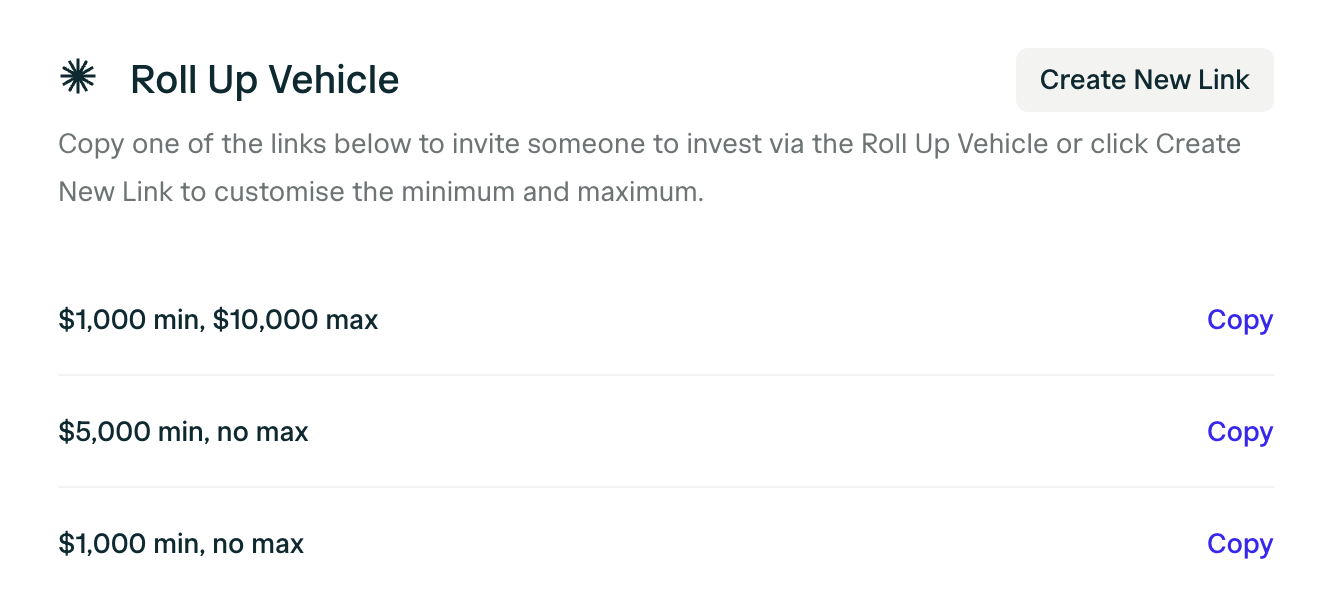
## Can I share the RUV link publicly?
Due to [general solicitation](https://help.venture.angel.co/hc/en-us/articles/360055506991-What-is-general-solicitation-) restrictions, you cannot share the RUV invite links publicly (Twitter, newsletters, press blogs, etc.) or publicly mention that you have a live RUV running. For the same reason, RUV deals are not visible on the AngelList platform and are only accessible through a private link. Unless we explicitly mention otherwise, your RUV needs to fundraise privately.
Publicly marketing the RUV may not only undermine the regulatory viability of the RUV but under some circumstances can cause the direct fundraise to become subject to general solicitation rules.
The SEC has strict rules around how and to whom investment opportunities can be presented. Please only share the RUV invites with individuals you know are [accredited](https://help.venture.angel.co/hc/en-us/articles/360048803251-Accredited-Investors) and with whom you have a pre-existing substantial relationship with.
If you are found to have posted the link to the RUV publicly or solicited unknown investors, AngelList reserves the right to cancel your RUV.
## Can I change the terms of the deal?
If any of the investment terms that were disclosed to LPs change, please notify us immediately at [rollups@angellist.com](mailto:rollups@angellist.com). In some cases, the change may not be material, in other cases, it might require that we send a notice to investors.
Examples of changes that require notice to LPs and potentially opt-out:
* Instrument changes - Valuation changes - Discount changes - Lead investor changes - Loss of pro-rata rights
Changing the round size or the target closing date would not require an opt-out.
## What is an opt-out?
An opt-out is a message we have to send to Investors if there was a material change with the terms of the deal they have committed to.
If you change the terms of the deal, we are required to send an email notifying investors of the changes and providing them with the opportunity to cancel their commitment.
## Why do we send opt-outs?
Keeping your investors up to date on all the material terms of the deal is crucial to ensuring they can make informed investment decisions.
Since investors committed to the RUV invest based on the information available at the time they completed the closing flow, if that information changes, we have to offer them the opportunity to reconsider their investment.
## What constitutes a material change?
Generally, a change is considered material if a reasonable investor is likely to think the change alters the total mix of investment information.
We will also send an opt-out even if the terms are materially better for the Investor. We want to make sure investors know the terms they are getting through the RUV.
## Will I know when the opt-out is sent?
After a change has been initiated, a member of the RUV team will reach out to you directly.
If the change was an error, we will simply ask you to change the terms back to what they were prior to the change.
If intended, we may need to send a notice. Oftentimes, founders would like the opportunity to reach out to investors directly first. The RUV team can sometimes delay sending opt-out emails to allow you to do so.
If investors do not request to opt out during the 48-hour window, AngelList considers their investment final.
We will send you an update once the deadline has passed to let you know if any investors decided to opt-out following the change.
## Can I go over the allocation?
When you set up an RUV, you can indicate your target allocation for the RUV. However, this is merely for informational purposes - the amount you raise can be more or less than that.
If you've raised more capital than what you want to have invested in the company, you can scale back LPs. There are usually two ways we see founders scale back investors:
1. All investors proportionally 2. Reducing select investors
Investors whose investment gets reduced will see any excess funds returned to their AngelList account (not their bank account). From there, investors can either withdraw funds to their bank account or apply them towards their next investment on AngelList. We will notify LPs of the refund.
## Is there a maximum investment amount in the RUV?
There is no maximum investment amount for an RUV. Companies have raised anywhere from \$50K to \$100M+ through RUVs. However, investor count limits still apply: if the RUV raises more than \$12M, the accredited investor limit drops to 99, down from 249 for RUVs raising under \$12M. When needed, RUVs can also support a parallel fund structure: a separate fund for qualified purchasers that can include up to 1,999 additional investors.
## How does a voting proxy work?
The proxy gives you the right to vote on behalf of the entire RUV for non-material matters (see a definition of “Material Matter” in the proxy).
## What would be considered a material matter?
Material matters can generally be separated into two categories:
1. **Anything impacting the rights, privileges, and responsibilities of the investors.** *Ex: If the preferred stock that investors acquire comes with certain rights and there is an instance where they could potentially lose those rights.* 2. **Any changes to the company.** *Ex: If the company is preparing for an IPO, going for a merger, or undertaking a major corporate restructuring (the company splitting off or rolling into another entity).*
Below is a sample of the Proxy. [Sample Proxy for RUV](https://storage.googleapis.com/al-stack-public/uploads/TLsyDc/Sample_Proxy_for_RUV.docx)
## Can I run more than one RUV at the same time?
Yes! Please note that if there are two or more RUVs set up within a certain time frame (typically 6 months), we would still have to apply the [250 investor limit](/fundraising/ruv/the-basics#how-many-investors-can-be-in-an-ruv) across both vehicles.
## Does AngelList Provide any side letters?
If a Pro-Rata side letter, Proxy Letter, or Tax Rep Letter is required, we will provide them to you. If you want to use your own side letters or want the RUV to sign any additional side letters, we will have to have them reviewed internally.
Side letter reviews will cost an additional \$2.5k. These fees will be added to your final invoice.
## Can I add people to manage the RUV?
You can grant team members access in the [dashboard permissions](/platform/administration/dashboard#permissions).
## What does the investor flow look like?
To preview what your investors might see, copy and paste the invite link into your browser. You can also see a walkthrough of the [investor flow here](https://help.angelliststack.com/raise/for-investors/ruv-guide#what-does-the-investment-process-look-like).
## Can I use my own documents?
When it comes time to [close the RUV](/fundraising/ruv/closing-an-ruv), you will send us the company's financing documents. Before we close the RUV, we will verify that the terms of the documents match what was disclosed to investors.
# Managing Investors
Source: https://help.angelliststack.com/raise/ruv/managing-investors
## How easy is it for investors?
Investors often say that investing through RUVs is significantly easier than making direct investments. RUVs allow investors to complete their commitment within minutes and fund their commitment via wire or ACH.
## Do investors need an AngelList profile?
No, they do not need to have a Rollups profile, nor do they need to already have an AngelList account.
Investors do not need to register on Rollups as the investor experience is powered by AngelList. They can create an AngelList account during the investment process. You can invite investors by sharing your custom invite links with them. These links take them directly to your RUV investment page and through an expedited sign-up flow.
## Do investors need to be approved on AngelList?
No. Investors do not need to pre-apply, but investors will need to confirm that they qualify as an accredited investor to view the deal page. Additionally, they will need to pass our [KYC ('know your client')](#does-angellist-perform-a-kyc-check) check.
You can share these links over email, text, etc. You may not use these links to [generally solicit investors](/raise/ruv/managing-investors#can-i-share-the-ruv-link-publicly) (for example, you may not post the link on Twitter nor should you include it in a press release).
## How do investors sign the closing docs?
Investors e-sign the closing docs. We do not provide any other way for LPs to sign than through our online closing flow.
## Where do investors transfer funds?
Investors transfer funds directly to the RUV, where the capital is held until the RUV closes. Once the RUV closes, the sum of all invested capital is transferred to the company.
## If I close the RUV, will pending investors be able to complete the process?
Yes, anyone who has already signed will be able to complete the investor closing flow, but new investors will not be able to commit to the RUV.
We can begin the closing process on our end if all the investors have not completed the flow but we will need all the investors to be marked as "completed" before we can wire the funds.
## Can I do multiple closes?
No, we're unable to do multiple closes or rolling closes. We can only close the RUV once, when all investors have committed and funded their investments.
# Managing an RUV
Source: https://help.angelliststack.com/raise/ruv/managing-an-ruv
***
## Can I add a previous investor into the RUV?
No, the RUV is best suited for new capital so all the funds need to flow through us for the investors to be included in the vehicle.
## Is my RUV public?
All deals are private and only visible to investors that have the invite link.
AngelList does not publish your RUV anywhere, nor will they be indexed or advertised broadly. Once your RUV is live, the only people who can see it are people that you specifically invited to the RUV with invite links. This means that you need to have your investors already soft-circled.
You cannot use RUVs to generally solicit investments, which means that you *cannot* post links to invest (or even mention that you have a live RUV) publicly, since that could be considered general solicitation by the SEC and trigger increased reporting requirements for the RUV as well as for your company.
## Will investors or others know who invested in my RUV?
No. Investor profiles and their investments are not public or searchable. Investors will also not know who else invested in their RUV.
## How do I invite investors to my RUV?
Click the Invite button at the top of the page to copy the link you can share with investors. There are three pre-set links for default investment minimums and maximums. If you'd like to set a custom investment minimum and maximum, click the Create New Link.

## Can I share the RUV link publicly?
Due to [general solicitation](https://help.venture.angel.co/hc/en-us/articles/360055506991-What-is-general-solicitation-) restrictions, you cannot share the RUV invite links publicly (Twitter, newsletters, press blogs, etc.) or publicly mention that you have a live RUV running. For the same reason, RUV deals are not visible on the AngelList platform and are only accessible through a private link. Unless we explicitly mention otherwise, your RUV needs to fundraise privately.
Publicly marketing the RUV may not only undermine the regulatory viability of the RUV but under some circumstances can cause the direct fundraise to become subject to general solicitation rules.
The SEC has strict rules around how and to whom investment opportunities can be presented. Please only share the RUV invites with individuals you know are [accredited](https://help.venture.angel.co/hc/en-us/articles/360048803251-Accredited-Investors) and with whom you have a pre-existing substantial relationship with.
If you are found to have posted the link to the RUV publicly or solicited unknown investors, AngelList reserves the right to cancel your RUV.
## Can I change the terms of the deal?
If any of the investment terms that were disclosed to LPs change, please notify us immediately at [rollups@angellist.com](mailto:rollups@angellist.com). In some cases, the change may not be material, in other cases, it might require that we send a notice to investors.
Examples of changes that require notice to LPs and potentially opt-out:
* Instrument changes - Valuation changes - Discount changes - Lead investor changes - Loss of pro-rata rights
Changing the round size or the target closing date would not require an opt-out.
## What is an opt-out?
An opt-out is a message we have to send to Investors if there was a material change with the terms of the deal they have committed to.
If you change the terms of the deal, we are required to send an email notifying investors of the changes and providing them with the opportunity to cancel their commitment.
## Why do we send opt-outs?
Keeping your investors up to date on all the material terms of the deal is crucial to ensuring they can make informed investment decisions.
Since investors committed to the RUV invest based on the information available at the time they completed the closing flow, if that information changes, we have to offer them the opportunity to reconsider their investment.
## What constitutes a material change?
Generally, a change is considered material if a reasonable investor is likely to think the change alters the total mix of investment information.
We will also send an opt-out even if the terms are materially better for the Investor. We want to make sure investors know the terms they are getting through the RUV.
## Will I know when the opt-out is sent?
After a change has been initiated, a member of the RUV team will reach out to you directly.
If the change was an error, we will simply ask you to change the terms back to what they were prior to the change.
If intended, we may need to send a notice. Oftentimes, founders would like the opportunity to reach out to investors directly first. The RUV team can sometimes delay sending opt-out emails to allow you to do so.
If investors do not request to opt out during the 48-hour window, AngelList considers their investment final.
We will send you an update once the deadline has passed to let you know if any investors decided to opt-out following the change.
## Can I go over the allocation?
When you set up an RUV, you can indicate your target allocation for the RUV. However, this is merely for informational purposes - the amount you raise can be more or less than that.
If you've raised more capital than what you want to have invested in the company, you can scale back LPs. There are usually two ways we see founders scale back investors:
1. All investors proportionally 2. Reducing select investors
Investors whose investment gets reduced will see any excess funds returned to their AngelList account (not their bank account). From there, investors can either withdraw funds to their bank account or apply them towards their next investment on AngelList. We will notify LPs of the refund.
## Is there a maximum investment amount in the RUV?
There is no maximum investment amount for an RUV. Companies have raised anywhere from \$50K to \$100M+ through RUVs. However, investor count limits still apply: if the RUV raises more than \$12M, the accredited investor limit drops to 99, down from 249 for RUVs raising under \$12M. When needed, RUVs can also support a parallel fund structure: a separate fund for qualified purchasers that can include up to 1,999 additional investors.
## How does a voting proxy work?
The proxy gives you the right to vote on behalf of the entire RUV for non-material matters (see a definition of “Material Matter” in the proxy).
## What would be considered a material matter?
Material matters can generally be separated into two categories:
1. **Anything impacting the rights, privileges, and responsibilities of the investors.** *Ex: If the preferred stock that investors acquire comes with certain rights and there is an instance where they could potentially lose those rights.* 2. **Any changes to the company.** *Ex: If the company is preparing for an IPO, going for a merger, or undertaking a major corporate restructuring (the company splitting off or rolling into another entity).*
Below is a sample of the Proxy. [Sample Proxy for RUV](https://storage.googleapis.com/al-stack-public/uploads/TLsyDc/Sample_Proxy_for_RUV.docx)
## Can I run more than one RUV at the same time?
Yes! Please note that if there are two or more RUVs set up within a certain time frame (typically 6 months), we would still have to apply the [250 investor limit](/fundraising/ruv/the-basics#how-many-investors-can-be-in-an-ruv) across both vehicles.
## Does AngelList Provide any side letters?
If a Pro-Rata side letter, Proxy Letter, or Tax Rep Letter is required, we will provide them to you. If you want to use your own side letters or want the RUV to sign any additional side letters, we will have to have them reviewed internally.
Side letter reviews will cost an additional \$2.5k. These fees will be added to your final invoice.
## Can I add people to manage the RUV?
You can grant team members access in the [dashboard permissions](/platform/administration/dashboard#permissions).
## What does the investor flow look like?
To preview what your investors might see, copy and paste the invite link into your browser. You can also see a walkthrough of the [investor flow here](https://help.angelliststack.com/raise/for-investors/ruv-guide#what-does-the-investment-process-look-like).
## Can I use my own documents?
When it comes time to [close the RUV](/fundraising/ruv/closing-an-ruv), you will send us the company's financing documents. Before we close the RUV, we will verify that the terms of the documents match what was disclosed to investors.
# Managing Investors
Source: https://help.angelliststack.com/raise/ruv/managing-investors
## How easy is it for investors?
Investors often say that investing through RUVs is significantly easier than making direct investments. RUVs allow investors to complete their commitment within minutes and fund their commitment via wire or ACH.
## Do investors need an AngelList profile?
No, they do not need to have a Rollups profile, nor do they need to already have an AngelList account.
Investors do not need to register on Rollups as the investor experience is powered by AngelList. They can create an AngelList account during the investment process. You can invite investors by sharing your custom invite links with them. These links take them directly to your RUV investment page and through an expedited sign-up flow.
## Do investors need to be approved on AngelList?
No. Investors do not need to pre-apply, but investors will need to confirm that they qualify as an accredited investor to view the deal page. Additionally, they will need to pass our [KYC ('know your client')](#does-angellist-perform-a-kyc-check) check.
You can share these links over email, text, etc. You may not use these links to [generally solicit investors](/raise/ruv/managing-investors#can-i-share-the-ruv-link-publicly) (for example, you may not post the link on Twitter nor should you include it in a press release).
## How do investors sign the closing docs?
Investors e-sign the closing docs. We do not provide any other way for LPs to sign than through our online closing flow.
## Where do investors transfer funds?
Investors transfer funds directly to the RUV, where the capital is held until the RUV closes. Once the RUV closes, the sum of all invested capital is transferred to the company.
To participate in the RUV, investors must fund their investment through the RUV rather than transfer directly to the company. This helps ensure the RUV remains compliant and auditable.
## Do investors need to be accredited?
Investors in the RUV attest to their accreditation status by checking a box inside the investment flow.
While [investors need to be accredited](https://help.venture.angel.co/hc/en-us/articles/360048803251-Accredited-Investors), they do not need to provide documents to AngelList to verify their accreditation status when investing in private RUVs. Investors are asked to verify their accreditation status with documentation when investing in RUVs that are marketed publicly or funds that are marketed publicly such as [Rolling Funds](https://www.angellist.com/rolling).
## What do investors sign?
Investors in the RUV do not sign the actual investment docs (like a share purchase agreement or a SAFE). Instead, by investing through the RUV, they subscribe to the special purpose vehicle (RUV), which is the entity that will sign the actual investment docs with the company.
AngelList will review the documents to ensure the terms match what you described to investors before signing the documents. If there is a divergence, we may need to message investors and provide them an opportunity to opt out.
Investors are e-signing (on AngelList) RUV documents that subscribe them to a special purpose vehicle (the RUV). The RUV documents consist of:
1. The (RUV) Partnership Agreement - This is where the parties establish respective rights and obligations to the fund, as well as the rules, processes, and procedures that shall govern the business and affairs of the fund.
2. The (RUV) Subscription Agreement and Privacy Notice - This document outlines the mechanics that surround the flow of funds to the RUV.
3. The Private Placement Memorandum (PPM) - The PPM describes the terms of the offering, details about the investment vehicle, and the risks of the investment, among other things.
[test-comp-closing.zip](https://storage.googleapis.com/al-stack-public/uploads/mwrTe0/Yosemiteai-Demo-ClosingDoc.zip)
## Does AngelList perform a KYC check?
Once an LP completes the investing flow, we automatically attempt to verify their identity using the information they provided (name, address, date of birth). We are required by law to perform these checks.
For investors investing with an entity that fails the automatic checks, our KYC team will follow up via email asking for additional information.
This check is only performed once for each entity that an investor is investing with, not every time they are investing. You can track the status of an investor's KYC check in your dashboard. "Pending KYC" means the KYC check is not complete yet. No label means the KYC check is done.
## Can an investor increase their commitment?
To increase or cancel an investment before the RUV has been closed, investors may email us at [invest@angellist.com](mailto:invest@angellist.com).
## Will investors get a copy of the financing docs?
No, we do not share the financing docs with investors. However, you can send them the docs via email if you would like.
Investors will be able to track their ownership in the RUV from their dashboard. You can read more about this [here](https://help.angellist.com/hc/en-us/articles/16566182088461-I-invested-in-an-SPV-RUV-fund-Where-can-I-find-out-how-many-shares-I-own-).
## Can investors see how much was raised in the RUV?
Investors will not see how much has been raised & committed to the RUV when it is raising, nor will they see who else invested.
## What does the investor closing flow look like?
Here's the sequence of screens/steps that LPs see when they invest in your RUV. You can try out the flow for yourself by opening the private invite link in incognito mode in your browser.
Users have the option of creating an account or logging in to an existing account.

Once logged in, the investor will need to confirm that they are an accredited investor.
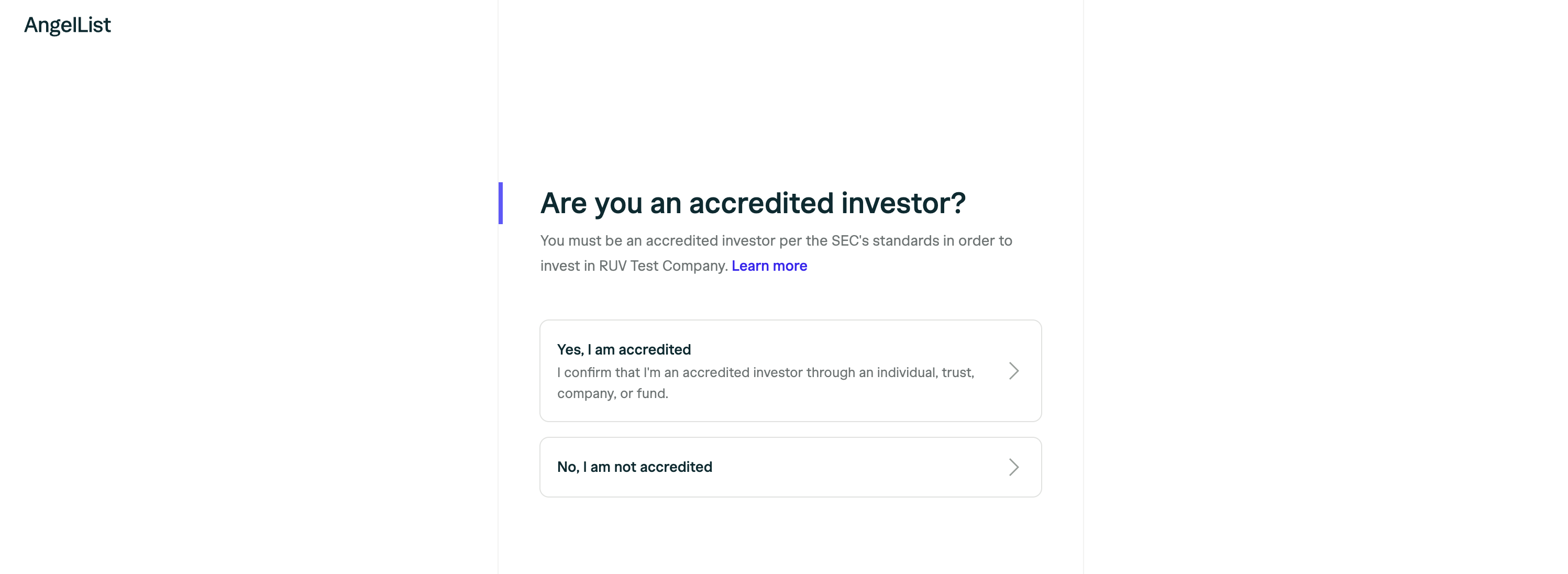
They will be taken to the deal page, where they can review the terms of the raise, view the memo, and review any disclosures and risks. On the deal page, they can start the commitment process by inputting an investment amount.
After clicking **Invest**, investors will enter their investment entity and tax details, choose a funding method, confirm their commitment, and [e-sign the documents](#what-do-investors-sign).
If an investor is requesting wire instructions or a wire callback, introduce them to us at [invest@angellist.com](mailto:invest@angellist.com).
Once an investor clicks Commit & E-sign, they will be taken to the next steps page where they will be given bank instructions, be asked to verify KYC compliance, and be asked to submit tax information.
Investors will also receive a confirmation email that outlines next steps.
## Do QSBS benefits flow through?
Generally, yes, the benefits of QSBS flow through when investing in an RUV. RUVs are Delaware limited partnerships that are pass-through entities.
## Will investors receive a K-1 every year?
In most cases, no. RUVs will generally only issue K-1s when there is taxable activity (such as distributions or interest). If applicable, K-1s will be posted to your AngelList dashboard and your email.
## When will investors receive their K-1s for the prior tax year?
AngelList provides prior tax year information sequentially as it becomes available:
* **By the end of February:** AngelList will publish a summary of your investments and information about which investments will have a K-1.
* **By the end of March:** AngelList will publish a tax package that includes either a K-1 or an estimate for all investments requiring a K-1 for the prior tax year.
* **After March:** Tax packages that include one or more estimates, such as investments in pass-through portfolio companies, will be updated with final K-1s as outstanding tax information is received and processed.
Investors will be able to access their K-1 from their dashboard.
If you need a wire callback, please feel free to reach out to [invest@angellist.com](mailto:invest@angellist.com).
## What are the tax consequences for international investors?
Capital gains are taxed in the recipient's country of tax residence. Investors are investing in a U.S. partnership and will receive a Schedule K-1 for the initial year of investment and each subsequent year to the extent there is income or loss to report.
**Help Center Articles that may be useful:**
1. [What are the tax consequences for non-U.S. investors?](https://help.venture.angel.co/hc/en-us/articles/360048160431-What-are-the-tax-consequences-for-non-U-S-investors-in-syndicates-)
2. [I'm foreign. Do I need to file a U.S. tax return?](https://help.venture.angel.co/hc/en-us/articles/360047686012-I-m-foreign-Do-I-need-to-file-a-US-tax-return-)
3. [When will I receive my K-1 for the prior tax year?](https://help.angellist.com/hc/en-us/articles/360047685832-When-will-I-receive-my-K-1-for-the-prior-tax-year)
4. [My tax package says I won't receive a K-1 for the year, why not?](https://help.venture.angel.co/hc/en-us/articles/360047685812-I-invested-in-a-fund-during-the-past-tax-season-but-my-tax-package-summary-says-I-won-t-receive-a-K-1-for-the-year-Why-not-)
[Link to other Investor Tax FAQs](https://help.angellist.com/hc/en-us/sections/33513623589645-Legal-Regulatory-Taxes)
We always recommend that foreign investors have access to a U.S. tax advisor, as we are not authorized to provide tax advice if they do not understand how they should report income earned on the platform.
# Navigating the Dashboard
Source: https://help.angelliststack.com/raise/ruv/navigating-the-dashboard
When you set up an RUV, a Raise Dashboard is automatically created for you. This dashboard allows you to manage both direct and RUV investments. The direct investment link lets investors commit directly to the company's cap table, while the RUV link guides investors through the RUV investor flow.
## Overview
You can see a high-level overview of the status of the round.
Total Raised is the total amount marked as received from RUV and direct investors.
Total Committed is the total amount committed by both direct and RUV investors. The Total Committed amount may be higher than the Total Raised amount if the investments have not been marked as received.
![]() Investors will not be able to see who else invested or how much was raised. This information and the progress bar is just for you.
## Investors
From the Investors tab, you will be able to track the status of the commitments for all the investors in the round (both direct and RUV).
For a cleaner view, you can filter the list by source (direct or RUV) or by status (signed or funds received).
Investors will not be able to see who else invested or how much was raised. This information and the progress bar is just for you.
## Investors
From the Investors tab, you will be able to track the status of the commitments for all the investors in the round (both direct and RUV).
For a cleaner view, you can filter the list by source (direct or RUV) or by status (signed or funds received).
![]() ## What does ACH in transit mean?
ACH (electronic transfer) in transit means that the investor has elected to send their investment via ACH. Depending on the bank, an ACH transfer will generally take 3-5 business days to complete.
Once it arrives in their funding account, we automatically apply it to their commitment in the RUV.
## What does awaiting wire mean?
Domestic wires take at least 1 full business day to arrive. International wires can take 5-10 business days. AngelList has no control over how long it takes for an LP's wire to arrive at our bank.
If an LP is wondering why their wire hasn't arrived in their AngelList account, in most cases it is because they sent the wire just recently. If an LP's wire arrives at our bank account today, you will see it as completed on your dashboard the next business day.
If the investor confirmed that the wire was sent but it is still not showing up in your dashboard, ask the investor to share a formal copy of the wire receipt or a Fedwire reference number and send it to [rollups@angellist.com](mailto:rollups@angellist.com).
## What does pending KYC mean?
When an investor on the AngelList Venture platform invests for the first time, we put them through a KYC (Know Your Customer) process. Investors must provide personal information to prove who they are and potentially upload ID documents. Until this is complete, their investment will not be completed.
Investors who are still pending full identity verification will have a yellow "Pending KYC" badge next to their name in the *Signed column*.
If you notice an investor is pending KYC, don't worry – our team regularly follows up with all investors that haven't completed this process. If you notice an investor that has been in the pending KYC status for more than a few days, feel free to reach out to your account manager to get an update.
## Roll Up Vehicles
You can see the terms of the deal you set for investors in the RUV section of your round under the RUV summary.
## What does ACH in transit mean?
ACH (electronic transfer) in transit means that the investor has elected to send their investment via ACH. Depending on the bank, an ACH transfer will generally take 3-5 business days to complete.
Once it arrives in their funding account, we automatically apply it to their commitment in the RUV.
## What does awaiting wire mean?
Domestic wires take at least 1 full business day to arrive. International wires can take 5-10 business days. AngelList has no control over how long it takes for an LP's wire to arrive at our bank.
If an LP is wondering why their wire hasn't arrived in their AngelList account, in most cases it is because they sent the wire just recently. If an LP's wire arrives at our bank account today, you will see it as completed on your dashboard the next business day.
If the investor confirmed that the wire was sent but it is still not showing up in your dashboard, ask the investor to share a formal copy of the wire receipt or a Fedwire reference number and send it to [rollups@angellist.com](mailto:rollups@angellist.com).
## What does pending KYC mean?
When an investor on the AngelList Venture platform invests for the first time, we put them through a KYC (Know Your Customer) process. Investors must provide personal information to prove who they are and potentially upload ID documents. Until this is complete, their investment will not be completed.
Investors who are still pending full identity verification will have a yellow "Pending KYC" badge next to their name in the *Signed column*.
If you notice an investor is pending KYC, don't worry – our team regularly follows up with all investors that haven't completed this process. If you notice an investor that has been in the pending KYC status for more than a few days, feel free to reach out to your account manager to get an update.
## Roll Up Vehicles
You can see the terms of the deal you set for investors in the RUV section of your round under the RUV summary.
![]() You can make changes to your RUV terms at any point during the raise by clicking the pencil icon next to the close date or clicking Customize RUV.
Editing the RUV will adjust your Raise round terms and vice versa. Additionally, some changes might [require an opt-out](/raise/ruv/managing-an-ruv#can-i-change-the-terms-of-the-deal#what-is-an-opt-out).
If for any reason you need to make changes to your company information while your RUV is open, please reach out to [rollups@angellist.com](mailto:rollups@angellist.com).
## Co-Investors
You can list all of your co-investors and the amount they invested in the round. Note: all investors added to this list must be investing on the same terms as this RUV. If this is not the case, do not add the co-investor to this list.
You can make changes to your RUV terms at any point during the raise by clicking the pencil icon next to the close date or clicking Customize RUV.
Editing the RUV will adjust your Raise round terms and vice versa. Additionally, some changes might [require an opt-out](/raise/ruv/managing-an-ruv#can-i-change-the-terms-of-the-deal#what-is-an-opt-out).
If for any reason you need to make changes to your company information while your RUV is open, please reach out to [rollups@angellist.com](mailto:rollups@angellist.com).
## Co-Investors
You can list all of your co-investors and the amount they invested in the round. Note: all investors added to this list must be investing on the same terms as this RUV. If this is not the case, do not add the co-investor to this list.
![]() ## Memo
Share a note with investors about the company and the round. We also recommend adding a pitch deck. [Here](https://www.slideshare.net/PitchDeckCoach/sequoia-capital-pitchdecktemplate) is a template you can use.
## Memo
Share a note with investors about the company and the round. We also recommend adding a pitch deck. [Here](https://www.slideshare.net/PitchDeckCoach/sequoia-capital-pitchdecktemplate) is a template you can use.
![]() Adding a Memo during the application process will help us expedite the review.
## Risks & Disclosures
This should not be removed as this is a requirement from our legal team. However, you are free to add more risk disclosures that are more specific to your company. Here is an example:
### Risks
Investing in startups is risky, and you may lose 100% of your original investment. If you can't afford to lose this money, don't invest it. The company is in an early stage of maturity.
The company is selling to enterprises. Sales cycles can be longer than expected. Customers may be reluctant to switch.
The company is operating in a very competitive space.
There are significant technical challenges associated with the company’s products.
The company needs to make several key hires. If it cannot successfully fill these positions, the company may not reach its growth targets.
The company has to navigate complex compliance areas (e.g. data privacy). Mistakes here can be costly.
"Other disclosures" is where we disclose that we will proxy the voting rights to an employee of the company.
Adding a Memo during the application process will help us expedite the review.
## Risks & Disclosures
This should not be removed as this is a requirement from our legal team. However, you are free to add more risk disclosures that are more specific to your company. Here is an example:
### Risks
Investing in startups is risky, and you may lose 100% of your original investment. If you can't afford to lose this money, don't invest it. The company is in an early stage of maturity.
The company is selling to enterprises. Sales cycles can be longer than expected. Customers may be reluctant to switch.
The company is operating in a very competitive space.
There are significant technical challenges associated with the company’s products.
The company needs to make several key hires. If it cannot successfully fill these positions, the company may not reach its growth targets.
The company has to navigate complex compliance areas (e.g. data privacy). Mistakes here can be costly.
"Other disclosures" is where we disclose that we will proxy the voting rights to an employee of the company.
![]() We cannot proxy voting rights in the RUV back to investors. Only an employee of the company can hold the voting rights.
# Post-Close RUV Management
Source: https://help.angelliststack.com/raise/ruv/post-close-ruv-management
# For Investors
## What happens after funds have been deployed from the RUV?
After the RUV is finalized, investors receive a fully executed LPA, PPM, subscription agreement, investment statement, and signature certificate from their investor dashboard.
Investors can see these documents by navigating to their AngelList investor dashboard and going to Portfolio > Company Name > Investment History.
The documents will be electronically signed by the General Partner of the RUV vehicle: Fund GP, LLC.
## Will AngelList produce K-1s for investors?
The RUV will issue a K-1 for the first tax year to all RUV investors. This K-1 will typically reflect \$0 of gain or loss, but is required under U.S. tax rules. In subsequent years, the RUV will issue a K-1 for every year when there is a disposition event or other reportable tax activity in the RUV. This frequently doesn't occur until the company exits or has another liquidity event.
A timeline for K-1 delivery to investors is [available here](https://help.angellist.com/hc/en-us/articles/360047685832-When-will-I-receive-my-K-1-for-the-prior-tax-year#).
Investors can find their K-1 via their AngelList dashboard and can contact [invest@angellist.com](mailto:invest@angellist.com) if they have questions.
## Can investors transfer their interest in the RUV?
Transfers of LP interests in the RUV are subject to the restrictions set out in Article 6 of the LPA. In practice, transfers are generally only permitted in limited, extenuating circumstances, such as estate planning, divorce, or death. Any other transfer request would need to be reviewed by our team for compliance and would generally require company approval.
We recommend that investors invest from the entity or account that will remain the long-term holder of the RUV interest. Investors should not rely on being able to transfer their interest after investing. For example, if a couple wants to hold the investment jointly, they should invest through a jointly owned entity, or each invest separately from the outset, rather than investing through one person and planning to transfer the interest later.
Reach out to [rollups@angellist.com](mailto:rollups@angellist.com) if you have any questions.
# For the Company
## Will AngelList make the Form D filings?
Yes. AngelList will file the Form D for the RUV.
That filing covers the RUV's offering to its investors. The company may still need to make a separate Form D filing for its own financing round, in which the RUV is an investor, and should confirm the requirement with its legal counsel.
Form D is a notice filing used for certain exempt securities offerings under Regulation D.
## Will AngelList pay the state regulatory fees?
Yes. AngelList will make the applicable state and provincial regulatory filings for the RUV at closing. The associated fees are generally calculated once all investors have been onboarded and the applicable investor jurisdictions are confirmed. AngelList pays these fees and passes them through to the company in the final invoice.
## Who signs on behalf of the RUV?
We provide you with a contact address \[[portfolio@angellist.com](mailto:portfolio@angellist.com)] that your legal team can use to request signatures. Our legal team will review each "post-close action" (each signature request your RUV is receiving) to understand how that post-close action affects the RUV's rights. This review takes 2 full business days from the moment we have all necessary documents. If we have signed a proxy agreement, you may just be able to tell us how to vote the RUV shares for normal corporate actions.
Even with a signed voting proxy, companies generally do not have a power of attorney to sign on behalf of the RUV for all matters. If you have any doubts about whether a specific matter is material and outside the scope of the proxy, please contact AngelList or your legal advisors.
## If the RUV received pro-rata rights, how does this work?
The pro-rata rights for an RUV are offered at the fund level. This means that to enable the RUV to invest its pro-rata amount, you would need to establish a new affiliated vehicle. This new entity would be subject to the same restrictions and requirements as the initial RUV (such as a \$40k minimum investment and at least two investors).
If there’s excess allocation not used by existing LPs, you can allow other new investors to participate in the new RUV’s allocation.
Generally, instead of offering contractual pro-rata to the whole RUV, you could also just set aside an allocation in the next round for the individual investors who have been most helpful and create another RUV.
## What happens if the company gets acquired?
If the company gets acquired, the RUV will hold consideration in connection with the merger.
To process this acquisition, our team requires the distribution waterfall (or consideration information for the fund). To begin the process, please send all related transaction docs and the distribution waterfall, if available, for our team to review.
For publicly traded stock, once the lock-up period expires, funds will either be liquidated or distributed in kind on a pro-rata basis to investors, depending on the value of the shares.
If the value of the shares exceeds \$125k, we will offer an in-kind or in-cash election (whereby investors can elect to receive their pro-rata consideration as shares or cash).
If investors decide to receive the shares in kind, investors will have ten business days to make an election and provide the necessary brokerage details to execute share transfers. After ten business days, the elections will be sent to our broker; any investor who fails to make an election within that time frame will have their pro-rata consideration of shares liquidated to cash.
To transfer shares in kind, our broker charges a minimum flat fee. The fees are paid directly from the distribution amount before any shares or cash are distributed to limited partners. Once the fees are covered using liquidated shares, any remaining distribution amount is then distributed among the LPs, either in the form of shares or cash, depending on the terms of the distribution agreement.
If the investor decides to receive their distribution in cash, our broker charges between $0.01-$0.04 per share to liquidate shares (dependent on the share price).
## What happens if we shut down the company?
If the company is no longer operational, we will need a copy of the company’s Certificate of Dissolution and distribution waterfall. If funds need to be distributed back to investors, our Distribution team will create the distribution model and send it to our Tax team for review. Upon completing the internal reviews, you will receive an email with the distribution preview attached for your review and approval.
The distributions will be executed after your approval has been received and will be deposited into investors' AngelList accounts.
If we do not receive your approval on the distribution after 3 follow-ups, we will proceed with the distribution.
# End-to-End Overview
Source: https://help.angelliststack.com/raise/ruv/process
Roll Up Vehicles are special purpose vehicles that make an investment in a company. RUVs provide a way for founders to efficiently allow investors into a financing round without incurring expensive legal fees or making the company’s cap table more complicated.
Instead of investing directly in the company, investors subscribe to a special purpose vehicle, which then invests in the company on the terms listed on the RUV investment page.
Companies prefer to use RUVs to aggregate multiple investor checks into a single entity. Normally, to close investors, companies have to incur additional costs from lawyers and cap table vendors for every additional shareholder. The RUV allows companies to expand investor access, control closing costs, and ensure that the cap table is as simple as possible.
Here's how the process works, at a high level. The menu on the left contains additional detail related to setting up, running, and closing RUVs.
## Submit your RUV Request Form
You will provide the company's legal name, round terms, and specific risks and disclosures. See screenshots of the steps below.
We cannot proxy voting rights in the RUV back to investors. Only an employee of the company can hold the voting rights.
# Post-Close RUV Management
Source: https://help.angelliststack.com/raise/ruv/post-close-ruv-management
# For Investors
## What happens after funds have been deployed from the RUV?
After the RUV is finalized, investors receive a fully executed LPA, PPM, subscription agreement, investment statement, and signature certificate from their investor dashboard.
Investors can see these documents by navigating to their AngelList investor dashboard and going to Portfolio > Company Name > Investment History.
The documents will be electronically signed by the General Partner of the RUV vehicle: Fund GP, LLC.
## Will AngelList produce K-1s for investors?
The RUV will issue a K-1 for the first tax year to all RUV investors. This K-1 will typically reflect \$0 of gain or loss, but is required under U.S. tax rules. In subsequent years, the RUV will issue a K-1 for every year when there is a disposition event or other reportable tax activity in the RUV. This frequently doesn't occur until the company exits or has another liquidity event.
A timeline for K-1 delivery to investors is [available here](https://help.angellist.com/hc/en-us/articles/360047685832-When-will-I-receive-my-K-1-for-the-prior-tax-year#).
Investors can find their K-1 via their AngelList dashboard and can contact [invest@angellist.com](mailto:invest@angellist.com) if they have questions.
## Can investors transfer their interest in the RUV?
Transfers of LP interests in the RUV are subject to the restrictions set out in Article 6 of the LPA. In practice, transfers are generally only permitted in limited, extenuating circumstances, such as estate planning, divorce, or death. Any other transfer request would need to be reviewed by our team for compliance and would generally require company approval.
We recommend that investors invest from the entity or account that will remain the long-term holder of the RUV interest. Investors should not rely on being able to transfer their interest after investing. For example, if a couple wants to hold the investment jointly, they should invest through a jointly owned entity, or each invest separately from the outset, rather than investing through one person and planning to transfer the interest later.
Reach out to [rollups@angellist.com](mailto:rollups@angellist.com) if you have any questions.
# For the Company
## Will AngelList make the Form D filings?
Yes. AngelList will file the Form D for the RUV.
That filing covers the RUV's offering to its investors. The company may still need to make a separate Form D filing for its own financing round, in which the RUV is an investor, and should confirm the requirement with its legal counsel.
Form D is a notice filing used for certain exempt securities offerings under Regulation D.
## Will AngelList pay the state regulatory fees?
Yes. AngelList will make the applicable state and provincial regulatory filings for the RUV at closing. The associated fees are generally calculated once all investors have been onboarded and the applicable investor jurisdictions are confirmed. AngelList pays these fees and passes them through to the company in the final invoice.
## Who signs on behalf of the RUV?
We provide you with a contact address \[[portfolio@angellist.com](mailto:portfolio@angellist.com)] that your legal team can use to request signatures. Our legal team will review each "post-close action" (each signature request your RUV is receiving) to understand how that post-close action affects the RUV's rights. This review takes 2 full business days from the moment we have all necessary documents. If we have signed a proxy agreement, you may just be able to tell us how to vote the RUV shares for normal corporate actions.
Even with a signed voting proxy, companies generally do not have a power of attorney to sign on behalf of the RUV for all matters. If you have any doubts about whether a specific matter is material and outside the scope of the proxy, please contact AngelList or your legal advisors.
## If the RUV received pro-rata rights, how does this work?
The pro-rata rights for an RUV are offered at the fund level. This means that to enable the RUV to invest its pro-rata amount, you would need to establish a new affiliated vehicle. This new entity would be subject to the same restrictions and requirements as the initial RUV (such as a \$40k minimum investment and at least two investors).
If there’s excess allocation not used by existing LPs, you can allow other new investors to participate in the new RUV’s allocation.
Generally, instead of offering contractual pro-rata to the whole RUV, you could also just set aside an allocation in the next round for the individual investors who have been most helpful and create another RUV.
## What happens if the company gets acquired?
If the company gets acquired, the RUV will hold consideration in connection with the merger.
To process this acquisition, our team requires the distribution waterfall (or consideration information for the fund). To begin the process, please send all related transaction docs and the distribution waterfall, if available, for our team to review.
For publicly traded stock, once the lock-up period expires, funds will either be liquidated or distributed in kind on a pro-rata basis to investors, depending on the value of the shares.
If the value of the shares exceeds \$125k, we will offer an in-kind or in-cash election (whereby investors can elect to receive their pro-rata consideration as shares or cash).
If investors decide to receive the shares in kind, investors will have ten business days to make an election and provide the necessary brokerage details to execute share transfers. After ten business days, the elections will be sent to our broker; any investor who fails to make an election within that time frame will have their pro-rata consideration of shares liquidated to cash.
To transfer shares in kind, our broker charges a minimum flat fee. The fees are paid directly from the distribution amount before any shares or cash are distributed to limited partners. Once the fees are covered using liquidated shares, any remaining distribution amount is then distributed among the LPs, either in the form of shares or cash, depending on the terms of the distribution agreement.
If the investor decides to receive their distribution in cash, our broker charges between $0.01-$0.04 per share to liquidate shares (dependent on the share price).
## What happens if we shut down the company?
If the company is no longer operational, we will need a copy of the company’s Certificate of Dissolution and distribution waterfall. If funds need to be distributed back to investors, our Distribution team will create the distribution model and send it to our Tax team for review. Upon completing the internal reviews, you will receive an email with the distribution preview attached for your review and approval.
The distributions will be executed after your approval has been received and will be deposited into investors' AngelList accounts.
If we do not receive your approval on the distribution after 3 follow-ups, we will proceed with the distribution.
# End-to-End Overview
Source: https://help.angelliststack.com/raise/ruv/process
Roll Up Vehicles are special purpose vehicles that make an investment in a company. RUVs provide a way for founders to efficiently allow investors into a financing round without incurring expensive legal fees or making the company’s cap table more complicated.
Instead of investing directly in the company, investors subscribe to a special purpose vehicle, which then invests in the company on the terms listed on the RUV investment page.
Companies prefer to use RUVs to aggregate multiple investor checks into a single entity. Normally, to close investors, companies have to incur additional costs from lawyers and cap table vendors for every additional shareholder. The RUV allows companies to expand investor access, control closing costs, and ensure that the cap table is as simple as possible.
Here's how the process works, at a high level. The menu on the left contains additional detail related to setting up, running, and closing RUVs.
## Submit your RUV Request Form
You will provide the company's legal name, round terms, and specific risks and disclosures. See screenshots of the steps below.
![]()
![]()
![]()
![]() ## AngelList Reviews the Application
We review your information to see if we can support your company. We approve the RUV, which means you can start inviting your investors by generating links to your RUV’s private deal page with custom minimum, maximum, or exact investment amounts through your Dashboard.
## Invite investors to commit to your RUV
Investors close into the RUV & wire investment capital to AngelList to be held until close of the RUV. AngelList automates the signature collection and handles accreditation and KYC.
Investors are e-signing (on AngelList) RUV documents that subscribe them to a special purpose vehicle (the RUV). The RUV documents consist of:
1. The (RUV) Partnership Agreement - This is where the parties establish respective rights and obligations to the fund, as well as the rules, processes, and procedures that shall govern the business and affairs of the fund.
2. The (RUV) Subscription Agreement and Privacy Notice - This document outlines the mechanics that surround the flow of funds to the RUV.
3. The Private Placement Memorandum (PPM) - The PPM describes the terms of the offering, details about the investment vehicle, and the risks of the investment, among other things.
Investors transfer their capital to the RUV, which is held by the RUV until you are ready to close the RUV. You track all of this progress in your dashboard (which investors have signed, which wires are pending, etc.). AngelList follows up with investors for information if necessary.
## Close your RUV
Once the RUV has received all investor capital and you want to close the RUV / receive the capital, visit your RUV admin page where you will find closing procedures and the signature block that has the legal name of the RUV, its address, and signatory information; this information is unique for each RUV. The signature block is available on your dashboard by clicking View Closing Instructions.
## AngelList Reviews the Application
We review your information to see if we can support your company. We approve the RUV, which means you can start inviting your investors by generating links to your RUV’s private deal page with custom minimum, maximum, or exact investment amounts through your Dashboard.
## Invite investors to commit to your RUV
Investors close into the RUV & wire investment capital to AngelList to be held until close of the RUV. AngelList automates the signature collection and handles accreditation and KYC.
Investors are e-signing (on AngelList) RUV documents that subscribe them to a special purpose vehicle (the RUV). The RUV documents consist of:
1. The (RUV) Partnership Agreement - This is where the parties establish respective rights and obligations to the fund, as well as the rules, processes, and procedures that shall govern the business and affairs of the fund.
2. The (RUV) Subscription Agreement and Privacy Notice - This document outlines the mechanics that surround the flow of funds to the RUV.
3. The Private Placement Memorandum (PPM) - The PPM describes the terms of the offering, details about the investment vehicle, and the risks of the investment, among other things.
Investors transfer their capital to the RUV, which is held by the RUV until you are ready to close the RUV. You track all of this progress in your dashboard (which investors have signed, which wires are pending, etc.). AngelList follows up with investors for information if necessary.
## Close your RUV
Once the RUV has received all investor capital and you want to close the RUV / receive the capital, visit your RUV admin page where you will find closing procedures and the signature block that has the legal name of the RUV, its address, and signatory information; this information is unique for each RUV. The signature block is available on your dashboard by clicking View Closing Instructions.
![]() # Setting up an RUV
Source: https://help.angelliststack.com/raise/ruv/setting-up-an-ruv
## How do I submit an RUV?
When you are ready to submit your RUV application, go to [ruv.new](https://ruv.new)
## RUV Guidelines
There are certain regulatory, compliance, and operational limitations that define what type of investment we can support. When you submit a new RUV, our team reviews these parameters to ensure fit. Generally, we can support most private venture-backed companies incorporated in the U.S., U.K., Canada, Cayman Islands, or Singapore.
## For companies incorporated outside of the U.S.:
| Company Jurisdiction | | | Who can Invest?\* |
| - | - | - | - |
| U.S. | 🇺🇸 | | Anyone |
| U.K. | 🇬🇧 | | Anyone, except residents or citizens of the U.K. |
| Canada | 🇨🇦 | | Anyone (except Canadian investors). Canadian investors when specific criteria are met |
| Cayman Islands | 🇰🇾 | | Anyone, except residents or citizens of Cayman Islands |
| Singapore | 🇸🇬 | | Anyone, except residents or citizens of Singapore |
\* If your RUV is investing in a company that is incorporated outside the U.S., residents and citizens of that country cannot invest in your RUV.
\* All investors must pass their local (if non-U.S.) and U.S. KYC & [Accreditation requirements](https://help.venture.angel.co/hc/en-us/articles/360048803251-Accredited-Investors).
\* We're unable to support investors in [some countries/regions](https://help.angellist.com/hc/en-us/articles/26234321787917-What-countries-regions-are-not-supported-by-AngelList) due to legal & banking compliance requirements.
### What type of company cannot be supported by an RUV?
* We may have limited support for companies incorporated outside the U.S., U.K., Canada, Cayman Islands, and Singapore. Exceptions for certain countries could be considered on a rolling basis (subject to different pricing). Reach out to discuss\\!
* Investments described as following a pure private equity strategy rather than a venture capital strategy.
* LLCs
* We can proceed with the RUV application if the company is willing to sign the following [LLC Conversion Letter](https://storage.googleapis.com/al-stack-public/uploads/k0YiBw/LLC-Conversion-Side-Letter.pdf)
* Crypto tokens and certain forms of hybrid crypto and equity instruments.
* Depending on the terms of the warrant, we can occasionally support them (additional fees may apply)
* Investing in other venture funds.
* RUVs cannot support these investments. You can read more about this [here](https://help.angellist.com/hc/en-us/articles/360048894632-What-is-a-qualifying-and-non-qualifying-venture-investment).
Other product offerings on the AngelList platform may be able to support these companies.
## Are token warrants supported?
We generally support token warrants through the RUV only under very specific circumstances, which include:
* The token warrant purchase price + exercise price must be less than 20% of the RUV.
* The token warrant provides for cashless exercise.
* The portfolio company agrees to custody the tokens and acknowledges that the RUV will not take custody or manage distributing the tokens.
* We include a disclosure on the deal page that reads:
> Part of this RUV investment will go towards the purchase of a token warrant. There is no guarantee that the token warrant will ever become exercisable, and if there is an exercise event, that the RUV will exercise the warrant. AngelList will determine, at its sole discretion, whether the RUV will exercise the warrant and may refrain from exercising for any reason, including but not limited to instances in which it is impracticable to do so. Future decisions regarding the liquidation, trade, or management of the resulting tokens will be made by \[Proxy Holder Name], as proxy holder for the RUV. This poses a conflict of interest as \[Proxy Holder Name] is the \[founder/CEO] of the company issuing the tokens.
In addition to the above, there are also narrow distribution mechanics that are worth noting.
* If distributing tokens in-kind to the RUV investors, the portfolio company will inform AngelList & get sign-off before distributing, as this has tax consequences.
* Any token distribution must be made pro-rata (matching the % ownership in the RUV) and evenly to all RUV investors in parallel.
* For a cash distribution, the tokens will need to be sold for USD, with the proceeds sent to AngelList for distribution to investors.
## Is there a minimum that has to be raised?
RUVs must raise a minimum of \$40k in order to close, from a minimum of two investors and the minimum check size per investor is \$1k.
## Are there restrictions on the number of investors?
* If the RUV is raising less than \$12M - up to 250 investors and a minimum of two investors.
* If the RUV is raising more than \$12M - up to 99 investors and a minimum of two investors.
For regulatory reasons, any RUV needs to have at least 2 entities to invest. Raising from just one entity would not make it a pooled vehicle. We also usually reserve 3 spots in case an LP needs to split their investment (due to divorce, death, etc.), so the practical limits are 247 and 96 LPs, respectively.
## Requirements for International Companies
Non-U.S. companies need to make tax representations (PFIC & CFC) & sign a side letter with the fund.
In an attempt to tax income generated abroad and fight tax evasion, the IRS enacted several rules that U.S. taxpayers, or U.S. incorporated funds for this purpose, are subject to. Two of those rules are particularly important for your RUV - the Passive Foreign Investment Company taxation regime ("PFIC") and the Controlled Foreign Corporation status ("CFC").
In order for your RUV to file its taxes correctly and for your investors to file their taxes correctly, we need to know:
1. Whether the company you're investing in is a PFIC or a CFC;
2. Once the company becomes a PFIC or CFC;
3. Certain additional information for tax returns, should the company be a PFIC or CFC.
Sometimes companies will make representations about their PFIC/CFC status in their main investment docs (usually in the "Investor Rights Agreement"). If not, we can capture these representations via our standard tax side letter:
[Founder GuideBook Tax Reps example.pdf](https://storage.googleapis.com/al-stack-public/uploads/ZMrv0M/Tax-reps.pdf)
Your signature is only required on Page 3. The company does not need to fill out the Exhibit.
In short, by signing the letter, the company represents that it is not majority-owned by U.S. persons and that it does not earn a majority of its income from rent or interest (i.e. is not a passive income-generating company). The second part of the document lays out what the company would need to report if it ever became a 'passive foreign investment company'.
Please note the [fees](/raise/ruv/setting-up-an-ruv#fees-and-economics) for international companies
## How fast can AngelList set up my dashboard?
Once we have all of the information we need and have confirmed we are able to run your RUV, we can typically make your dashboard live within 1-2 business days.
## When do I share Investment Documents?
When [closing](/raise/ruv/closing-an-ruv), we will need the investment docs to review & sign.
Investors in the RUV are not signing the investment docs when they commit to the RUV. Instead, they are electronically signing documents that subscribe them to a special purpose vehicle (SPV). You can see an overview and see a sample set of the docs in the following sections.
## Overview of the docs
Investors electronically sign documents (through the platform) that subscribe them to a special purpose vehicle (the RUV). This closing packet consists of:
1. The (RUV) Partnership Agreement - This is where the parties establish respective rights and obligations to the fund, as well as the rules, processes, and procedures that shall govern the business and affairs of the fund.
2. The (RUV) Subscription Agreement and Privacy Notice - This document outlines the mechanics that surround the flow of funds to the RUV.
3. The Private Placement Memorandum (PPM) - The PPM describes the terms of the offering, details about the investment vehicle, and the risks of the investment, among other things.
[test-comp-closing.zip](https://storage.googleapis.com/al-stack-public/uploads/mwrTe0/Yosemiteai-Demo-ClosingDoc.zip)
Did you know AngelList offers a free SAFE generator and eSign tool? Try [**SAFE.new**](https://safe.new)
## Fees and Economics
There are no fees to start raising. At close, the company pays a one-time **admin fee** and **state filing fees**. There are no ongoing fees after close.
**Admin fees**:
Starts at \$8k, for standard U.S. companies raising a SAFE or Equity round.
Covers RUV entity setup and administration, banking, dashboard for company and investors, investors KYC & accreditation, taxes, compliance.
We also support other legal and financing structures (e.g. LLCs, non-U.S. companies, convertible notes, warrants). Fees may vary depending on structure, terms, location, and related admin, tax, and compliance requirements.
**State filing fees**:
Securities regulators in the U.S. and Canada require *state or provincial filings* (often called [blue sky filings](https://learn.angellist.com/articles/blue-sky-laws)). These fees depend on the geographic mix of your investors, with costs increasing if investors are spread across multiple states or provinces.
* AngelList calculates these at closing, makes the necessary filings, pays them across states on your behalf, and passes them through at cost
* Median fee is typically \~\$1.2k for the whole RUV, but can range up to \$6k in rare cases
[***For more details, reach out to rollups@angellist.com.***](mailto:rollups@angellist.com)
## What is the recommended timeframe to close an RUV?
Most founders close their RUVs within **2–3 months**, which helps capture investor momentum and finalize commitments while interest is high. Extending a raise for too long can reduce momentum and risk losing investor allocations, outcomes founders generally seek to avoid.
To maintain clarity and fairness across all investors, we recommend closing within this timeframe and no later than six months. If exceptional circumstances require more time, reach out to our team to discuss.
# About RUVs
Source: https://help.angelliststack.com/raise/ruv/the-basics
## What is a Roll Up Vehicle (RUV)?
[Roll Up Vehicles (RUVs)](https://www.rollups.com/ruv) give companies a special purpose vehicle to raise capital from many investors without incurring expensive legal fees or making the company’s cap table more complicated.
Instead of investing directly in the company, investors subscribe to a special purpose vehicle, which then invests in the company on the terms listed on the RUV investment page.
Companies can launch their RUVs [here](https://app.rollups.com/get-started?ruv=1). There is no cost to launch an RUV. Companies only pay when they're done raising the RUV.
# Setting up an RUV
Source: https://help.angelliststack.com/raise/ruv/setting-up-an-ruv
## How do I submit an RUV?
When you are ready to submit your RUV application, go to [ruv.new](https://ruv.new)
## RUV Guidelines
There are certain regulatory, compliance, and operational limitations that define what type of investment we can support. When you submit a new RUV, our team reviews these parameters to ensure fit. Generally, we can support most private venture-backed companies incorporated in the U.S., U.K., Canada, Cayman Islands, or Singapore.
## For companies incorporated outside of the U.S.:
| Company Jurisdiction | | | Who can Invest?\* |
| - | - | - | - |
| U.S. | 🇺🇸 | | Anyone |
| U.K. | 🇬🇧 | | Anyone, except residents or citizens of the U.K. |
| Canada | 🇨🇦 | | Anyone (except Canadian investors). Canadian investors when specific criteria are met |
| Cayman Islands | 🇰🇾 | | Anyone, except residents or citizens of Cayman Islands |
| Singapore | 🇸🇬 | | Anyone, except residents or citizens of Singapore |
\* If your RUV is investing in a company that is incorporated outside the U.S., residents and citizens of that country cannot invest in your RUV.
\* All investors must pass their local (if non-U.S.) and U.S. KYC & [Accreditation requirements](https://help.venture.angel.co/hc/en-us/articles/360048803251-Accredited-Investors).
\* We're unable to support investors in [some countries/regions](https://help.angellist.com/hc/en-us/articles/26234321787917-What-countries-regions-are-not-supported-by-AngelList) due to legal & banking compliance requirements.
### What type of company cannot be supported by an RUV?
* We may have limited support for companies incorporated outside the U.S., U.K., Canada, Cayman Islands, and Singapore. Exceptions for certain countries could be considered on a rolling basis (subject to different pricing). Reach out to discuss\\!
* Investments described as following a pure private equity strategy rather than a venture capital strategy.
* LLCs
* We can proceed with the RUV application if the company is willing to sign the following [LLC Conversion Letter](https://storage.googleapis.com/al-stack-public/uploads/k0YiBw/LLC-Conversion-Side-Letter.pdf)
* Crypto tokens and certain forms of hybrid crypto and equity instruments.
* Depending on the terms of the warrant, we can occasionally support them (additional fees may apply)
* Investing in other venture funds.
* RUVs cannot support these investments. You can read more about this [here](https://help.angellist.com/hc/en-us/articles/360048894632-What-is-a-qualifying-and-non-qualifying-venture-investment).
Other product offerings on the AngelList platform may be able to support these companies.
## Are token warrants supported?
We generally support token warrants through the RUV only under very specific circumstances, which include:
* The token warrant purchase price + exercise price must be less than 20% of the RUV.
* The token warrant provides for cashless exercise.
* The portfolio company agrees to custody the tokens and acknowledges that the RUV will not take custody or manage distributing the tokens.
* We include a disclosure on the deal page that reads:
> Part of this RUV investment will go towards the purchase of a token warrant. There is no guarantee that the token warrant will ever become exercisable, and if there is an exercise event, that the RUV will exercise the warrant. AngelList will determine, at its sole discretion, whether the RUV will exercise the warrant and may refrain from exercising for any reason, including but not limited to instances in which it is impracticable to do so. Future decisions regarding the liquidation, trade, or management of the resulting tokens will be made by \[Proxy Holder Name], as proxy holder for the RUV. This poses a conflict of interest as \[Proxy Holder Name] is the \[founder/CEO] of the company issuing the tokens.
In addition to the above, there are also narrow distribution mechanics that are worth noting.
* If distributing tokens in-kind to the RUV investors, the portfolio company will inform AngelList & get sign-off before distributing, as this has tax consequences.
* Any token distribution must be made pro-rata (matching the % ownership in the RUV) and evenly to all RUV investors in parallel.
* For a cash distribution, the tokens will need to be sold for USD, with the proceeds sent to AngelList for distribution to investors.
## Is there a minimum that has to be raised?
RUVs must raise a minimum of \$40k in order to close, from a minimum of two investors and the minimum check size per investor is \$1k.
## Are there restrictions on the number of investors?
* If the RUV is raising less than \$12M - up to 250 investors and a minimum of two investors.
* If the RUV is raising more than \$12M - up to 99 investors and a minimum of two investors.
For regulatory reasons, any RUV needs to have at least 2 entities to invest. Raising from just one entity would not make it a pooled vehicle. We also usually reserve 3 spots in case an LP needs to split their investment (due to divorce, death, etc.), so the practical limits are 247 and 96 LPs, respectively.
## Requirements for International Companies
Non-U.S. companies need to make tax representations (PFIC & CFC) & sign a side letter with the fund.
In an attempt to tax income generated abroad and fight tax evasion, the IRS enacted several rules that U.S. taxpayers, or U.S. incorporated funds for this purpose, are subject to. Two of those rules are particularly important for your RUV - the Passive Foreign Investment Company taxation regime ("PFIC") and the Controlled Foreign Corporation status ("CFC").
In order for your RUV to file its taxes correctly and for your investors to file their taxes correctly, we need to know:
1. Whether the company you're investing in is a PFIC or a CFC;
2. Once the company becomes a PFIC or CFC;
3. Certain additional information for tax returns, should the company be a PFIC or CFC.
Sometimes companies will make representations about their PFIC/CFC status in their main investment docs (usually in the "Investor Rights Agreement"). If not, we can capture these representations via our standard tax side letter:
[Founder GuideBook Tax Reps example.pdf](https://storage.googleapis.com/al-stack-public/uploads/ZMrv0M/Tax-reps.pdf)
Your signature is only required on Page 3. The company does not need to fill out the Exhibit.
In short, by signing the letter, the company represents that it is not majority-owned by U.S. persons and that it does not earn a majority of its income from rent or interest (i.e. is not a passive income-generating company). The second part of the document lays out what the company would need to report if it ever became a 'passive foreign investment company'.
Please note the [fees](/raise/ruv/setting-up-an-ruv#fees-and-economics) for international companies
## How fast can AngelList set up my dashboard?
Once we have all of the information we need and have confirmed we are able to run your RUV, we can typically make your dashboard live within 1-2 business days.
## When do I share Investment Documents?
When [closing](/raise/ruv/closing-an-ruv), we will need the investment docs to review & sign.
Investors in the RUV are not signing the investment docs when they commit to the RUV. Instead, they are electronically signing documents that subscribe them to a special purpose vehicle (SPV). You can see an overview and see a sample set of the docs in the following sections.
## Overview of the docs
Investors electronically sign documents (through the platform) that subscribe them to a special purpose vehicle (the RUV). This closing packet consists of:
1. The (RUV) Partnership Agreement - This is where the parties establish respective rights and obligations to the fund, as well as the rules, processes, and procedures that shall govern the business and affairs of the fund.
2. The (RUV) Subscription Agreement and Privacy Notice - This document outlines the mechanics that surround the flow of funds to the RUV.
3. The Private Placement Memorandum (PPM) - The PPM describes the terms of the offering, details about the investment vehicle, and the risks of the investment, among other things.
[test-comp-closing.zip](https://storage.googleapis.com/al-stack-public/uploads/mwrTe0/Yosemiteai-Demo-ClosingDoc.zip)
Did you know AngelList offers a free SAFE generator and eSign tool? Try [**SAFE.new**](https://safe.new)
## Fees and Economics
There are no fees to start raising. At close, the company pays a one-time **admin fee** and **state filing fees**. There are no ongoing fees after close.
**Admin fees**:
Starts at \$8k, for standard U.S. companies raising a SAFE or Equity round.
Covers RUV entity setup and administration, banking, dashboard for company and investors, investors KYC & accreditation, taxes, compliance.
We also support other legal and financing structures (e.g. LLCs, non-U.S. companies, convertible notes, warrants). Fees may vary depending on structure, terms, location, and related admin, tax, and compliance requirements.
**State filing fees**:
Securities regulators in the U.S. and Canada require *state or provincial filings* (often called [blue sky filings](https://learn.angellist.com/articles/blue-sky-laws)). These fees depend on the geographic mix of your investors, with costs increasing if investors are spread across multiple states or provinces.
* AngelList calculates these at closing, makes the necessary filings, pays them across states on your behalf, and passes them through at cost
* Median fee is typically \~\$1.2k for the whole RUV, but can range up to \$6k in rare cases
[***For more details, reach out to rollups@angellist.com.***](mailto:rollups@angellist.com)
## What is the recommended timeframe to close an RUV?
Most founders close their RUVs within **2–3 months**, which helps capture investor momentum and finalize commitments while interest is high. Extending a raise for too long can reduce momentum and risk losing investor allocations, outcomes founders generally seek to avoid.
To maintain clarity and fairness across all investors, we recommend closing within this timeframe and no later than six months. If exceptional circumstances require more time, reach out to our team to discuss.
# About RUVs
Source: https://help.angelliststack.com/raise/ruv/the-basics
## What is a Roll Up Vehicle (RUV)?
[Roll Up Vehicles (RUVs)](https://www.rollups.com/ruv) give companies a special purpose vehicle to raise capital from many investors without incurring expensive legal fees or making the company’s cap table more complicated.
Instead of investing directly in the company, investors subscribe to a special purpose vehicle, which then invests in the company on the terms listed on the RUV investment page.
Companies can launch their RUVs [here](https://app.rollups.com/get-started?ruv=1). There is no cost to launch an RUV. Companies only pay when they're done raising the RUV.
![Twitter post]()
![Twitter post]()
![Twitter post]() ## Why do founders use RUVs?
Founders prefer to use RUVs to aggregate multiple checks into a single entity. Normally, to close investors, companies have to incur additional costs from lawyers and cap table vendors for every additional shareholder. The RUV allows founders to expand access, control closing costs, and ensure that the cap table is as simple as possible.
## Why do founders use RUVs?
Founders prefer to use RUVs to aggregate multiple checks into a single entity. Normally, to close investors, companies have to incur additional costs from lawyers and cap table vendors for every additional shareholder. The RUV allows founders to expand access, control closing costs, and ensure that the cap table is as simple as possible.
![Twitter post]()
![Twitter post]()
![Twitter post]() ## How is this different from investing directly?
RUVs make the process of investing in companies easier to manage for everyone. Instead of being directly on the company’s cap table, investors become limited partners of a special purpose vehicle which itself will be on the company’s cap table. This relieves investors of the requirement to interface with the company’s legal team for shareholder consents, conversions, and ongoing questions. Instead, investors get a single dashboard on AngelList that provides the details of their investment.
## How is this different from investing directly?
RUVs make the process of investing in companies easier to manage for everyone. Instead of being directly on the company’s cap table, investors become limited partners of a special purpose vehicle which itself will be on the company’s cap table. This relieves investors of the requirement to interface with the company’s legal team for shareholder consents, conversions, and ongoing questions. Instead, investors get a single dashboard on AngelList that provides the details of their investment.
![Twitter post by Caleb Hicks]()
![Twitter post by Caleb Hicks]()
![Twitter post by Caleb Hicks]() * In addition to keeping a clean cap table, Roll Up Vehicles can provide significant cost savings over the lifetime of the company. This calculator presents an estimate of savings from using a Roll Up Vehicle over direct investments.
## Are RUVs private?
Yes. Only people you invite with invite links will be able to see the RUV and invest. The deal is not published anywhere nor is it publicly accessible. Investors in the RUV will not be able to see who else invested or how much was raised.
## How should I explain RUVs to investors?
We're thrilled to announce a smarter way to join our funding round using AngelList's Roll Up Vehicles (RUV)!
Using the RUV creates a better experience for everyone.
**For you as an investor:**
* Simple online commitment and funding process
* Digital dashboard to track your investment
* Streamlined tax reporting & updates
* Zero paperwork headaches - no more chasing signatures for future corporate actions
**For the company and ultimately all of us:**
* Cleaner cap table with just one line instead of dozens, positioning us for faster growth and future fundraising
* Significantly reduced legal and administrative costs
* More focus on building value rather than managing paperwork
Ready to join? Here's your personal investment link: "[https://angellist.com/i/ABC123](https://angellist.com/i/ABC123)"
For more details about RUVs, check out: [RUV FAQ for Investors](https://help.angelliststack.com/raise/for-investors/ruv-faq)
We can't wait to have you on board!
Excited to share an invite link here to invest in our company. We are using an AngelList Roll Up Vehicle (RUV) for our \[ROUND NAME] round.
The RUV structure allows us to consolidate all investments into a single line on our cap table while maintaining your economic rights. This approach saves significant legal costs and administrative headaches in current and future rounds for everyone.
Our pitch deck & investment terms are available for review in the RUV dashboard.
Ready to invest?
* Your invite link: \[link]
* RUV investor FAQ: \[[link](https://help.angelliststack.com/raise/for-investors/ruv-faq)]
* Process walkthrough: \[[link](https://www.loom.com/share/8b739cad39fc448083ca55a25cae2bbe?sid=d857423c-2fbd-4009-8b35-d4a5381e126f)]
The process is straightforward - just click the link, complete the simple form, and fund your investment through ACH, wire, or even crypto. Feel free to reach out if you have questions. AngelList has also put together an FAQ here: \[[link](https://help.angelliststack.com/raise/for-investors/ruv-faq)]
The round deadline for investing is \[DATE].
Feel free to reach out if you have questions.
Grateful for your support!
> *Most of our investors said the process was too easy.*
> *It felt like we were managing one check instead of 50.*
> *It was nice to be able to provide a self-service way to do something that’s usually complicated.*
> *The RUV was the best solution for dealing with a lot of demand.*
* In addition to keeping a clean cap table, Roll Up Vehicles can provide significant cost savings over the lifetime of the company. This calculator presents an estimate of savings from using a Roll Up Vehicle over direct investments.
## Are RUVs private?
Yes. Only people you invite with invite links will be able to see the RUV and invest. The deal is not published anywhere nor is it publicly accessible. Investors in the RUV will not be able to see who else invested or how much was raised.
## How should I explain RUVs to investors?
We're thrilled to announce a smarter way to join our funding round using AngelList's Roll Up Vehicles (RUV)!
Using the RUV creates a better experience for everyone.
**For you as an investor:**
* Simple online commitment and funding process
* Digital dashboard to track your investment
* Streamlined tax reporting & updates
* Zero paperwork headaches - no more chasing signatures for future corporate actions
**For the company and ultimately all of us:**
* Cleaner cap table with just one line instead of dozens, positioning us for faster growth and future fundraising
* Significantly reduced legal and administrative costs
* More focus on building value rather than managing paperwork
Ready to join? Here's your personal investment link: "[https://angellist.com/i/ABC123](https://angellist.com/i/ABC123)"
For more details about RUVs, check out: [RUV FAQ for Investors](https://help.angelliststack.com/raise/for-investors/ruv-faq)
We can't wait to have you on board!
Excited to share an invite link here to invest in our company. We are using an AngelList Roll Up Vehicle (RUV) for our \[ROUND NAME] round.
The RUV structure allows us to consolidate all investments into a single line on our cap table while maintaining your economic rights. This approach saves significant legal costs and administrative headaches in current and future rounds for everyone.
Our pitch deck & investment terms are available for review in the RUV dashboard.
Ready to invest?
* Your invite link: \[link]
* RUV investor FAQ: \[[link](https://help.angelliststack.com/raise/for-investors/ruv-faq)]
* Process walkthrough: \[[link](https://www.loom.com/share/8b739cad39fc448083ca55a25cae2bbe?sid=d857423c-2fbd-4009-8b35-d4a5381e126f)]
The process is straightforward - just click the link, complete the simple form, and fund your investment through ACH, wire, or even crypto. Feel free to reach out if you have questions. AngelList has also put together an FAQ here: \[[link](https://help.angelliststack.com/raise/for-investors/ruv-faq)]
The round deadline for investing is \[DATE].
Feel free to reach out if you have questions.
Grateful for your support!
> *Most of our investors said the process was too easy.*
> *It felt like we were managing one check instead of 50.*
> *It was nice to be able to provide a self-service way to do something that’s usually complicated.*
> *The RUV was the best solution for dealing with a lot of demand.*