> ## Documentation Index
> Fetch the complete documentation index at: https://help.angelliststack.com/llms.txt
> Use this file to discover all available pages before exploring further.
# Recording Terminations
AngelList Equity enables you to record terminations and update related securities on your cap table. We **strongly recommend you work with your legal team** to ensure that any necessary legal agreements are properly executed and documented before making any changes to your cap table.
### How To Record a Termination
1. Navigate to Equity > Stakeholders.
2. Find the stakeholder to be terminated, and click them to navigate to their stakeholder details page.
3. Click on the action buttons in the row of the employee to reveal the "Terminate Employee" button.
 4. Add the date and reason for termination. It's important to select the correct reason because it will set the exercise period accordingly. Add any internal notes (these will not be visible to the employee)

 5. If the stakeholder will lose access to their work email address, you may switch their login email. If the stakeholder does not have reason to maintain access to their portal (for example, they never vested), then you may revoke their access:
 6. You will have an opportunity to review the changes that will be made to securities held by the stakeholder:
 ### Termination Reasons and Exercise Periods
AngelList enables you to set default exercise periods by termination reason. When you terminate a stakeholder, you will select a termination reason, and that will in turn establish their exercise period and the date their exercisable options will expire.
To configure exercise periods, visit your Equity Plan, click Actions in the top right, then **Configure Option Grants**:
### Termination Reasons and Exercise Periods
AngelList enables you to set default exercise periods by termination reason. When you terminate a stakeholder, you will select a termination reason, and that will in turn establish their exercise period and the date their exercisable options will expire.
To configure exercise periods, visit your Equity Plan, click Actions in the top right, then **Configure Option Grants**:
 Set your default exercise periods for each Termination Reason and Save:
 Now, when you terminate a stakeholder, you'll be asked to select a Termination Reason, which will in turn set their exercise period according to the defaults established in your Equity Plan:
 The following Termination Reasons are supported:
* *Resignation / Voluntary Termination*: When a stakeholder decides to leave the company out of their own volition.
* *Involuntary Termination (without cause)*: When a stakeholder is asked to leave the company without any specific fault or performance issue on the part of the employee.
* *Involuntary Termination (for cause/breach)*: When a stakeholder is asked to leave the company by the employer for breach of agreement or other violation. For purposes of illustrating the difference between *Involuntary Termination for cause/breach* and *Involuntary Termination without cause*, for cause/breach typically results in immediate expiration of exerciseable options (An exercise period of 0 days).
* *Retirement*: When a stakeholder retires from the workforce as the primary reason for leaving the company
* *Disability*: When a stakeholder leaves the company primarily due to disability.
* *Death*
### Sending Termination Notifications
By default, AngelList Equity does not send notifications to stakeholders that are being terminated. However, you may choose to send a notification by switching "Notify Stakeholder" to "Yes". Optionally, you may add a custom message:
The following Termination Reasons are supported:
* *Resignation / Voluntary Termination*: When a stakeholder decides to leave the company out of their own volition.
* *Involuntary Termination (without cause)*: When a stakeholder is asked to leave the company without any specific fault or performance issue on the part of the employee.
* *Involuntary Termination (for cause/breach)*: When a stakeholder is asked to leave the company by the employer for breach of agreement or other violation. For purposes of illustrating the difference between *Involuntary Termination for cause/breach* and *Involuntary Termination without cause*, for cause/breach typically results in immediate expiration of exerciseable options (An exercise period of 0 days).
* *Retirement*: When a stakeholder retires from the workforce as the primary reason for leaving the company
* *Disability*: When a stakeholder leaves the company primarily due to disability.
* *Death*
### Sending Termination Notifications
By default, AngelList Equity does not send notifications to stakeholders that are being terminated. However, you may choose to send a notification by switching "Notify Stakeholder" to "Yes". Optionally, you may add a custom message:
 The preview tab makes it easy to see the message the stakeholder will receive:
 Upon clicking Confirm, the stakeholder's relationship with the company will be changed to terminated, and any shares/awards will be adjusted according to the date of termination and the reason for termination. If applicable, vesting will stop on the termination date, unvested options will return to the pool, and vested but unexercised options will be subject to expiry after the exercise period ends.
 If you would like to preview the stakeholder's portal to confirm what is visible and what actions are possible post-termination, click the Preview Dashboard button on the stakeholder's detail page:
 ### Repurchasing Shares using Termination Workflow
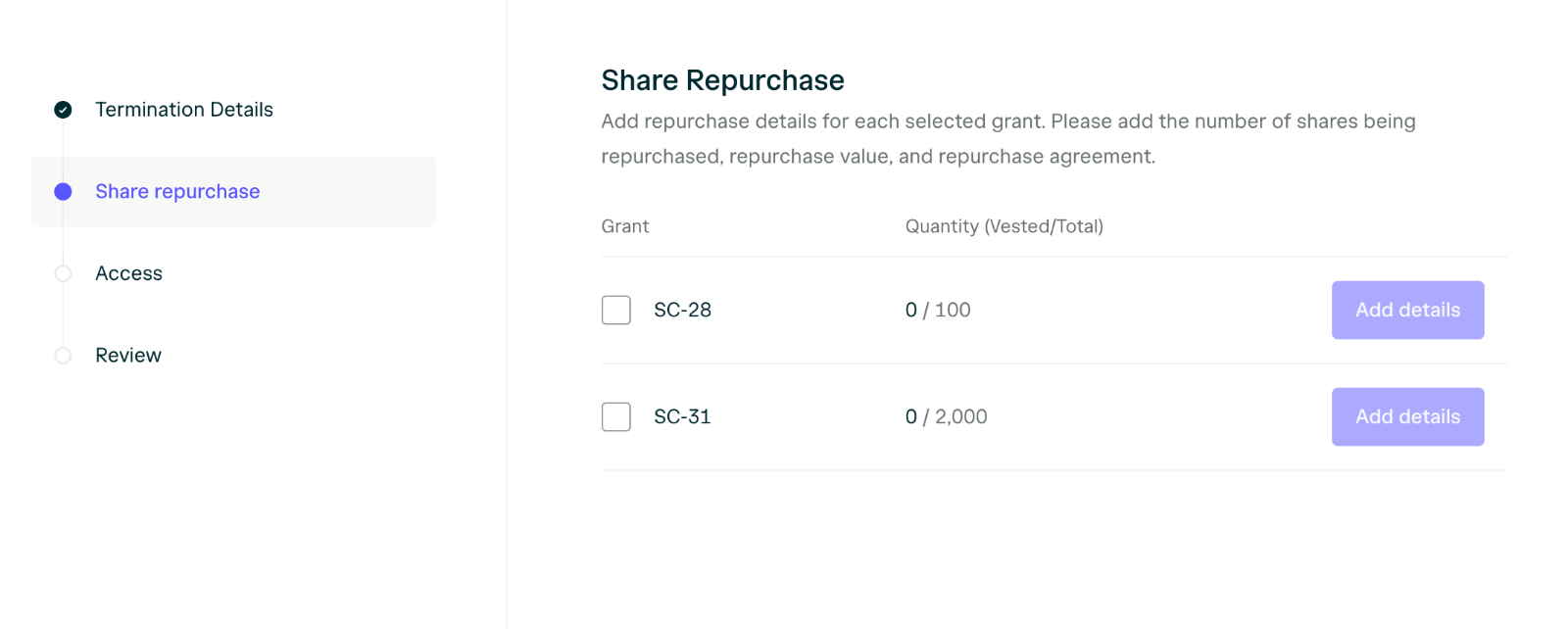
If a stakeholder has outstanding securities, you can repurchase shares during the termination workflow by selecting which shares to repurchase from the dashboard and clicking **Add Details**.
### Repurchasing Shares using Termination Workflow
If a stakeholder has outstanding securities, you can repurchase shares during the termination workflow by selecting which shares to repurchase from the dashboard and clicking **Add Details**.